
If you want to choose a laptop for programming, the spec sheet can feel like a wall of model numbers. Chip names change every year, and marketing rarely tells you what matters when you are compiling code, running containers or keeping a dozen browser tabs and an editor open all day.
This guide turns that decision into seven clear steps. You will start with the work you actually do, then match the operating system, processor, memory, storage, screen, keyboard, battery and ports to it. By the end you will have a short list of must-haves and a clear idea of where you can save.
It is written for students, career changers and working developers who want a machine that will stay useful for several years. We do not cover prices, because they change by country and by week; instead you will learn which trade-offs are worth making at any budget.
Level: Beginner · Time needed: 30 minutes
Related list: Top 10 Laptops for Programmers in 2026
What you need
- A list of the languages, frameworks and tools you use or plan to learn
- Any platform you must build for (for example iOS, Android, Windows or the web)
- Your budget ceiling and how many years you want the laptop to last
- Any requirements from your school or employer (OS, security software, VPN)
- Access to the official spec pages of the laptops you are considering

Step 1: Define your stack and operating system
Before you look at a single laptop, write down what you build. The best way to choose a laptop for programming is to let your work set the requirements, not the other way round.
- Apple platforms: If you want to build iOS, iPadOS or macOS apps, you need a Mac, because Apple’s
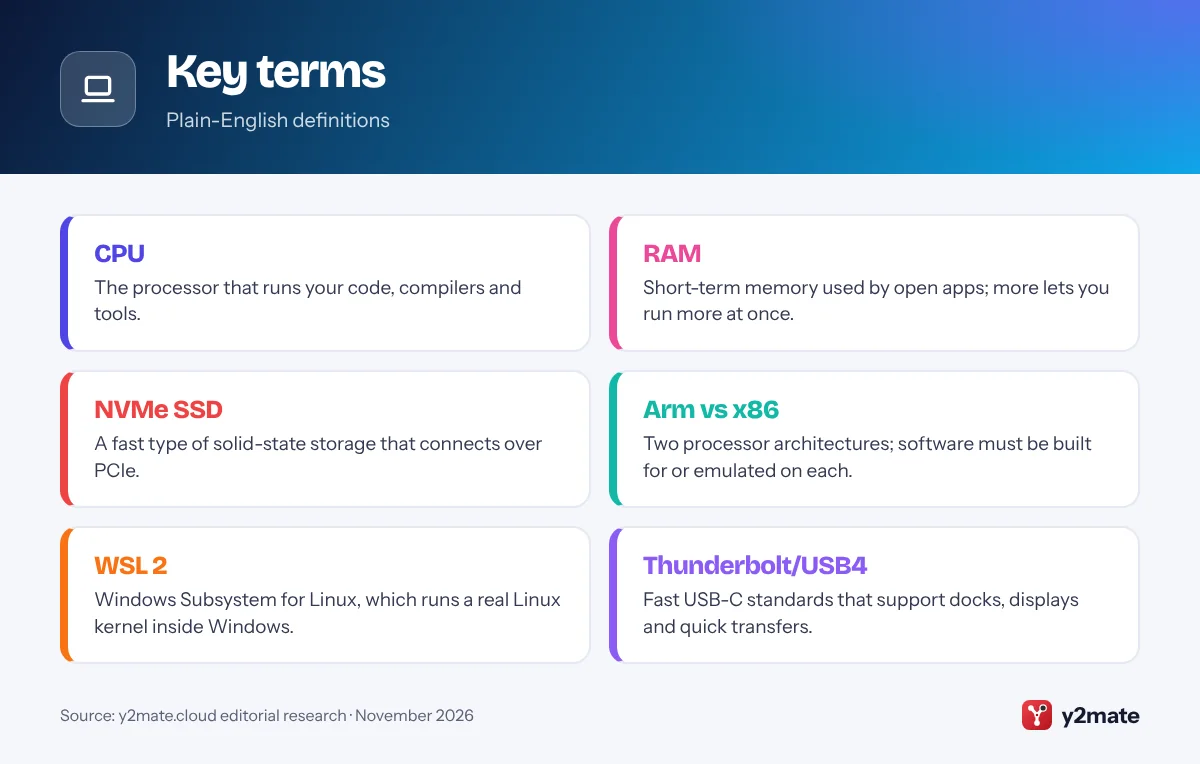
Xcodeonly runs on macOS. This one requirement decides the OS for you. - Windows apps and .NET: Windows is the natural home for Windows desktop apps and some game development tools. It also runs Linux tools through WSL 2 (Windows Subsystem for Linux).
- Web, backend, data and DevOps: All three systems work well. macOS and Linux give you a Unix-like terminal natively; Windows gets one through WSL 2.
- Linux as your main OS: Check the manufacturer’s Linux support or community reports for Wi-Fi, sleep and touchpad drivers before you buy.
Also check any rules from your employer or university. Some require a specific OS for security software or device management. Once you know your OS and your heaviest tools (Android emulator, Docker, virtual machines, game engines, local AI models), every later step gets easier.
Step 2: Pick a processor that fits your workload
The processor (CPU) affects how fast code compiles, tests run and builds finish. For most developers, strong multi-core performance matters more than the highest single number on a box.
In late 2026 you will mainly see four families:
- Apple M-series (such as the M5 generation) in MacBooks, known for performance per watt and long battery life.
- Intel Core Ultra, including the Series 3 chips (codenamed Panther Lake) launched in 2026.
- AMD Ryzen and Ryzen AI mobile chips, common in both thin laptops and performance models.
- Qualcomm Snapdragon X chips in Windows on Arm laptops.
Architecture matters as much as speed. Apple Silicon and Snapdragon are Arm chips; Intel and AMD are x86. Most popular languages, editors and runtimes now ship native Arm builds, and Windows on Arm can emulate many x86 apps. Still, check each tool you rely on, especially older SDKs, hardware drivers, VPN clients and x86-only Docker images.
Avoid the lowest-tier chips if you compile large projects. Read independent reviews that test sustained performance, because thin laptops can slow down when they get hot during long builds.
Step 3: Get enough RAM for your tools
Memory (RAM) is where many programming laptops fall short. Editors, browsers, language servers, containers and emulators all compete for it, and running out makes everything feel slow.
- 16GB: a sensible minimum for most programming in 2026, including web development, scripting and learning.
- 32GB: a better fit if you run Docker containers, virtual machines, the Android emulator, large IDEs like Android Studio or several projects at once.
- More than 32GB: worth considering for running local AI models, heavy data work or multiple VMs.
Check whether RAM can be upgraded later. On MacBooks and many thin Windows laptops, memory is soldered to the board or built into the chip package, so what you buy is what you keep. Some larger Windows laptops still have SO-DIMM or CAMM slots. The spec page or service manual will say whether memory is “soldered” or “upgradeable”.
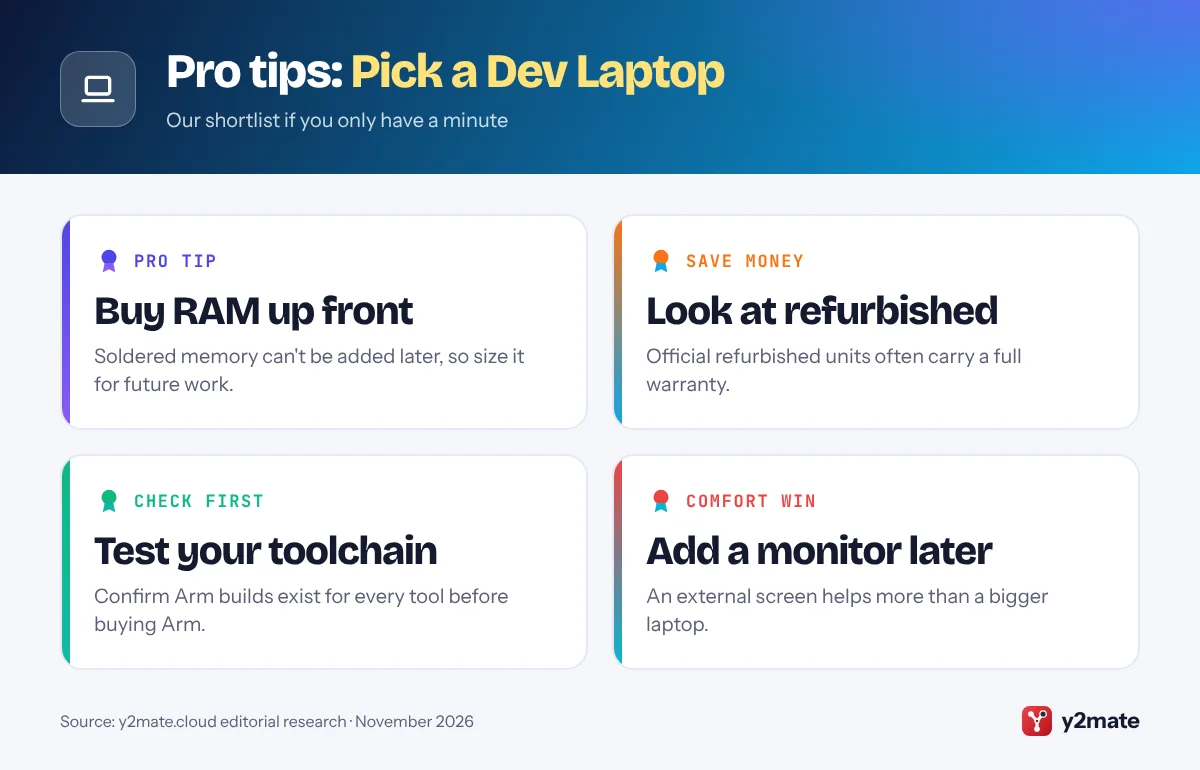
If memory cannot be upgraded, buy for the work you expect in three years, not just today. Extra RAM is usually a better long-term choice than a slightly faster processor.
Step 4: Choose fast storage with room to grow
Development files grow quickly. SDKs, toolchains, container images, package caches, emulator images and project folders can fill a small drive faster than you expect.
- Type: choose an NVMe SSD. Almost every modern laptop has one, but avoid any model with slow eMMC storage.
- Size: 512GB can work for web and scripting work. Aim for 1TB if you use Xcode, Android Studio, Docker, game engines or local AI models.
- Upgradability: many Windows laptops have a replaceable M.2 SSD, and some have a second slot. On MacBooks, internal storage cannot be upgraded after purchase.
If you cannot afford more internal storage, an external USB-C SSD is a good place for archives, old projects and media. Keep active projects and toolchains on the internal drive, which is usually faster.
Whatever size you pick, set up backups from day one. Use Git with a remote host for code, plus a system backup such as Time Machine on macOS or File History or a third-party tool on Windows.

Step 5: Check the display and keyboard
You will stare at the screen and type on the keyboard for hours, so these two parts shape your daily comfort more than any benchmark.
Display checklist:
- Resolution: aim above 1080p on screens of 14 inches or larger, so text stays crisp. Common options include 1920×1200, 2560×1600 and higher.
- Aspect ratio: 16:10 or 3:2 shows more lines of code than 16:9.
- Brightness and finish: a brighter or matte screen helps if you work near windows or outdoors.
- Size: 14 inches is a popular balance of portability and space; 16 inches suits people who rarely travel.
Keyboard checklist:
- Full-size arrow keys and easy access to Home, End, Page Up and Page Down if you use them often.
- Backlighting for late sessions.
- Comfortable key travel and a solid deck that does not flex.
- A layout that matches your language and region.
If you can, try the keyboard in a store. If you will mostly work at a desk with an external monitor and keyboard, the built-in ones matter less.
Step 6: Review battery life, ports and connectivity
Manufacturer battery claims are measured under light, controlled conditions. Real coding with builds, containers and a browser drains power faster, so look for independent reviews that test mixed workloads.
Ports to check:
- USB-C with charging: lets you use one charger for several devices. Check whether ports support USB4 or Thunderbolt for fast docks and multiple monitors.
- USB-A: handy if you use older keyboards, mice or hardware boards like Arduino.
- HDMI: useful for meeting rooms and quick monitor connections.
- SD card reader or Ethernet: only if you need them; adapters can cover the rest.
Check how many external monitors the laptop supports, as this varies by chip. The spec page usually lists it under display or graphics support.
For wireless, Wi-Fi 6E or Wi-Fi 7 gives better speeds on compatible routers, and a good webcam and microphone matter if you join many video calls. A fingerprint reader or face login is a nice convenience for unlocking many times a day.
Step 7: Balance your budget and make the call
Every budget involves trade-offs. When you choose a laptop for programming, put your money where it affects your daily work most, and save on features you will not notice.
Spend on first:
- RAM, especially if it cannot be upgraded later.
- A capable CPU from the current or previous generation.
- Enough SSD storage for your tools.
- A screen and keyboard you are comfortable with.
Safe places to save:
- A dedicated graphics card (GPU), unless you do game development, 3D work, or train or run larger AI models locally.
- Very high refresh-rate or OLED screens, which are nice but not essential for code.
- Premium finishes and thinness.
Consider previous-generation or manufacturer-refurbished models, which often give you more RAM and storage for the same budget. Check the warranty length and return policy, then compare your top two or three options side by side against the list you made in Step 1.
Mac, Windows or Linux: a quick way to decide
If you are still undecided after Step 1, use this simple rule:
- Need to ship apps for iPhone, iPad or Mac? Choose a Mac.
- Need Windows-only tools, specific engineering software or Windows game development? Choose Windows.
- Comfortable maintaining your own system and want full control? Choose a laptop with good Linux support, or install Linux alongside Windows.
- Doing web, Python, backend or cloud work? Pick the system you enjoy using. All three are capable.
Remember that cloud development environments and remote servers can take on heavy work, so a lighter laptop may be enough if your company provides them.
Do's and don'ts

Key terms
Troubleshooting
My new laptop feels slow when I run Docker or an emulator
Open Activity Monitor on macOS or Task Manager on Windows and check memory use. If memory is nearly full, lower the memory limit for Docker or WSL in their settings, close unused browser tabs, and run fewer containers at once. If RAM is upgradeable, adding more is the most effective fix.
A tool I need will not install on my Arm laptop
Check the tool’s download page for an Arm64 or Apple Silicon build. On Windows on Arm, many x64 apps run through emulation, but drivers and some low-level tools may not. Look for an alternative tool, use a cloud development environment, or run that part of your work on a remote x86 machine.
The fans get loud and builds slow down
Keep the laptop on a hard, flat surface so the vents are clear, and plug in during long builds. Check the power mode: on Windows look under Settings > System > Power & battery, and many brands also include their own performance app.
I am running out of storage
Clear old container images and build caches with your tools’ cleanup commands (for example docker system prune, after checking what it will remove), delete unused emulator images, and move archives to an external SSD.
Frequently asked questions
Is 8GB of RAM enough for programming?
It can work for learning basic languages and small scripts, but it quickly becomes limiting once you open a full IDE, a browser with documentation, and any containers or emulators. Because many laptops have memory that cannot be upgraded, 16GB is a safer minimum, and 32GB is better for Docker, virtual machines or mobile development.
Do I need a Mac to learn programming?
No. You can learn almost any language on Windows, macOS or Linux. You only need a Mac if you plan to build and publish apps for Apple platforms such as iPhone, iPad or Mac, because Apple's Xcode development tools run only on macOS. For web, Python, Java and backend work, any of the three systems is fine.
Do programmers need a dedicated graphics card?
Most do not. Web, mobile, backend and data work run well on the integrated graphics built into modern processors. A dedicated GPU is useful for game development, 3D and graphics programming, and for training or running larger AI models locally. If you are unsure, spend the money on more RAM or storage instead.
Are Windows on Arm laptops good for programming?
They can be, especially for web, Python and .NET work, and many popular tools now offer native Arm64 versions. Windows can also emulate many x64 apps. The risk is a specific tool, driver or container image that only supports x86. Check each tool you depend on before buying, or choose an Intel or AMD model if in doubt.
How long should a programming laptop last?
With enough RAM and storage at purchase, many developers use a laptop for several years. Longevity depends more on memory, storage and build quality than raw speed, since slow-downs usually come from running out of memory. Buying a bit more RAM than you need today is one of the best ways to extend a laptop's useful life.
Wrapping up
The easiest way to choose a laptop for programming is to work backwards from your tools. Decide your OS, then make sure the processor, memory and storage can comfortably handle your heaviest daily tasks, with some room for the next few years.
After that, pick the screen, keyboard, battery and ports that make long sessions comfortable, and save money on extras you will not use. Take your checklist with you when you compare models, and you will end up with a laptop that works for you rather than against you.
Sources and further reading
- Xcode system requirements: Apple's official list of the macOS versions each Xcode release needs, essential if you plan to build iPhone apps.
- Android Studio requirements: Google's install guide listing the minimum RAM, disk space, and CPU needed to run Android Studio smoothly.
- Ubuntu certified laptops: Canonical's list of laptop models tested to run Ubuntu Linux without driver problems.
- Docker Desktop: Docker's official page for Docker Desktop, the container tool that adds real memory and CPU load to a dev laptop.

Leave a Reply