
You do not need to be a security expert to protect your online accounts. Most account takeovers rely on a handful of predictable weaknesses: reused passwords, codes typed into fake login pages, outdated software and recovery options that nobody set up. Fix those, and you close the doors attackers use most.
This list ranks ten practical habits and tools by how much protection they add for the effort involved. Many are free, and several take only a few minutes to set up on your most important accounts.
It is written for everyday users who want sensible, non-alarmist steps for email, banking, shopping, work and social media accounts.
Related guide: How to set up passkeys, a step-by-step walkthrough.
How we ranked this list
We ranked each measure by how well it blocks common real-world attacks, such as credential stuffing, phishing and SIM swapping, balanced against how easy it is for a typical person to adopt. We drew on publicly documented guidance from security organizations and platform providers, official product documentation and widely reported user experience rather than hands-on lab testing.
The steps work best together. Start at the top of the list with your primary email account, because it is usually the key to resetting everything else.
The Top 10 Ways to Protect
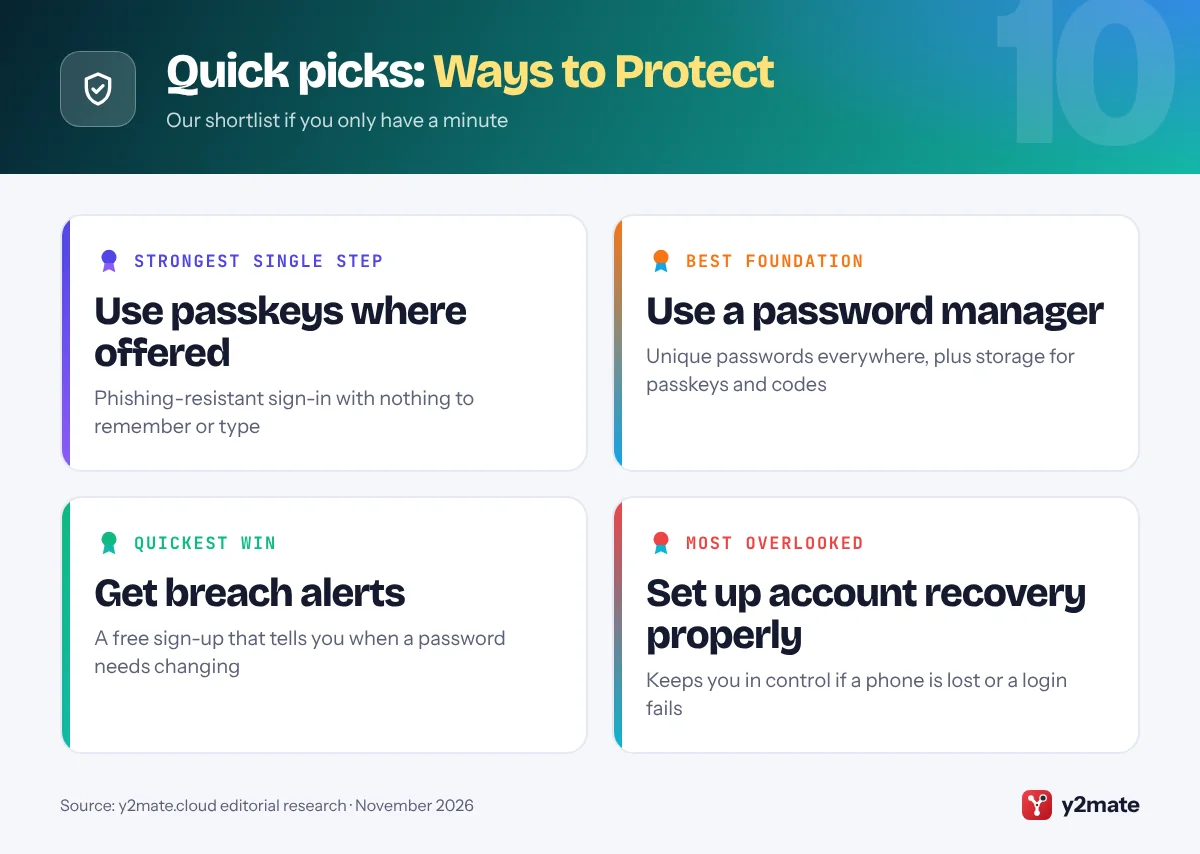
1. Use passkeys where offered
Best for: phishing-resistant sign-ins on major accounts
Passkeys replace passwords with a cryptographic key pair stored on your device or in a password manager. When you sign in, you unlock the passkey with your fingerprint, face, PIN or device screen lock. Because a passkey is tied to the real website or app it was created for, it cannot be typed into a fake login page, which makes it strongly resistant to phishing.
Passkeys are built on standards from the FIDO Alliance and W3C, and they are supported by Google, Apple and Microsoft platforms. Google offers passkeys for personal Google Accounts, and Microsoft has made passwordless sign-in the default for new personal accounts. A growing number of shopping, social, finance and developer services support them too.
Start by adding a passkey to your main email account, then look for a passkey option in the security settings of other important services. Keep at least one backup method, such as a second device or a synced passkey, so losing a phone does not lock you out.
Official site: Use passkeys where offered
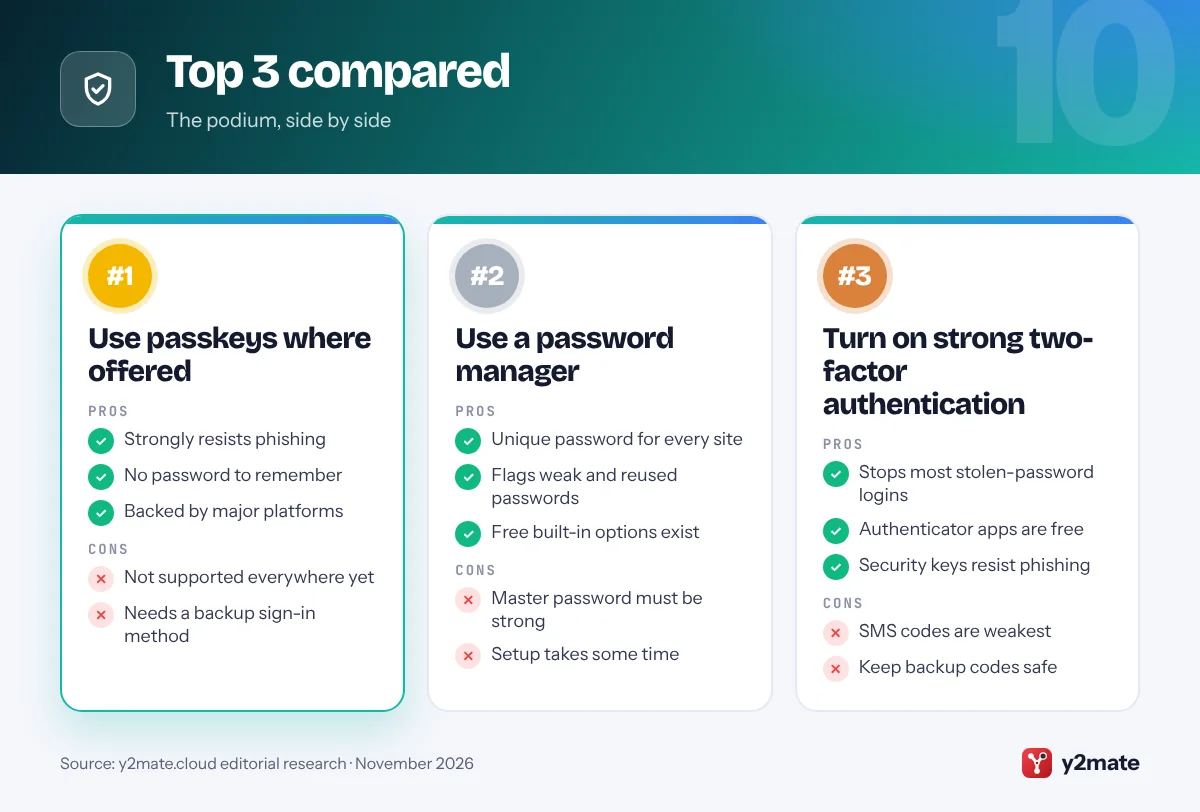
- Strongly resistant to phishing
- Nothing to remember or type
- Supported by major platforms
- Not every site supports them yet
- Cross-device setups can confuse at first
2. Use a password manager
Best for: unique, strong passwords on every account
Password reuse is one of the most common ways accounts are taken over. When one site is breached, attackers try the leaked email and password combinations on many other services, a technique known as credential stuffing. A password manager solves this by generating and remembering a long, unique password for every account.
You have good built-in options. Google Password Manager works in Chrome and on Android, Apple offers its Passwords app across iPhone, iPad and Mac, and Microsoft Edge has a built-in manager. Dedicated, cross-platform managers such as Bitwarden, 1Password, Proton Pass and others add features like secure sharing, broad browser support and passkey storage.
Protect the manager itself with a strong master password or passkey and two-factor authentication. Then work through your accounts gradually, starting with email, banking and anything storing payment details. Most managers include a security report that flags reused or weak passwords, which makes it easy to know what to fix next.
Official site: Use a password manager
- Ends password reuse
- Autofills only on matching sites
- Many free and built-in options
- Master password must be strong
- Migrating old accounts takes time
3. Turn on strong two-factor authentication
Best for: accounts that still rely on passwords
Two-factor authentication, or 2FA, adds a second check after your password, so a stolen password alone is not enough to get in. Not all methods are equally strong, so it is worth choosing carefully.
SMS codes are better than nothing, but they can be intercepted or redirected through SIM swapping. Authenticator apps, such as Google Authenticator, Microsoft Authenticator or the code generator built into many password managers, produce time-based codes on your device and are a solid upgrade. Hardware security keys, such as those made by Yubico or Google’s Titan Security Key, are among the strongest options because, like passkeys, they verify the site you are signing in to.
Prioritize 2FA on your email, password manager, bank, cloud storage and social media accounts. When you enable it, save the backup codes the service provides in your password manager or another safe place. Be wary of repeated, unexpected approval prompts on your phone: deny them and change your password, as they can be a sign someone already knows it.
Official site: Turn on strong two-factor authentication
- Blocks most stolen-password logins
- Authenticator apps are free
- Security keys resist phishing
- SMS codes are the weakest method
- Losing your device needs backup codes
4. Learn to spot phishing
Best for: stopping scams that bypass technology
Phishing tricks you into handing over a password, code or payment details by impersonating a trusted company, colleague or friend. It arrives by email, text message, social media, phone calls and even QR codes. Increasingly polished messages, sometimes written with AI tools, mean spelling mistakes are no longer a reliable giveaway.
Focus on behavior instead. Be suspicious of urgency, threats, unexpected prizes, requests for codes, and messages asking you to sign in via a link. Check the sender’s actual address and hover over or long-press links to see where they really go. When in doubt, close the message and open the official app or type the website address yourself.
Never share a one-time code with anyone who contacts you, even if they claim to be from your bank or the service itself. Legitimate companies do not need it. If you think you entered details on a fake page, change that password immediately, sign out other sessions and check your account’s recent activity.
Official site: Learn to spot phishing
- Protects against social engineering
- Free and works on every account
- Helps family and colleagues too
- Requires ongoing attention
- Convincing fakes still slip through
5. Keep software and devices updated
Best for: closing security holes attackers exploit
Software updates do much more than add features. They regularly fix security vulnerabilities, some of which are already being exploited by attackers by the time a patch arrives. An outdated browser, phone or operating system can let malicious websites or apps steal saved logins and session cookies.
Turn on automatic updates for your operating system, browser and apps wherever possible, and restart when prompted, since many updates only take effect after a restart. This applies to Windows, macOS, iOS, Android and ChromeOS, as well as routers, smart home devices and game consoles.
Pay attention to support lifecycles. Devices and operating systems eventually stop receiving security updates; Microsoft ended support for Windows 10 in October 2025, for example, with an Extended Security Updates program offered for a limited time. Check your device maker’s support policy, and plan to replace or upgrade hardware that no longer gets patches, especially phones and computers you use for banking and email.
Official site: Keep software and devices updated
- Fixes known vulnerabilities
- Mostly automatic once enabled
- Protects saved logins on devices
- Restarts can be inconvenient
- Older devices eventually lose support
6. Set up account recovery properly
Best for: getting back in if something goes wrong
Recovery settings decide how easily you, or an attacker, can reset an account. Outdated phone numbers, old email addresses and guessable security questions are common weak points. Getting this right before you need it can save days of frustration.
Review the recovery options on your most important accounts, starting with your primary email. Make sure the recovery phone number and backup email are current and belong to you. Store backup codes from 2FA setups in your password manager or a printed copy kept somewhere safe. If a service still uses security questions, treat the answers like passwords: use random answers and save them in your manager rather than real facts someone could look up.
Some platforms offer extra options worth exploring. Apple lets you add a recovery contact or recovery key, and Google and Microsoft provide security checkups that walk you through recovery settings. Many services also let you name a legacy or inactive account contact, so someone you trust can access important data if needed.
- Prevents permanent lockouts
- Closes reset loopholes
- Quick to review once a year
- Easy to forget until needed
- Options differ between services
7. Get breach alerts
Best for: knowing when to change a password fast
Data breaches happen at companies of every size, and your email address has probably appeared in at least one over the years. You cannot prevent other organizations from being breached, but you can find out quickly and react before leaked details are misused.
Have I Been Pwned, run by security researcher Troy Hunt, lets you search for your email address in known breaches and sign up for free notifications when it appears in new ones. Many password managers, including Google Password Manager and Apple Passwords, also warn you when a saved password shows up in a known leak, and several browsers and email providers offer similar alerts.
When you receive an alert, change the password for that service and anywhere you reused it, enable 2FA if you have not already, and watch for targeted phishing that uses the leaked details. Breach alerts are calm, useful information rather than a reason to panic: they simply tell you where to act first.
Official site: Get breach alerts
- Free early warning of leaks
- Built into many password managers
- Shows exactly which accounts to fix
- Only covers known, reported breaches
- Alerts arrive after the breach
8. Use email aliases
Best for: limiting spam and targeted phishing
Using the same email address everywhere makes it easy to link your accounts together and to target you with convincing phishing after a breach. Email aliases give each service its own forwarding address, so your real inbox stays private and you can switch off any alias that starts receiving spam.
Several services make this simple. Apple’s Hide My Email is included with iCloud+ and works with Sign in with Apple. Firefox Relay from Mozilla, SimpleLogin from Proton, and DuckDuckGo Email Protection also create forwarding aliases, and some password managers can generate aliases while you sign up. Most offer a free tier with some limits.
You do not need aliases for everything. They are most useful for shopping sites, newsletters, forums and one-off sign-ups. Keep your main address for banks, government services and close contacts. Aliases also reveal which company leaked or sold your address, because a scam email arriving at a unique alias points straight to its source.
- Keeps your real address private
- Easy to disable spammy aliases
- Reveals who leaked your email
- Adds some management overhead
- Free tiers may limit alias count
9. Review app permissions and connected apps
Best for: cutting off forgotten access
Over time, many of us grant access to apps, browser extensions and services we no longer use. Third-party apps connected through Sign in with Google, Apple or Facebook, or granted access to your email, calendar or cloud storage, can become a weak point if they are abandoned or compromised.
Every few months, open the security or privacy section of your main accounts and review the list of connected apps and active sessions. Google, Microsoft, Apple, Meta and most major platforms provide pages that show which apps have access and which devices are signed in. Remove anything you do not recognize or no longer use, and sign out old devices.
Do the same on your phone. Both iOS and Android let you review which apps can access your location, contacts, photos, microphone and camera, and both show privacy indicators when the camera or microphone is in use. Browser extensions deserve special attention, since some can read data on the websites you visit. Keep only those you actively need.
- Removes forgotten access points
- Reveals unknown signed-in devices
- Improves privacy as well
- Needs repeating periodically
- Settings are spread across services
10. Back up your important data
Best for: recovering from ransomware or lockouts
Backups do not stop someone from breaking into an account, but they limit the damage if it happens. Losing access to an email or cloud account, a ransomware infection or a stolen phone can mean losing photos, documents and messages that cannot be replaced.
A widely recommended approach is the 3-2-1 rule: keep three copies of important data, on two different types of storage, with one copy stored off-site or in the cloud. In practice, that might mean your device, an external drive and a cloud backup service. Turn on built-in tools such as iCloud Backup, Android’s built-in Google backup, File History or OneDrive on Windows, or Time Machine on Mac.
Consider exporting data from accounts you rely on, using tools like Google Takeout, so you are not dependent on a single login. Disconnect external backup drives when you are not using them, so ransomware cannot reach them, and test a restore occasionally to make sure your backups actually work.
- Limits damage from any incident
- Protects against ransomware
- Built-in tools on every platform
- Does not prevent account takeover
- Needs occasional restore tests
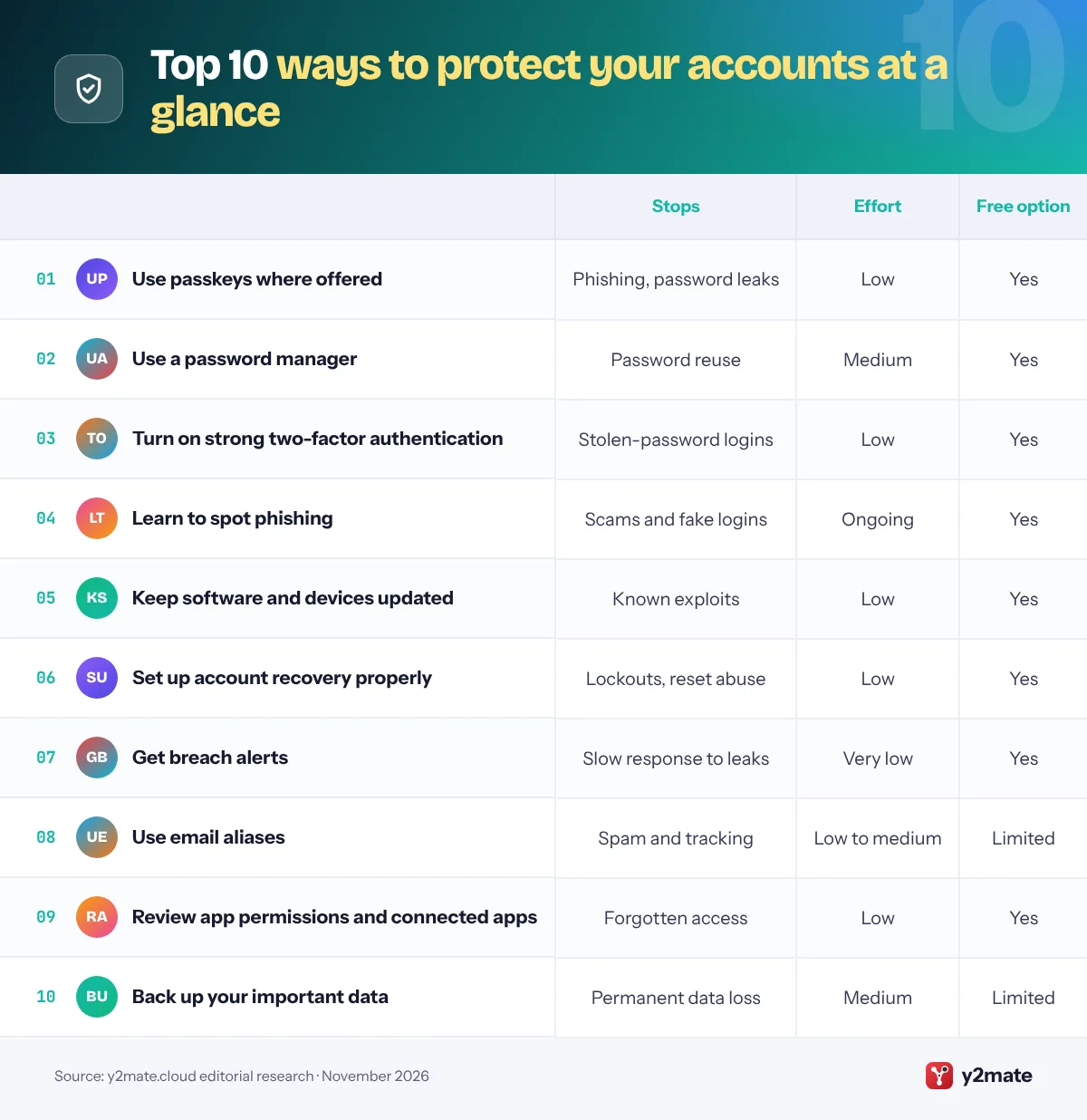
What each step protects
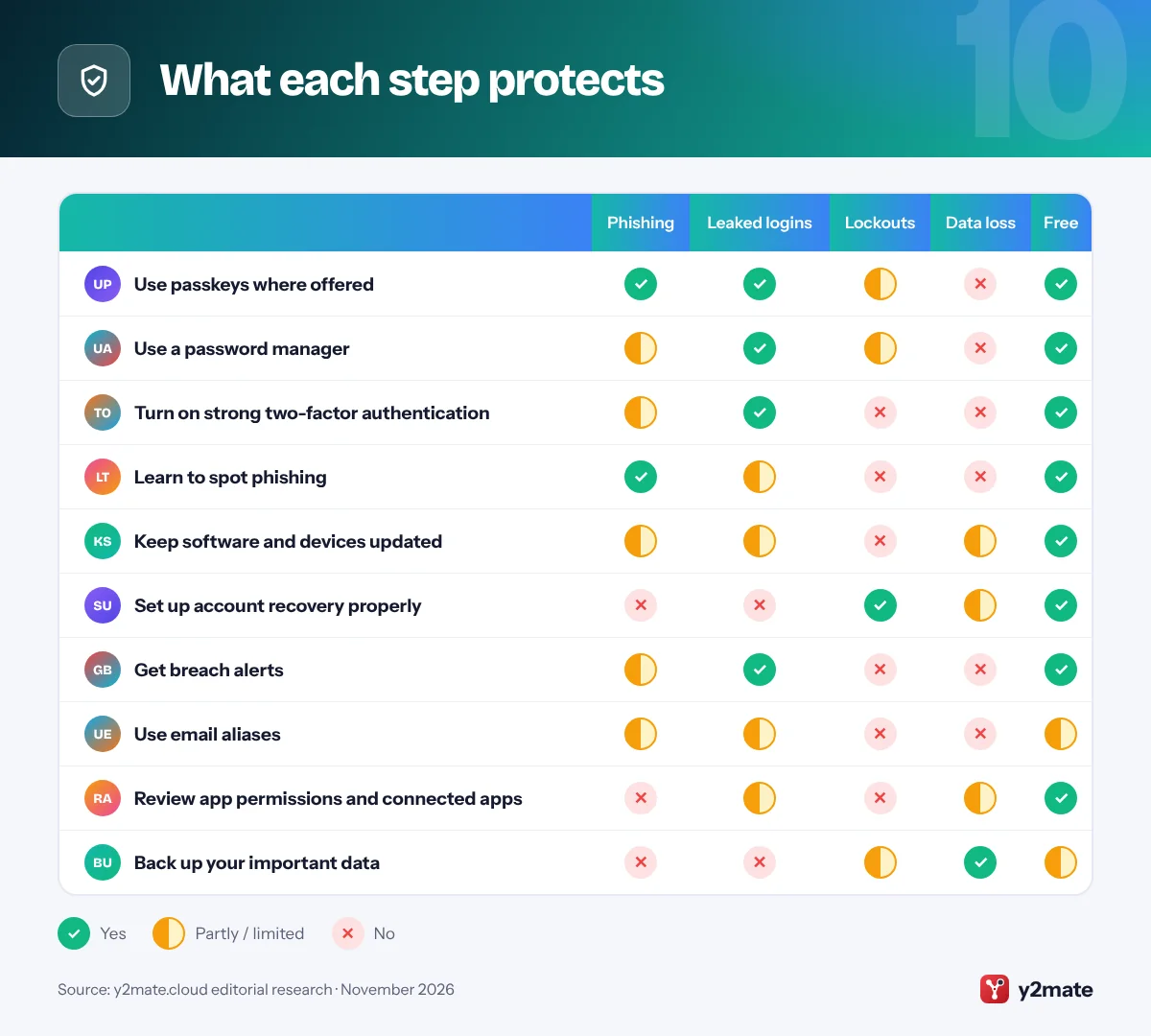
How to protect your online accounts without the overwhelm
Security advice can feel endless, but you do not need to do everything at once. Prioritize by impact, and work through one account at a time.
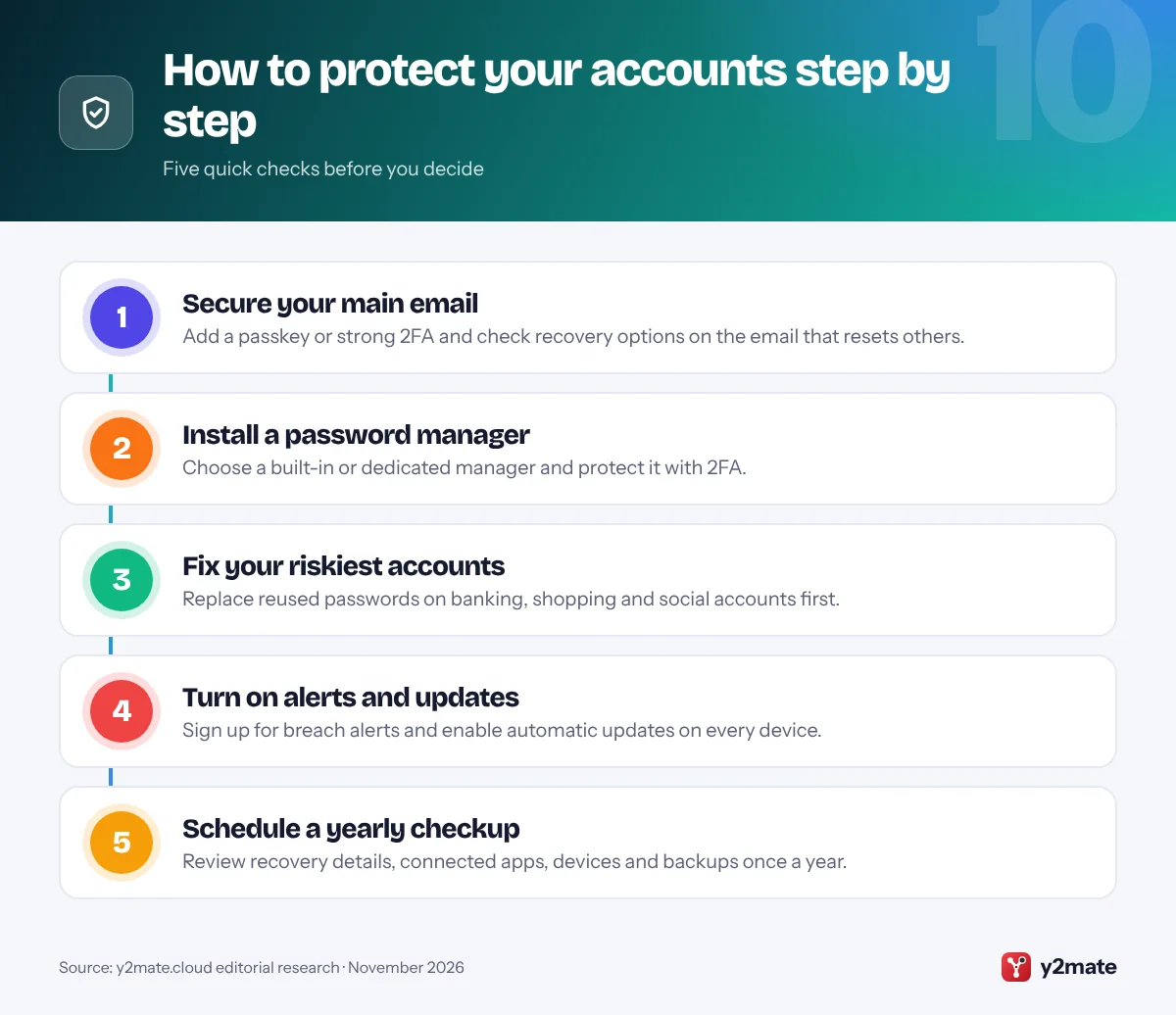
Start with the accounts that unlock others
Your primary email account can reset most other passwords, so secure it first. Your phone’s account (Apple Account or Google Account) and your password manager come next, followed by banking, payment and work accounts.
Choosing tools
- Password manager: the one built into your phone or browser is fine if you stay in one ecosystem. Choose a cross-platform manager if you mix Windows, Android, iPhone or Mac.
- Second factor: prefer passkeys or a security key, then an authenticator app. Use SMS only when nothing else is offered.
- Aliases and backups: start with the free tiers and upgrade only if you hit limits.
Habits that matter
Treat unexpected messages asking you to sign in, pay or share a code with suspicion, and go to the official app or website instead. Keep automatic updates switched on. Once a year, review recovery details, connected apps, signed-in devices and backups.
Finally, help the people around you. Family members often share devices, accounts or recovery details, so their security affects yours.
Frequently asked questions
What is the most effective way to protect online accounts?
Using passkeys where available, or a unique password from a password manager combined with strong two-factor authentication, blocks the most common attacks. Securing your primary email account first is especially important, because it can usually be used to reset the passwords for most of your other online accounts, including banking and social media.
Are passkeys safer than passwords?
In most cases, yes. A passkey is tied to the specific website or app it was created for, so it cannot be typed into a fake page, and there is no reusable secret for a data breach to leak. You unlock it with your device's fingerprint, face recognition, PIN or screen lock.
Is SMS two-factor authentication safe enough?
SMS codes are much better than having no second factor, but they are the weakest common option. Text messages can be intercepted, and attackers sometimes trick mobile carriers into moving a number to a new SIM card. An authenticator app, security key or passkey offers stronger protection whenever a service supports them.
How do I know if my password was leaked?
Search your email address on Have I Been Pwned and sign up for its free breach notifications. Many password managers, including Google Password Manager and Apple Passwords, also check saved passwords against known leaks and warn you. If a password appears in a breach, change it wherever you used it and enable two-factor authentication.
Are built-in browser password managers safe to use?
Built-in managers from Google, Apple and Microsoft are generally considered a reasonable choice, especially compared with reusing passwords. They generate strong passwords and can warn about leaks. Protect the underlying account with two-factor authentication and a device screen lock. A dedicated manager may suit you better if you use several platforms or want sharing features.
Final verdict
The best way to protect your online accounts is to combine a few strong defaults: passkeys where offered, a password manager for everything else, and phishing-resistant two-factor authentication. Add sensible habits around phishing and updates, and you will be ahead of most attacks.
Then spend an hour on the supporting steps: recovery details, breach alerts, email aliases, connected apps and backups. Start with your main email account today, and work through the rest at your own pace.
Sources and further reading
- multi-factor authentication basics: NIST explains what multi-factor authentication is and why adding a second factor makes stolen passwords far less useful.
- NIST guidance on phishing: NIST's plain-language overview of how phishing works and practical steps to avoid falling for it.
- how passkeys work: The FIDO Alliance, which created the passkey standard, explains how passkeys replace passwords and resist phishing.
- security of passkeys: Apple describes how passkeys are protected with end-to-end encryption and synced securely across your devices.

Leave a Reply