
Choosing the right PC gaming upgrades is less about buying the newest part and more about fixing whatever is holding your system back. A powerful graphics card paired with an old 60Hz monitor, or a fast processor starved by a single stick of memory, leaves performance on the table.
This list ranks ten common upgrades by how much they typically change the way games look, feel and respond. It covers the core components inside the case, the screen you look at, and the peripherals you touch every session.
It is written for anyone with an existing gaming PC who wants the biggest improvement for their effort, whether you play competitive shooters, open-world adventures or simulation games.
How we ranked this list
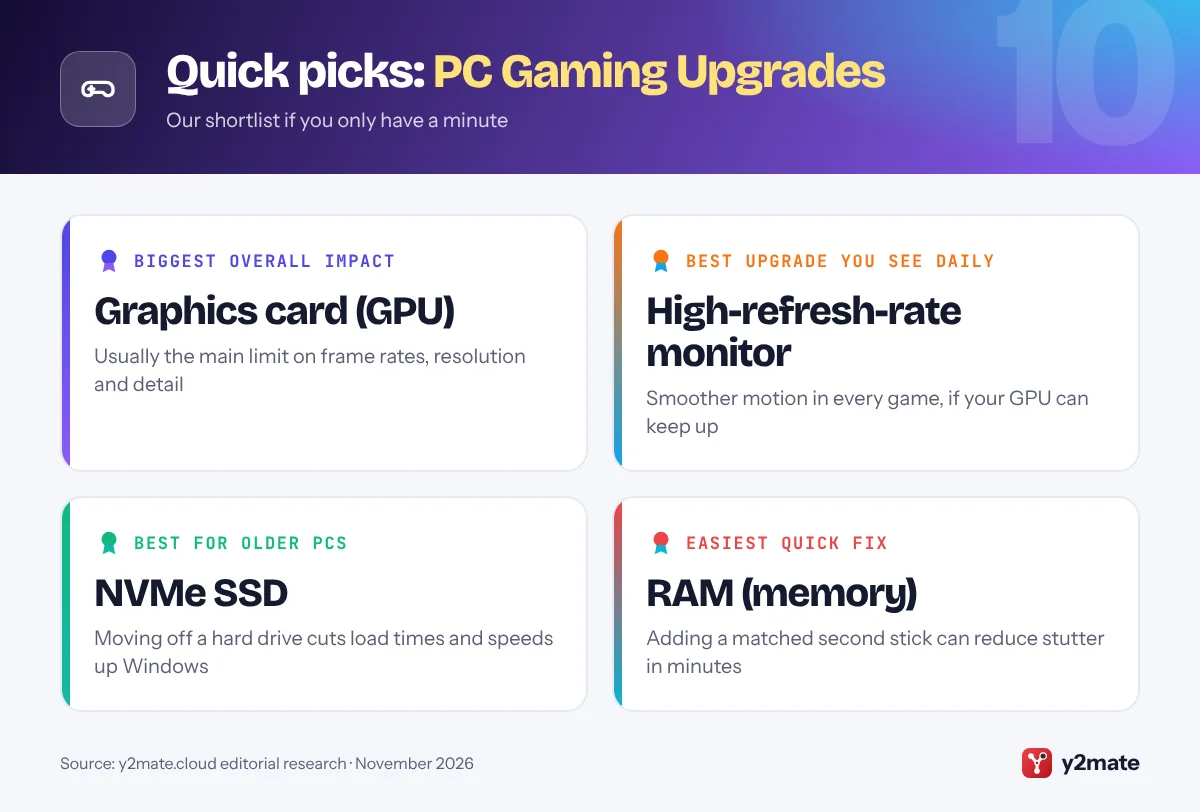
We ranked each upgrade by its typical effect on frame rates, smoothness, load times and comfort, weighed against how often it is the real bottleneck in a typical gaming PC. We compared publicly documented specifications, manufacturer guidance and widely reported user feedback rather than running our own lab benchmarks.
Your own order may differ. A PC with a recent graphics card but a hard drive will benefit more from an SSD than from anything else, so treat this ranking as a starting point and check your bottleneck first.
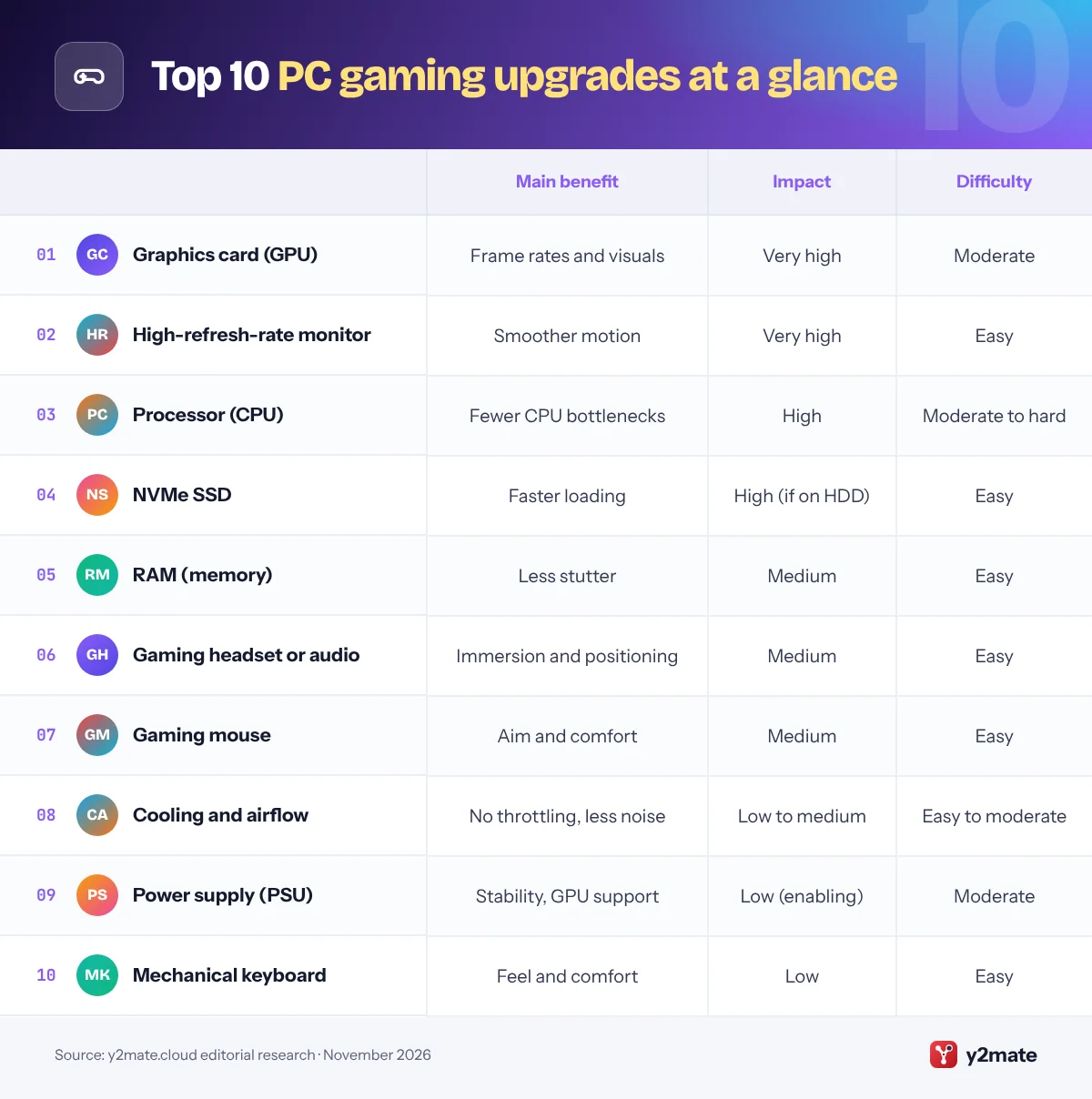
The Top 10 PC Gaming Upgrades
1. Graphics card (GPU)
Best for: higher frame rates, resolution and detail
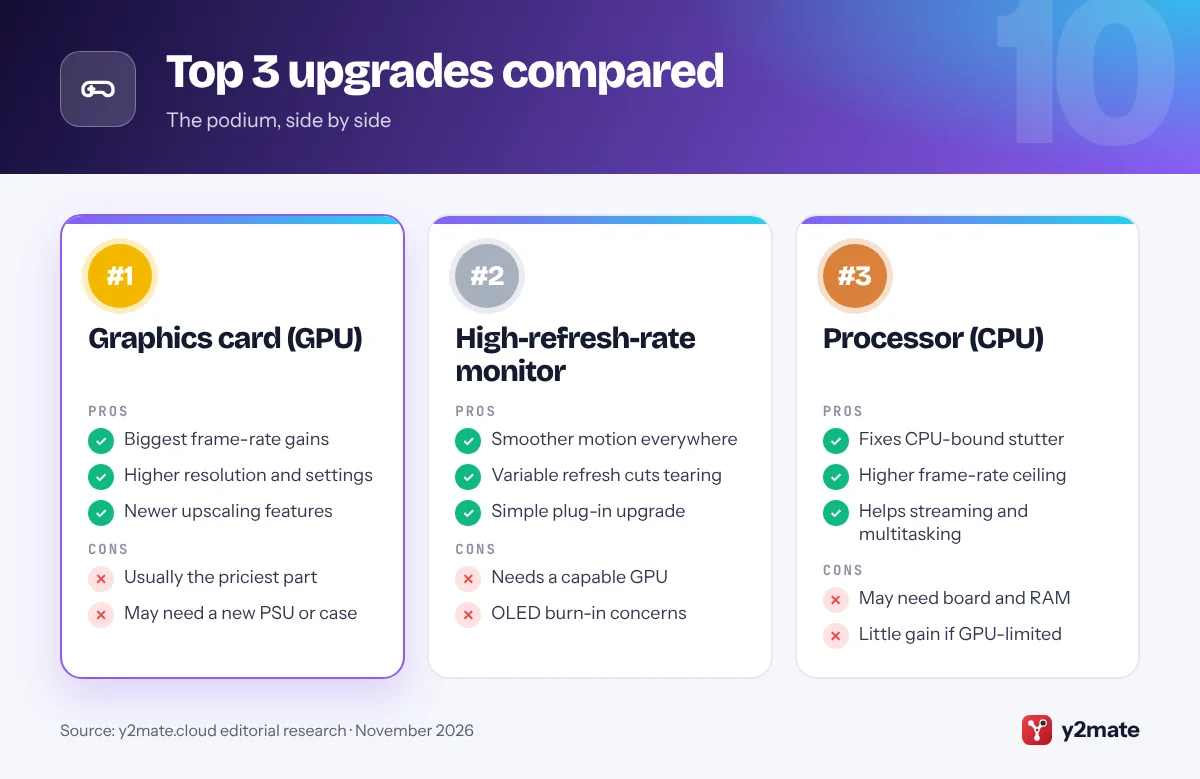
In most games the graphics card does the heaviest lifting, so it is usually the single upgrade with the biggest visible payoff. A newer GPU can let you raise resolution, turn on demanding effects such as ray tracing, and push frame rates high enough to make a high-refresh monitor worthwhile.
Modern cards also bring upscaling and frame generation features, such as NVIDIA DLSS, AMD FSR and Intel XeSS, which can lift performance in supported games. Video memory matters too: newer titles with high-resolution textures can run out of VRAM on older cards, causing stutter even when the average frame rate looks fine.
Before buying, check three things. First, make sure your power supply has enough capacity and the right connectors. Second, measure your case, because many current cards are long and thick. Third, consider your processor: a very old CPU can hold back a new GPU, especially at 1080p. If your GPU usage sits near its maximum while gaming, the graphics card is likely your bottleneck and this upgrade should come first.
Official site: Graphics card (GPU)
- Largest effect on frame rates and visuals
- Unlocks higher resolutions and settings
- Access to newer upscaling features
- Often the most expensive component
- May require a new PSU or larger case
2. High-refresh-rate monitor
Best for: smoother motion and competitive play
A monitor upgrade changes every second you spend in front of your PC. Moving from a 60Hz screen to a high-refresh panel, commonly 144Hz, 165Hz or 240Hz, makes motion look noticeably smoother and can make aiming and tracking feel more responsive, provided your PC can produce enough frames to use it.
Variable refresh rate support, sold as AMD FreeSync and NVIDIA G-Sync or G-Sync Compatible, is worth prioritizing. It lets the display match the frame rate your GPU delivers, reducing tearing and stutter without the input lag of traditional V-Sync.
Resolution and panel type matter as well. 1440p has become a popular middle ground for gaming, offering sharper images than 1080p without the heavy GPU demands of 4K. IPS panels are known for good color and viewing angles, VA panels for contrast, and OLED panels for deep blacks and very fast pixel response. Match the monitor to your graphics card: a high-refresh 4K display needs a powerful GPU to show its benefits.
Official site: High-refresh-rate monitor
- Visibly smoother motion in every game
- Variable refresh reduces tearing
- Improves desktop use too
- Needs a capable GPU to use fully
- OLED models can raise burn-in concerns
3. Processor (CPU)
Best for: CPU-heavy games and high frame rates
The processor handles game logic, physics, AI and the instructions that feed your graphics card. In strategy games, large multiplayer matches, simulators and competitive titles played at very high frame rates, the CPU is often what limits performance. An aging chip can also cause uneven frame times, which feel like stutter even when averages look acceptable.
CPU upgrades are trickier than most because of platform compatibility. A new processor may need a different motherboard socket, a BIOS update, or a different memory type, since recent AMD AM5 and many recent Intel platforms use DDR5. That can turn a simple swap into a motherboard, CPU and RAM upgrade together.
Gaming-focused chips with large caches, such as AMD’s X3D models, are widely reported to perform especially well in games. To judge whether you need a new CPU, watch usage while playing: if your GPU sits well below full load and one or more CPU threads are maxed out, the processor is likely the bottleneck.
Official site: Processor (CPU)
- Fixes stutter in CPU-bound games
- Raises frame-rate ceiling for fast screens
- Helps streaming and multitasking
- May require new motherboard and RAM
- Small gains if the GPU is the limit
4. NVMe SSD
Best for: faster loading and a snappier system
If your games still live on a hard drive, an SSD is one of the most noticeable upgrades you can make. Load screens shrink, open-world games stream assets more smoothly, and Windows boots and responds faster. Some modern games now list an SSD in their system requirements.
NVMe drives plug into an M.2 slot on the motherboard and connect over PCIe, which makes them much faster than older SATA SSDs on paper. In practice, the jump from a hard drive to any SSD is far bigger than the jump between SSD types, so a SATA SSD is still a fine choice for older PCs without M.2 slots.
Capacity matters more than you might expect, because many modern games take up a lot of space and updates keep growing. Check how many M.2 slots your motherboard has and which PCIe generation they support. Microsoft’s DirectStorage technology aims to make better use of fast NVMe storage on Windows, though support depends on individual games.
Official site: NVMe SSD
- Dramatically shorter load times vs HDD
- Easy install on most modern boards
- Makes the whole PC feel faster
- Does not raise frame rates much
- Small gains if you already use an SSD
5. RAM (memory)
Best for: fixing stutter and running dual channel
Memory rarely boosts frame rates on its own, but too little RAM, or RAM set up badly, can cause hitching, long load times and slowdowns when you alt-tab to a browser or voice chat. 16GB is widely treated as a common baseline for gaming, and 32GB has become a popular choice for players who stream, mod games or keep many apps open.
Configuration matters as much as capacity. Two matched sticks running in dual-channel mode generally perform better than a single stick of the same total size. It is also worth checking that your memory is running at its rated speed: many kits need XMP (Intel) or EXPO (AMD) enabled in the BIOS, otherwise they default to slower settings.
Before buying, confirm whether your motherboard takes DDR4 or DDR5, as they are not interchangeable, and check the motherboard’s supported memory list if you want to avoid compatibility headaches. Mixing different kits can work, but a matched kit is the safer option.
Official site: RAM (memory)
- Reduces stutter when memory runs low
- Simple, tool-free install
- Helps multitasking while gaming
- Little gain if you already have enough
- DDR4 and DDR5 are not interchangeable
6. Gaming headset or audio
Best for: immersion and hearing enemy footsteps
Audio is easy to overlook, yet it shapes immersion as much as visuals do. A good headset or pair of headphones makes soundtracks, environments and dialogue clearer, and in competitive games it helps you locate footsteps and gunfire more precisely.
You have several routes. Dedicated gaming headsets combine headphones and a microphone in one package, with wired, 2.4GHz wireless or Bluetooth options. Wired or low-latency wireless connections are preferable for gaming, as standard Bluetooth can add noticeable delay. Many players instead pair a set of quality stereo headphones with a separate USB or clip-on microphone, which can sound better for music and voice.
Spatial audio features, such as Windows Sonic, Dolby Atmos for Headphones and DTS Headphone:X, can improve positional cues in supported games. Comfort is critical for long sessions, so look at weight, clamping force and ear pad material. Open-back headphones sound more spacious but leak sound, while closed-back designs block out more of the room.
- Better immersion in every game
- Clearer positional cues
- Improves voice chat quality
- Comfort varies a lot between heads
- Bluetooth models can add latency
7. Gaming mouse
Best for: precise aim and long-session comfort
Your mouse is the main way you interact with most PC games, so a well-fitting, accurate one makes a real difference in shooters, strategy games and action RPGs. Modern gaming mice use precise optical sensors, and many offer adjustable sensitivity, on-board memory for settings and programmable buttons.
Shape and weight are the most important factors, and they are personal. Consider your hand size and grip style, whether palm, claw or fingertip, and whether you want a symmetrical or ergonomic shape. Lightweight mice have become popular with competitive players because they are easier to move quickly and stop accurately.
Wireless gaming mice using dedicated 2.4GHz receivers are now widely regarded as responsive enough for competitive play, removing cable drag. Higher polling rates are increasingly common on premium models, though the benefit is subtle and may increase CPU and battery usage. A large, consistent mouse pad is an inexpensive companion upgrade that can improve control just as much.
- More consistent, comfortable aiming
- Programmable buttons for MMOs and MOBAs
- Wireless options without cable drag
- Fit is personal and hard to judge online
- Won't improve frame rates
8. Cooling and airflow
Best for: hot, loud or throttling PCs
Cooling does not add performance directly, but it protects the performance you already have. When a CPU or GPU gets too hot, it reduces its clock speeds to stay safe, a behavior known as thermal throttling. Better cooling can also make your PC noticeably quieter, since fans no longer need to spin as fast.
Start with the basics before buying anything. Clean dust from filters, fans and heatsinks, and check that case fans are arranged for a sensible front-to-back or bottom-to-top airflow path. Adding or repositioning a couple of case fans is often enough to lower temperatures.
If your CPU still runs hot, an aftermarket tower air cooler or an all-in-one liquid cooler can help, especially if you are using a basic stock cooler. Check cooler height against your case and socket compatibility before ordering, and replace thermal paste when installing. Monitoring tools that show temperatures and clock speeds while gaming will tell you whether throttling is actually happening.
- Prevents thermal throttling
- Can make the PC much quieter
- Helps components last longer
- No gain if temperatures are fine
- Check clearance and socket fit
9. Power supply (PSU)
Best for: enabling a new GPU and stability
A power supply will never raise your frame rate, but a weak or failing one can cause crashes, random shutdowns and instability under load. More importantly, it is often the upgrade that makes a new graphics card possible, which is why it belongs on this list.
When upgrading, check the GPU maker’s recommended PSU wattage and add sensible headroom for your CPU and future parts. Look at connectors too: many recent NVIDIA cards use the 12V-2×6 connector (an update to 12VHPWR), and newer ATX 3.0 and ATX 3.1 power supplies include it natively, avoiding bulky adapters.
Choose a unit from a reputable brand with an 80 Plus efficiency rating and a solid warranty, and favor independent technical reviews over marketing claims. Modular or semi-modular cables make installation tidier and can improve airflow. Replacing a PSU means rewiring most of the PC, so it takes more time than many upgrades, but it is straightforward if you take photos before unplugging anything.
Official site: Power supply (PSU)
- Enables more powerful graphics cards
- Improves stability under heavy load
- Modern units include new GPU connectors
- No direct performance gain
- Rewiring takes time and care
10. Mechanical keyboard
Best for: comfort, feel and customization
A mechanical keyboard will not transform performance, but it can make everyday gaming and typing more comfortable and enjoyable. Individual switches give consistent feel and feedback, and they are generally more durable than the membrane keyboards bundled with many prebuilt PCs.
Switch types fall into three broad groups: linear switches move smoothly and are popular for gaming, tactile switches have a bump you can feel, and clicky switches add an audible click. Many keyboards are now hot-swappable, letting you change switches without soldering. Some recent gaming keyboards use magnetic Hall effect switches, which allow an adjustable actuation point and features such as rapid trigger that many competitive players like.
Consider the layout as well. Tenkeyless and compact 75 percent or 65 percent boards free up desk space for wider mouse movements, which is useful if you play at low sensitivity. Wired or 2.4GHz wireless connections are best for gaming, and a wrist rest can help comfort over long sessions.
- Consistent, satisfying key feel
- Durable and highly customizable
- Compact layouts free up mouse space
- Smallest effect on gameplay
- Clicky switches can be loud
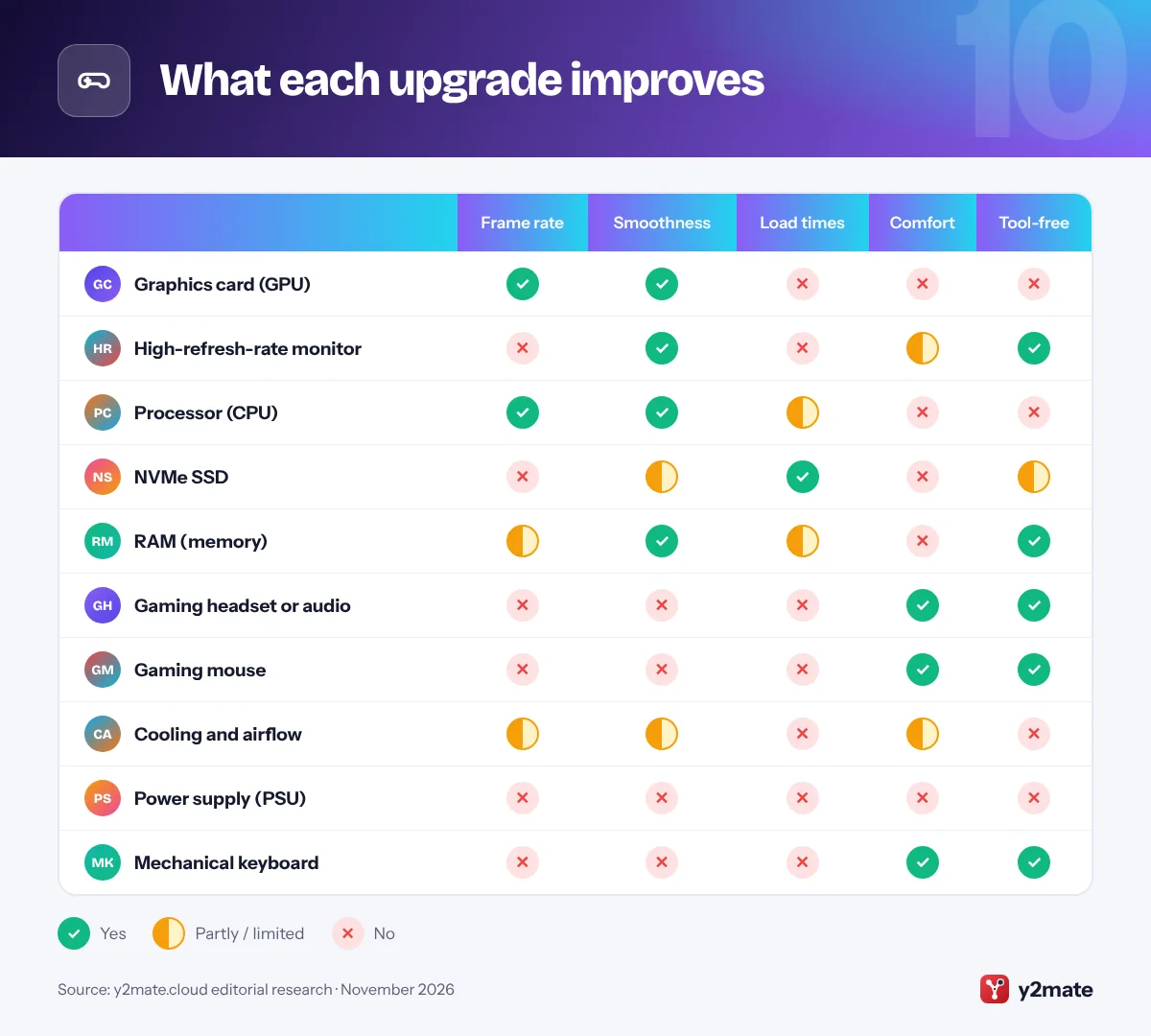
What each upgrade improves
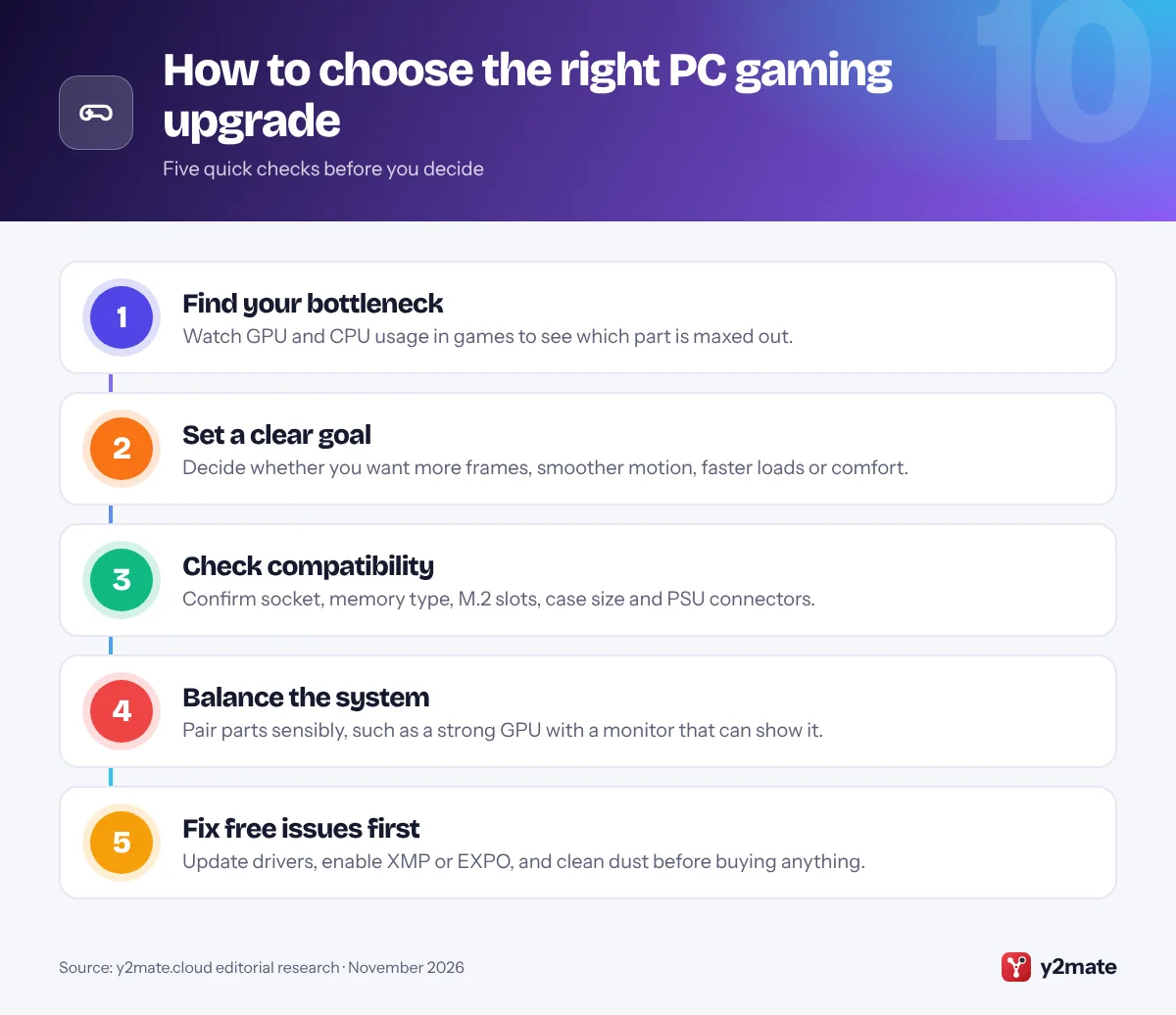
How to plan your PC gaming upgrades
The smartest PC gaming upgrades start with a diagnosis. Open a performance overlay, such as the one in your GPU driver software or the Windows Game Bar, and watch usage while you play the games you care about.
Reading the signs
- GPU near full load: your graphics card is the limit. A new GPU, or lower settings, will help most.
- GPU well below full load, CPU threads maxed: your processor is holding things back, common at 1080p and in strategy or simulation games.
- Long loads and texture pop-in: check whether games are installed on a hard drive.
- Stutter when alt-tabbing: you may be short on RAM or running a single stick.
Try the free fixes first
Update your graphics driver, enable XMP or EXPO for your memory, make sure your monitor is actually set to its highest refresh rate in Windows, and clean out dust. These steps cost nothing and sometimes solve the problem entirely.
Plan the knock-on costs
Upgrades often come in pairs. A new GPU may need a bigger power supply or case, and a new CPU may need a new motherboard and DDR5 memory. Add these to your plan before you buy, so a single upgrade does not stall halfway.
Finally, keep the whole system balanced. A high-refresh monitor needs a GPU that can deliver the frames, and a powerful GPU needs a CPU fast enough to feed it.
Frequently asked questions
What is the best upgrade for gaming performance?
For most gaming PCs, the graphics card has the biggest effect on frame rates, resolution and visual settings. However, if your PC still uses a hard drive, has only 8GB of RAM, or pairs a modern GPU with a very old processor, fixing that weaker part first may deliver a bigger improvement for less effort.
How do I know if my CPU is bottlenecking my GPU?
Use a performance overlay while gaming. If your GPU usage stays well below its maximum while one or more CPU threads are fully loaded, the processor is likely limiting performance. CPU bottlenecks are more common at lower resolutions like 1080p, in strategy and simulation games, and when chasing very high frame rates.
Is 16GB of RAM enough for gaming?
16GB is widely considered a common baseline for gaming and works well for many current titles, especially in a dual-channel configuration with two matched sticks. If you stream, use mods, keep many browser tabs open, or play memory-hungry simulation games, 32GB gives more headroom and has become a popular choice for new builds.
Does an SSD increase FPS in games?
An SSD generally does not raise average frame rates, because those depend mostly on the GPU and CPU. It does dramatically shorten loading times compared with a hard drive, and it can reduce stutter and texture pop-in in open-world games that stream data constantly. Some newer games list an SSD in their requirements.
Is a 144Hz monitor worth it for gaming?
For many players, yes. A 144Hz or faster monitor makes motion look smoother and can make games feel more responsive than a 60Hz screen. The benefit depends on your PC producing high enough frame rates, so check that your graphics card can run your favorite games well above 60 frames per second first.
Final verdict
If you want one upgrade that changes the most, start with the graphics card, then make sure your monitor can display the extra frames it produces. For older systems, an NVMe SSD and a proper dual-channel RAM setup are often the best value improvements, and a CPU upgrade makes sense when usage monitoring shows it is clearly the limit.
Peripherals, cooling and power supply upgrades are worth doing when they solve a specific problem, such as discomfort, throttling or making room for a new GPU. Diagnose first, fix the free issues, and spend where it actually matters.
Sources and further reading
- check your PC specs: Microsoft's guide to finding your current CPU, RAM, and other hardware details in Windows before you buy upgrades.
- gaming on Windows 11: Microsoft's overview of Windows 11 gaming features such as DirectStorage, which needs an NVMe SSD for faster game loading.
- Auto HDR for gaming: Microsoft's instructions for turning on Auto HDR in Windows, which requires an HDR-capable monitor.
- change your refresh rate: Microsoft's steps for setting a new monitor to its full refresh rate in Windows so you actually get the smoother motion you paid for.
- JEDEC main memory standards: JEDEC's overview of the DDR4 and DDR5 memory standards that define the speeds and module types used in gaming PCs.

Leave a Reply