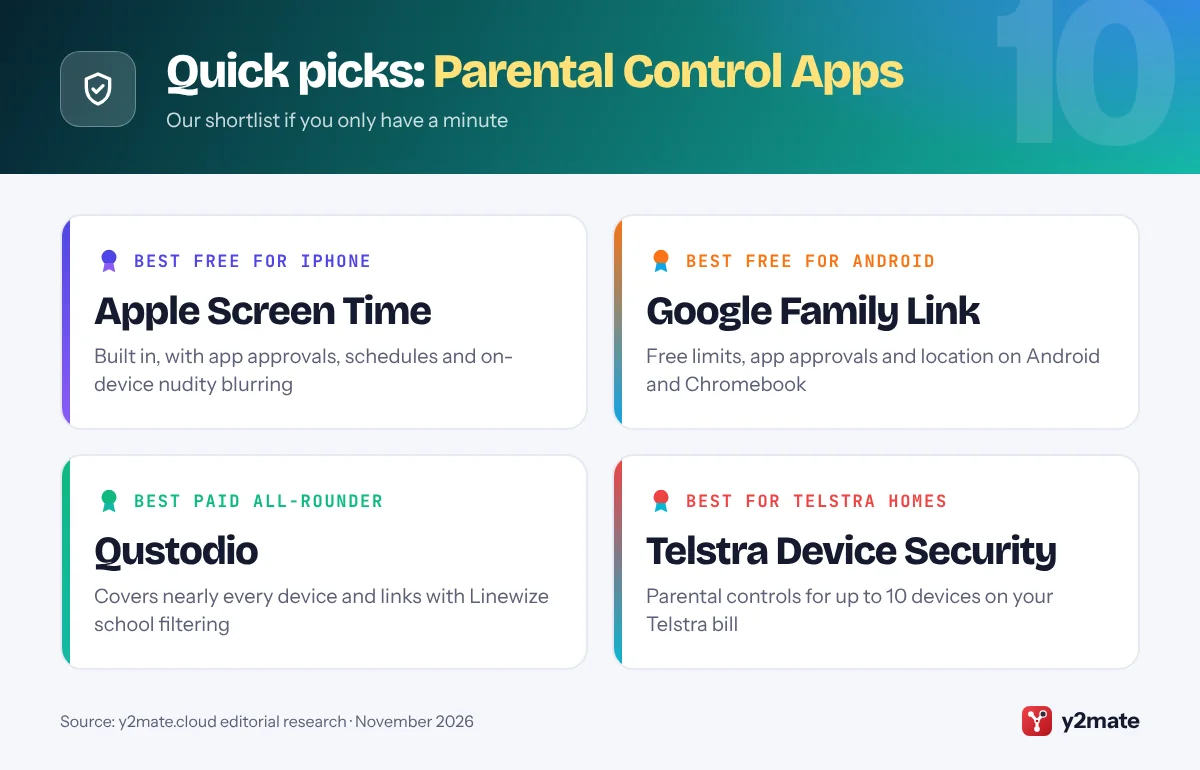
- For most Australian families, the best parental controls are free: Apple Screen Time for iPhone and iPad, and Google Family Link for Android phones and Chromebooks.
- Since 10 December 2025, age-restricted platforms such as Facebook, Instagram, Snapchat, TikTok, X and YouTube must take reasonable steps to stop under-16s holding accounts, with no penalties for children or their parents.
- The social media minimum age does not cover messaging apps such as WhatsApp and Messenger or games such as Roblox, so device controls still matter.
- Qustodio's parent company Qoria, the Perth company formerly called Family Zone, became part of US online safety firm Aura in July 2026.
- Bark supports Australian users, but its hardware, including the Bark Sync charger it uses to scan iPhone texts, ships only within the US.
The best parental control apps Australia has to offer in 2026 start with the free tools on your child’s device: Apple Screen Time for iPhone and iPad, and Google Family Link for Android and Chromebook. Qustodio, owned since 2022 by the Perth group that began as Family Zone, is the strongest paid all-rounder; Bark adds message alerts for teens; and Telstra customers can add parental controls to their bill. The under-16 social media rules help, but they replace none of these.
Parental controls are settings or apps that limit what a child can see, download or do online, and when. Since 10 December 2025, the social media minimum age has required age-restricted platforms to take reasonable steps to stop Australians under 16 holding accounts. eSafety calls it a delay rather than a ban, and it does not cover messaging, online gaming or content viewed without logging in, which is where parental controls come in.
Below are ten options available in Australia in November 2026, with who each suits, who should skip it and what each company says it does with children’s data.
How we ranked this list
We ranked each service on the controls it documents officially, such as screen time, app approval, web filtering, location and message alerts; the platforms it covers, including iPhone, Android, Windows, Mac and Chromebook; whether it is available and supported in Australia; and how the company says it handles children’s data. Free tools that add no extra company holding your child’s data ranked highest.
We did not test these services hands-on. Features change with software updates, so check each provider’s help pages before you pay.
The Top 10 Parental Control Apps
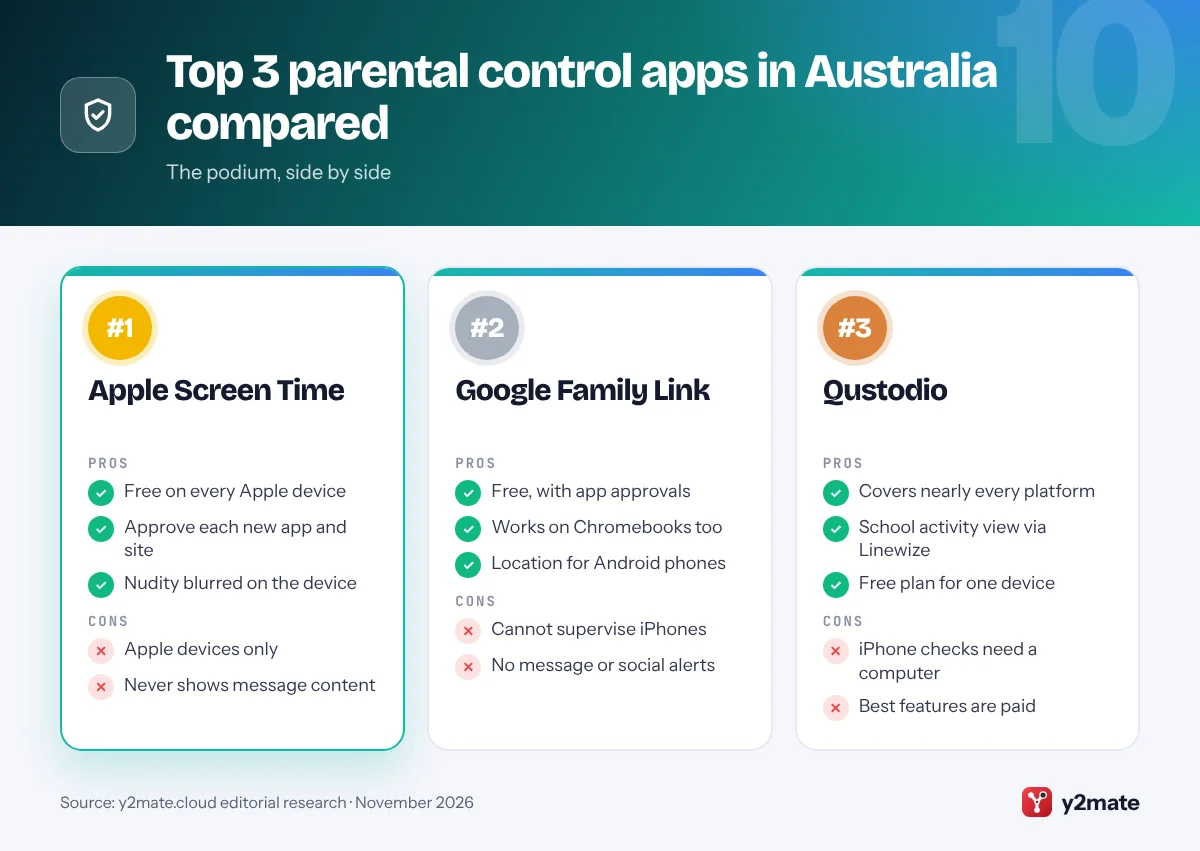
1. Apple Screen Time
Best for: kids and teens with an iPhone or iPad
Screen Time is Apple’s free parental control for iPhone, iPad, Mac and Apple Watch, set up through Family Sharing. Apple’s iOS 27 redesign adds Screen Time Schedules for different parts of the school day and Time Allowances for games, social media and entertainment apps, alongside Ask to Buy approval for new apps and Ask to Browse for new websites. eSafety points parents to Ask to Buy as a way to approve downloads and purchases before they happen.
Communication Safety blurs detected nudity and, now, gore and violence in shared photos and videos, and Apple says it is on by default for children under 18. Apple says that analysis happens on the device, so Apple never sees the images, and Screen Time data is end-to-end encrypted in iCloud. Parents can also choose whether to share a child’s age range with apps.
It suits every age. Skip it as your only tool if your child uses Android or Windows, or if you expect to read their messages, which Screen Time does not show.
Official site: Apple Screen Time
- Free on every Apple device
- Approve each new app and site
- Nudity blurred on the device
- Apple devices only
- Never shows message content
2. Google Family Link
Best for: Android phones, tablets and Chromebooks
Family Link is Google’s free app for supervising a child’s Google Account, and eSafety’s parental controls advice lists it for families with Android devices. Parents can set daily limits, app limits, downtime and school time, approve apps from Google Play and choose content ratings, restrict sites in Chrome, manage YouTube settings and see an Android phone’s location.
Google says iPhones, iPads and computers other than Chromebooks cannot be supervised, and location reporting does not work on Chromebooks. Teens under 18 need a parent’s approval to leave supervision, so a child cannot simply switch it off. Google says it does not serve personalised ads to children under 13, or the applicable age in their country, although it still collects activity such as searches, videos watched and location to run its services.
It suits children of about 5 to 15 on Android. Skip it if your child uses an iPhone, and add your modem’s controls to reach consoles and smart TVs at home.
Official site: Google Family Link
- Free, with app approvals
- Works on Chromebooks too
- Location for Android phones
- Cannot supervise iPhones
- No message or social alerts
3. Qustodio
Best for: mixed devices and Linewize school families
Qustodio has a strong Australian connection. Perth-based Family Zone, later renamed Qoria, agreed to buy the Barcelona-based app in 2022, and Family Zone’s consumer website now points families to Qustodio. In July 2026 Qoria became part of US online safety company Aura, which now trades on the ASX. At schools that use Linewize’s filter and parent tools, parents can see their child’s school-device activity in a Qustodio account free, with Premium optional.
On home devices, Qustodio covers Android, iPhone and iPad, Windows, Mac, Chromebooks with Google Play and Kindle tablets, with web filtering, app blocking, time limits, YouTube monitoring, location alerts and call and message monitoring. On iPhone, message monitoring needs a Windows or Mac computer. Its privacy policy says it never sells personal data from its parental controls and that the app is not ad-supported. A free plan covers one device.
It suits ages 6 to 15. Skip it if the free built-in tools already cover your family.
Official site: Qustodio
- Covers nearly every platform
- School activity view via Linewize
- Free plan for one device
- iPhone checks need a computer
- Best features are paid
4. Bark
Best for: message alerts for teens on Android
Bark is a US monitoring service, and Australia is one of only three countries it supports, alongside the US and South Africa. Its AI scans texts, email, web activity and supported apps for potential dangers such as bullying, self-harm and drugs, and alerts parents when it finds something concerning. It also offers screen time schedules, web and app blocking and location, and Bark says it analyses conversations in English, Spanish and Afrikaans.
There is a catch for Australian iPhone families. Bark says Apple’s privacy protections stop apps reading a child’s messages and photos, and that its Bark Sync charger, or its desktop app on a home computer, is needed to monitor texts, photos and videos. Bark ships its hardware only within the US, though Australian families can use its parent and kids apps. It also lists Snapchat, Instagram and TikTok as having no coverage on iOS. Bark’s privacy policy says it never sells or rents your data.
It suits ages 9 to 15 with Android phones. Skip it if your teen expects private chats.
Official site: Bark
- Alerts on bullying and self-harm
- Works on phones and Chromebooks
- Supports Australian users
- Hardware ships only in the US
- Little iPhone message coverage
5. Telstra Device Security
Best for: Telstra customers who want one bill
Telstra Device Security, powered by McAfee, is a paid add-on for eligible Telstra customers that protects up to 10 compatible mobiles, PCs or tablets. Alongside scam, web and identity protection, its parental controls help parents control and monitor children’s device use, block inappropriate content and set digital time-outs. Telstra lists parental controls among the extras in the paid product rather than in the free Device Security Essentials offered to Telstra mobile customers.
If you have a Telstra Smart Modem, its parental control settings can also block websites for one device or every device on your home network, which reaches games consoles and smart TVs that apps cannot. Modem rules are easier for a determined child to get around than device controls, so use them as an extra layer, not your only one.
It suits primary-age children in Telstra households. Skip it if you are not with Telstra, or if you want detailed activity reports or message alerts, which Telstra does not list.
Official site: Telstra Device Security
- Billed with your Telstra service
- Covers up to 10 devices
- Modem blocking for home Wi-Fi
- Telstra customers only
- No message alerts listed
6. Microsoft Family Safety
Best for: Windows PCs and Xbox gamers
Microsoft Family Safety is free with a Microsoft account and is the best fit if your child games on an Xbox or does homework on a Windows PC. Microsoft says screen time limits apply on Windows 10 and 11, Xbox and Android apps and games, and are managed from the Family Safety app on Android or iPhone. Web and search filters work in Microsoft Edge, with other common browsers blocked so the filter holds, and age limits on Windows and Xbox mean higher-rated games need your approval.
eSafety’s gaming advice is to limit which games can be played, stop unwanted in-game purchases and restrict contact with strangers, and Family Safety helps with the first of these on Microsoft devices. Microsoft says its location and driving safety features are going away, and that it does not deliver personalised ads to children whose account birthdate shows they are under 18.
It suits ages 6 to 14. Skip it for iPhones, which it cannot control.
Official site: Microsoft Family Safety
- Free for Windows and Xbox
- Approval for higher-rated games
- No personalised ads for under-18s
- Web filter only in Edge
- Location features going away
7. Norton Family
Best for: households already on Norton 360
Norton Family is included with Norton 360 Deluxe and Norton 360 Premium in Australia, and is also sold on its own. On a child’s Windows PC, Android device or iPhone it supervises websites, searches and YouTube videos, sets time limits and schedules, and shows location with a 30-day history on phones. School Time keeps a device on educational sites you choose, Instant Lock pauses it for a break, and app supervision covers Android and Windows.
Norton says Macs and Windows in S mode are not supported, and not every feature works on every platform. Gen Digital’s products privacy notice lists the data Norton Family collects from a child’s device, such as sites visited, search terms and, where a parent enables it, location. As eSafety advises for all controls, plan to loosen the settings as your child matures.
It suits ages 6 to 14 in homes that already pay for Norton. Skip it if your child uses a Mac, or if you want message alerts, which are not among its listed features.
Official site: Norton Family
- Included with Norton 360 Deluxe
- Location history on phones
- School Time for homework
- Not supported on Mac
- No message alerts
8. Life360
Best for: location sharing for independent teens
Life360, a US company that is also listed on the ASX, makes a location-sharing app rather than a filter. Family members join a private Circle on iPhone or Android, see each other on a map and get alerts when someone arrives at or leaves a saved place such as school or sport. A free tier covers the basics, and paid memberships add more safety features.
Life360’s privacy policy says it does not sell or share the personal information of members it knows are under 18 and shows no ads in child or teen accounts. It also says data may be stored anywhere in the world, including the US, and includes a section for Australian users on overseas transfers under the Privacy Act. Location data is sensitive, so agree with your teen what is shared and when.
It suits tweens and teens from about 10 who travel on their own. Skip it if you want screen time or content controls, or if your teen has not agreed to share their location.
Official site: Life360
- Free location sharing tier
- Alerts for arrivals and exits
- No ads in child or teen accounts
- No screen time or filtering
- Data may be stored overseas
9. Mobicip
Best for: younger children on Chromebook or Kindle
Mobicip is a California-based app available on Australia’s App Store, and it covers an unusually wide spread of devices from one account: iPhone, iPad, Android, Kindle Fire, Mac, Windows and Chromebook. Tools include screen time schedules, an app blocker, a website blocker for mature content, activity summaries and a family locator with geo-boundaries, and co-parents can share control.
A social media monitor scans Facebook and Snapchat for harmful content, but both are on eSafety’s list of age-restricted platforms, so under-16s should not be holding accounts there anyway. Mobicip’s privacy policy says it will never voluntarily sell personally identifiable data and does not share a child’s usage data with third parties. There is a 7-day free trial rather than a free plan.
It suits children of about 5 to 12, especially in homes with Kindle tablets or a family Chromebook. Skip it for older teens, where Qustodio or Bark offer broader alerts.
Official site: Mobicip
- Covers Chromebook and Kindle Fire
- Schedules, app and site blocking
- Says it never sells your data
- No free plan, trial only
- Social monitoring covers few apps
10. Kaspersky Safe Kids
Best for: a free basic plan, if you trust the brand
Kaspersky Safe Kids is sold in Australia for Windows, macOS, Android and iOS. Kaspersky says its free version covers internet monitoring, device use monitoring, app management and website blocking, while Premium adds location tracking, social network monitoring, real-time alerts and unlimited child profiles. On an iPhone, Kaspersky says a device cannot be locked when screen time runs out; the app shows a break notification instead.
The trust question is local as well as global. In February 2025 the Department of Home Affairs directed Australian Government entities to remove Kaspersky products from government systems and devices, citing foreign interference, espionage and sabotage risks and concern about the company’s extensive collection of user data. The direction applies to government, not households, and the US banned Kaspersky software sales in 2024.
It suits cost-conscious families with younger children on Windows or Android. Skip it if the government’s decision makes you uneasy about an app with deep access to your child’s device.
Official site: Kaspersky Safe Kids
- Free plan with web blocking
- Windows, Mac and phone apps
- Location in the Premium plan
- Banned on government devices
- Cannot lock iPhones at limit
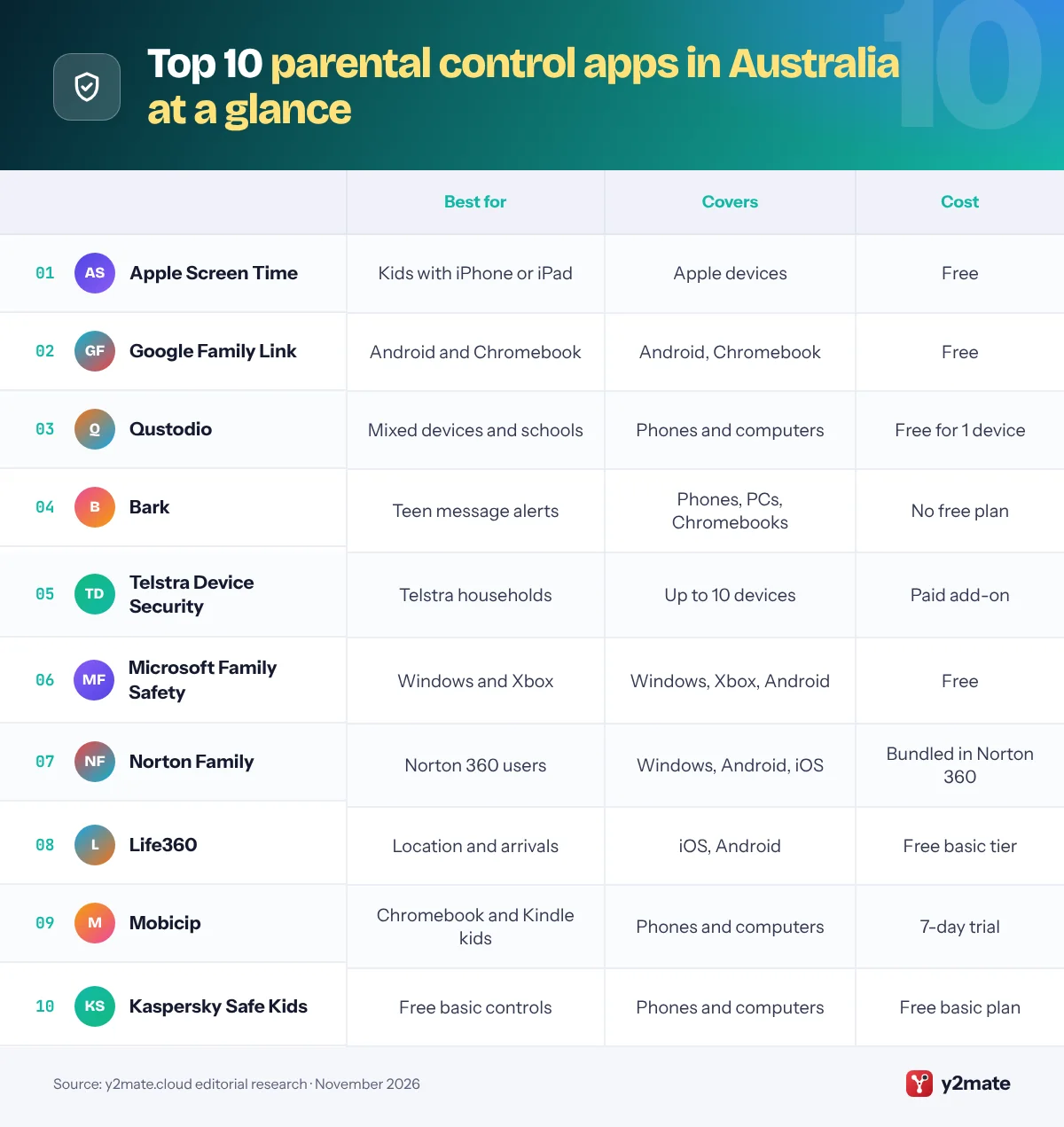
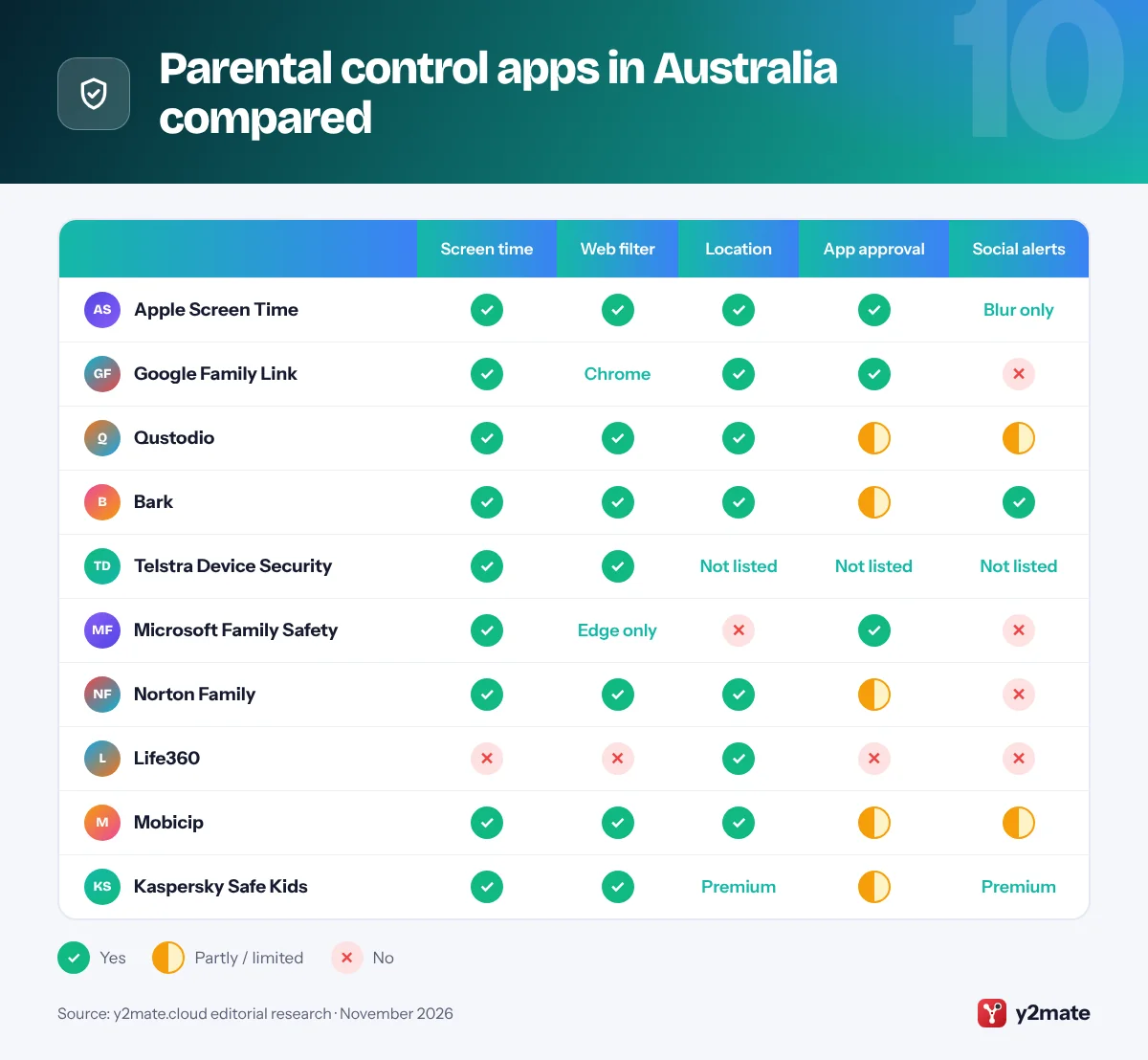
Parental control apps in Australia compared
How to choose parental control apps Australia families can rely on
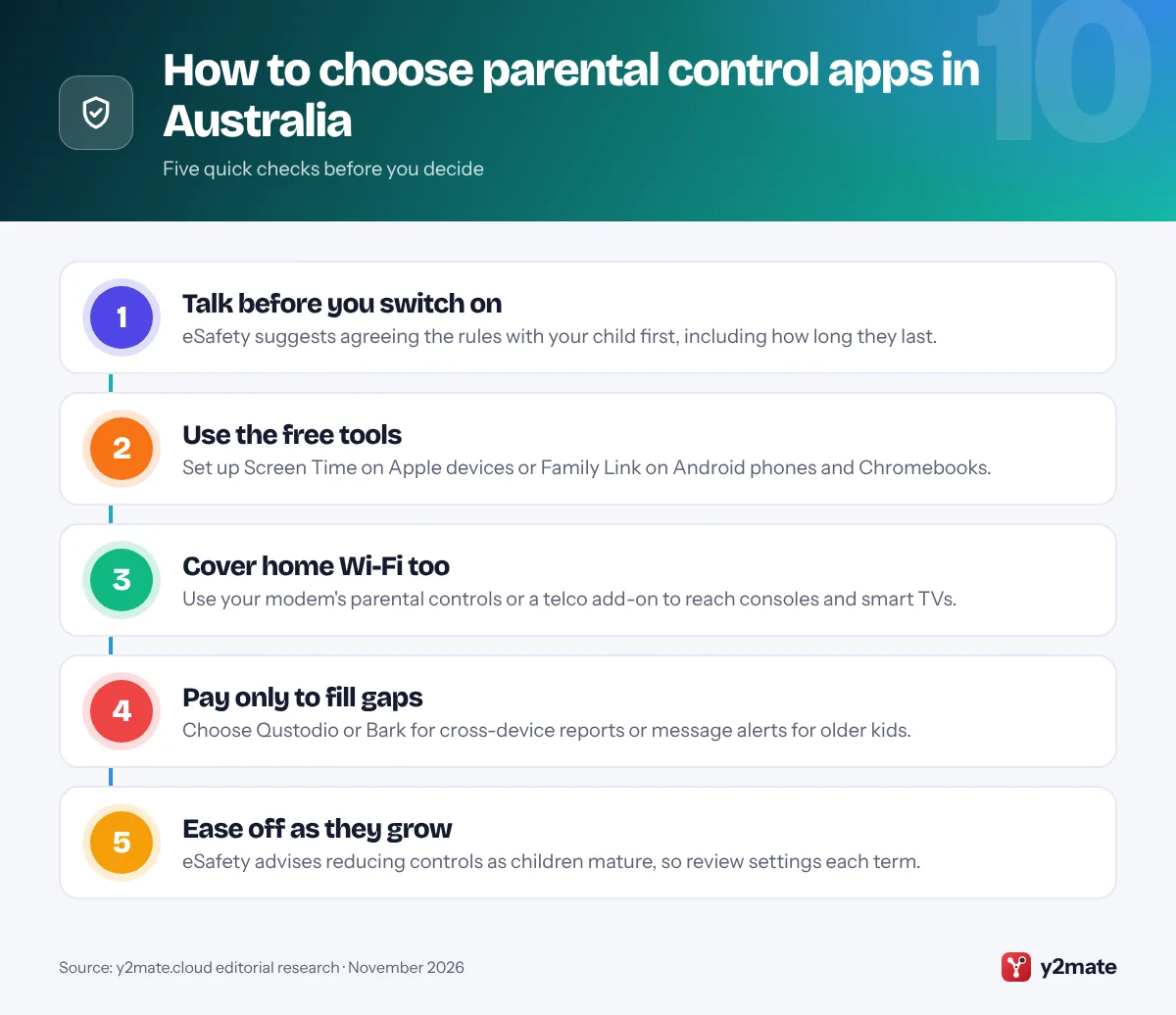
Start with eSafety’s advice: talk with your child before you switch anything on, match controls to their age and devices, and relax them as they mature. The free tools on the device do most of the work. Pay for an app only to fill a gap, such as one dashboard across Android and Windows, message alerts for a teen, or coverage for every device on home Wi-Fi.
What the under-16 social media rules change
Since 10 December 2025, the platforms eSafety lists as age-restricted, currently Facebook, Instagram, Kick, Reddit, Snapchat, Threads, TikTok, Twitch, X and YouTube, must take reasonable steps to stop Australians under 16 holding accounts. eSafety says the list may change. Services it does not consider age-restricted include Discord, Messenger, WhatsApp, Roblox, Steam, Pinterest and YouTube Kids. There are no penalties for under-16s or their parents; the platforms face civil penalties.
That leaves messaging, games, logged-out viewing and screen time to you, which is exactly what the apps above handle.
Children’s privacy
Parental control apps collect sensitive data about children. The Office of the Australian Information Commissioner is developing a Children’s Online Privacy Code, which must be registered by 10 December 2026; its draft proposed high privacy settings by default and consent before children’s data is used for targeted advertising. Until it applies, favour apps that say they never sell children’s data or show them ads.
Frequently asked questions
Do I still need parental controls now that under-16s are banned from social media?
Yes. The social media minimum age requires platforms such as TikTok, Instagram, Snapchat and YouTube to stop under-16s holding accounts, but it does not cover messaging apps such as WhatsApp and Messenger, online games such as Roblox, or content viewed without logging in. eSafety calls it a delay, not a ban. Screen Time, Family Link and similar tools still manage time, apps and browsing.
Will my child or I be fined if they use social media under 16?
No. eSafety says there are no penalties for under-16s who access an age-restricted platform, or for their parents or carers; the obligations fall on the platforms. eSafety also warns that any request to pay a fine for under-16 social media use is a scam. A young person's account can still be deactivated or removed until they turn 16.
Is Bark available in Australia?
Yes. Bark's help centre says it supports users in the US, Australia and South Africa, and Australian families can use its Bark Parental Controls and Bark Kids apps. Its Bark Phone, Bark Watch, Bark Sync and Bark Home devices ship only within the US, which limits how much Bark can monitor on an iPhone in Australia.
What is the best free parental control app in Australia?
Apple Screen Time is the best free option for iPhones and iPads, and Google Family Link for Android devices and Chromebooks. Microsoft Family Safety is free for Windows PCs and Xbox. Qustodio and Kaspersky Safe Kids have free basic plans, and if your child's school uses Linewize, you may be able to see school-device activity in Qustodio at no cost.
Can my under-16 still watch YouTube in Australia?
Yes, in some ways. YouTube is on eSafety's list of age-restricted platforms, so under-16s should not hold YouTube accounts, but they can still see publicly available content without logging in. YouTube Kids is not age-restricted. Use Screen Time or Family Link to set time limits, and consider YouTube Kids for younger children.
Final verdict
For most families, the best parental control apps Australia offers are free: Apple Screen Time on iPhones and iPads, Google Family Link on Android and Chromebooks, and Microsoft Family Safety on Windows and Xbox. Talk with your child first, as eSafety recommends, then set limits that suit their age.
Add Qustodio if you need one dashboard across many devices or your school uses Linewize, Bark for teen message alerts on Android, Telstra Device Security for a simple add-on, and Life360 for location. The under-16 rules shift responsibility to platforms, but messaging, games and screen time are still up to you.
Sources and further reading
- eSafety guide to parental controls: eSafety explains how parental controls work on devices, apps and games, and how to adjust them as children grow.
- Which platforms are age-restricted: eSafety's current list of platforms that must stop under-16s holding accounts, and services it does not consider age-restricted.
- eSafety get-ready guide for parents: eSafety's step-by-step guide helps parents and carers prepare children for the social media minimum age.
- OAIC Children's Online Privacy Code: The OAIC's page on the Children's Online Privacy Code, which sets new privacy rules for online services used by children.
- Government direction on Kaspersky: The Department of Home Affairs direction requiring Australian Government entities to remove Kaspersky products from their systems.

Leave a Reply