
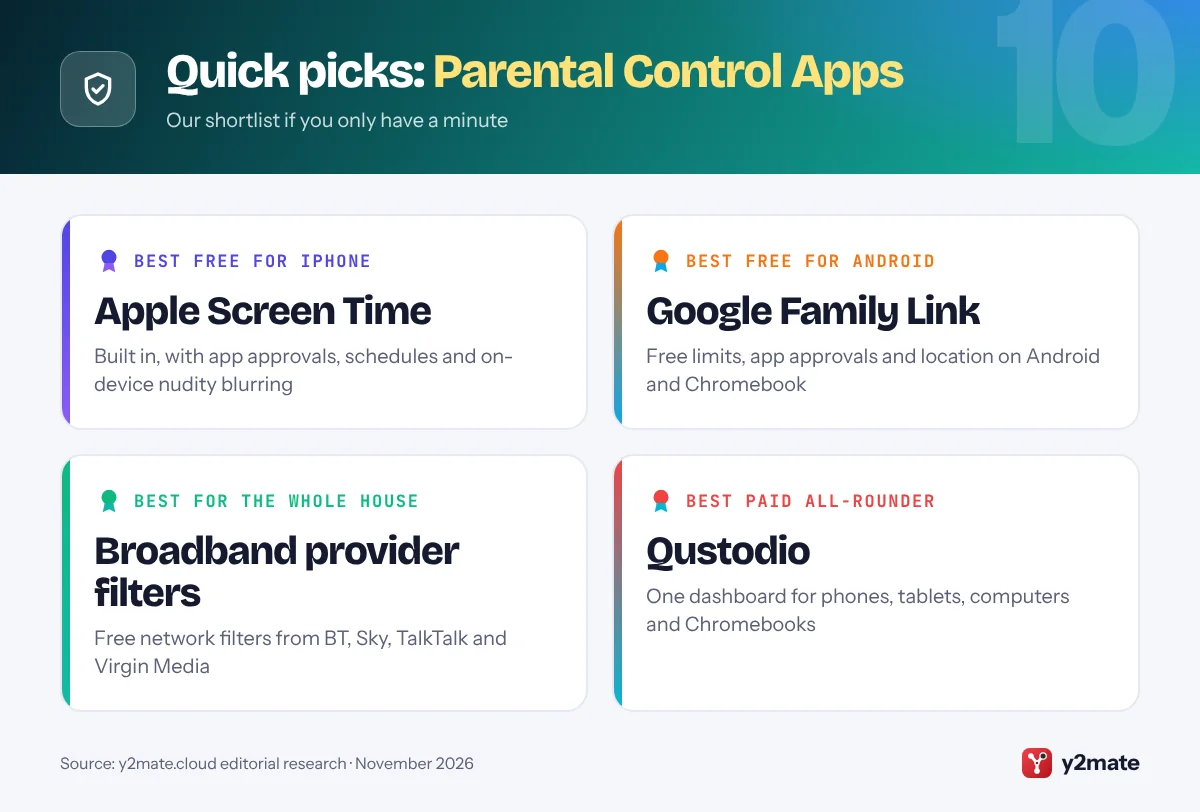
- For most UK families, the best parental controls are free: Apple Screen Time and Google Family Link on the device, plus the filters BT, Sky, TalkTalk and Virgin Media include with home broadband.
- Bark, a popular US monitoring app, currently supports only the US, Australia and South Africa, so it is not an option for UK families.
- Since 25 July 2025, Ofcom's Protection of Children Codes have required sites and apps likely to be used by children to use highly effective age checks and safer feeds, but they do not set screen time or replace parental controls.
- The ICO's Children's code says services that offer parental controls should tell children, in an age-appropriate way, when they are being monitored or their location is tracked.
- Kaspersky Safe Kids is still sold in the UK, although the US banned sales of Kaspersky software in 2024 on national security grounds.
The best parental control apps UK families can use in 2026 are mostly free: Apple Screen Time on iPhone and iPad, Google Family Link on Android and Chromebook, and the parental controls BT, Sky, TalkTalk and Virgin Media include with home broadband. Qustodio is the strongest paid option if your children use several kinds of device, and Life360 covers location. Bark, a well-known US app, is not available here.
Parental controls are settings or apps that limit what a child can see, download or do online, and when. Some work on the device, some on your home network and some on your mobile network, and each layer covers gaps the others leave. Our separate guide to setting up parental controls in the UK walks through the menus step by step; this list ranks the services themselves, with who each one suits, who should skip it and what each company does with children’s data.
How we ranked this list
We ranked each service on the controls it documents officially, such as screen time, app approval, web filtering, location and message alerts; the platforms it covers, including iPhone, Android, Windows, Mac and Chromebook; whether it is available and supported in the UK; and how the company says it handles children’s data, including under UK GDPR. Free tools that add no extra company holding your child’s data ranked highest.
We did not test these services hands-on. Features change with software updates, so check each provider’s help pages before you pay.
The Top 10 Parental Control Apps
1. Apple Screen Time
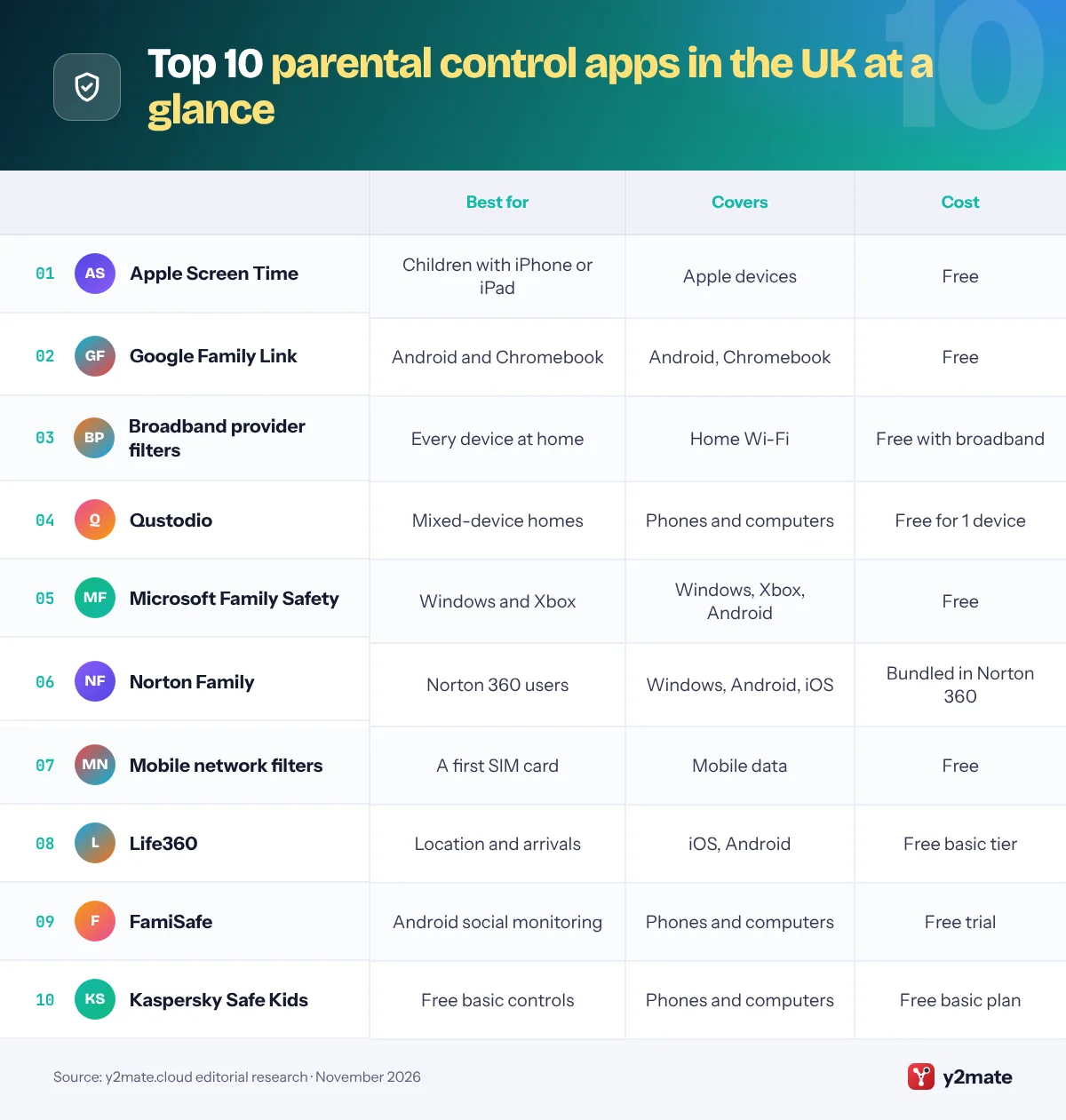
Best for: children with an iPhone or iPad
Screen Time is free and built into every iPhone, iPad, Mac and Apple Watch, and you manage it through Family Sharing. Since Apple’s iOS 27 redesign, parents can set Screen Time Schedules for different parts of the school day, Time Allowances for games, social media and entertainment apps, Ask to Buy approval for every new app, and Ask to Browse, which makes younger children request each new website. Apple says Limit Adult Websites is on by default for children under 18 with a Child Account, although ages can vary by country.
Communication Safety blurs detected nudity and, now, gore and violence in shared photos and videos. Apple says the analysis happens on the device, so Apple never sees the images, and that Screen Time data is end-to-end encrypted in iCloud.
It suits every age, from a first iPad to a teenager’s iPhone. Skip it as your main tool if your child uses Android or Windows, or if you expect to see their messages, which Screen Time never shows.
Official site: Apple Screen Time
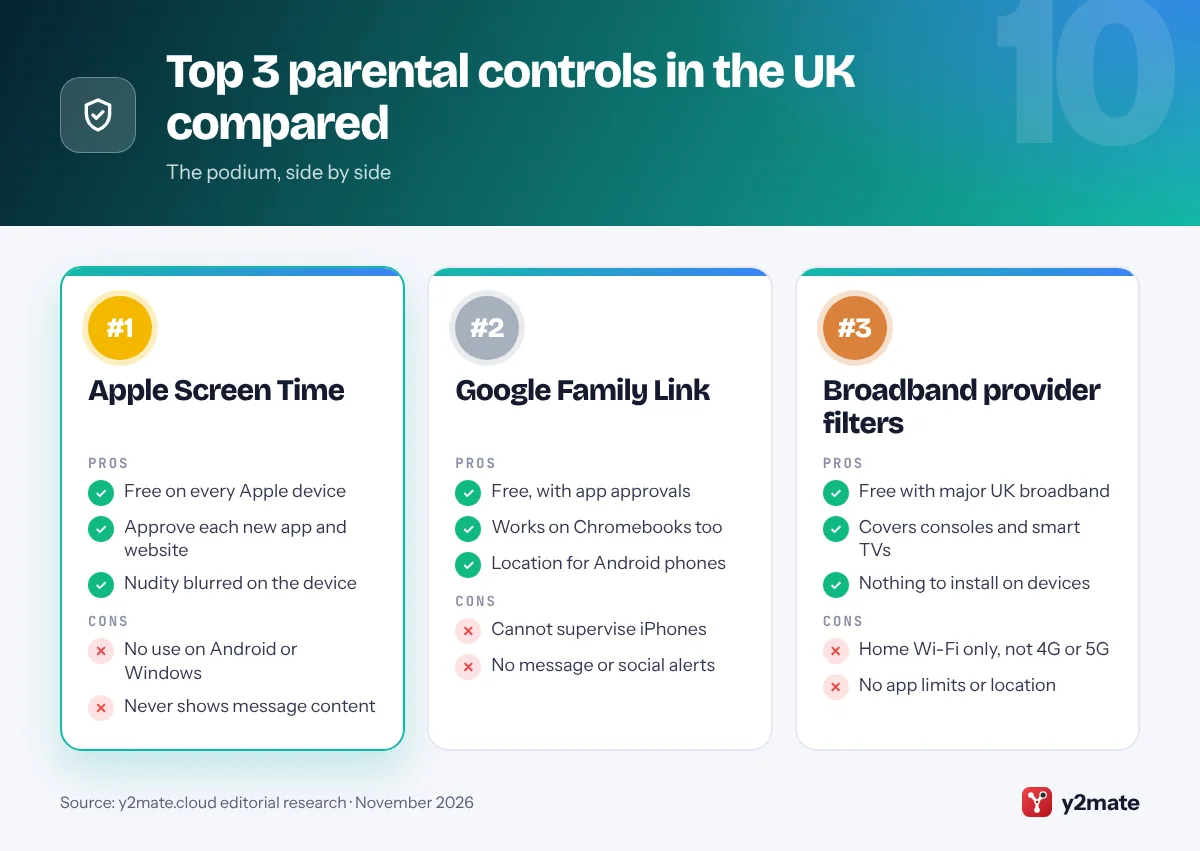
- Free on every Apple device
- Approve each new app and website
- Nudity blurred on the device
- No use on Android or Windows
- Never shows message content
2. Google Family Link
Best for: Android phones, tablets and Chromebooks
Family Link is Google’s free tool for supervising a child’s Google Account, and the obvious choice if your child has an Android phone or a Chromebook. Parents can set daily and app time limits, downtime and school time, approve apps from Google Play and choose content ratings, restrict sites in Chrome, manage YouTube settings and see an Android phone’s location. The parent app works on Android or iPhone.
Supervision does not reach iPhones, iPads or Windows and Mac computers: Google says most Family Link tools will not work there, and location reporting is not available on Chromebooks. Teenagers under 18 need a parent’s approval to leave supervision. Google says it does not serve personalised ads to children under 13, or the applicable age in their country, though it still collects activity such as searches, videos watched and location to run its services.
It suits children of about 5 to 15. Skip it if your child has an iPhone, and pair it with a broadband filter for the rest of the house.
Official site: Google Family Link
- Free, with app approvals
- Works on Chromebooks too
- Location for Android phones
- Cannot supervise iPhones
- No message or social alerts
3. Broadband provider filters
Best for: covering every device on home Wi-Fi
The UK Safer Internet Centre says the four big home broadband providers, BT, Sky, TalkTalk and Virgin Media, all give customers free parental controls that can be switched on at any time. Because they work at network level, they filter every device on your Wi-Fi, including games consoles, smart TVs and visiting friends’ phones, with nothing to install. BT Parental Controls, Sky Broadband Shield, TalkTalk HomeSafe and Virgin Media Essential Security, the new name for Web Safe, let the account holder block categories such as pornography, gambling and self-harm, and most add time-based settings such as TalkTalk’s Homework Time.
The limits matter just as much. A home filter stops at your front door: it does not cover mobile data or other Wi-Fi networks, a VPN can route around it, and it cannot set app limits or show location.
It suits households with younger children and lots of connected devices. Do not rely on it alone for a teenager with their own data plan.
Official site: Broadband provider filters
- Free with major UK broadband
- Covers consoles and smart TVs
- Nothing to install on devices
- Home Wi-Fi only, not 4G or 5G
- No app limits or location
4. Qustodio
Best for: one dashboard across phones and computers
Qustodio, based in Barcelona, is one of the most complete paid options for UK families. Since July 2026 its parent company, Qoria, has been owned by the US online safety firm Aura. One dashboard covers Android, iPhone and iPad, Windows, Mac, Chromebooks with Google Play and Kindle tablets, with web filtering, app blocking and time limits, YouTube monitoring, location alerts and call and message monitoring. On Android it lists social alerts for WhatsApp, Instagram, TikTok, Snapchat and X; on iPhone, alerts cover WhatsApp and Instagram messages, and call and message monitoring needs a Windows or Mac computer.
Its privacy policy sets out the UK GDPR legal bases it relies on, and says it never sells personal data from its parental controls and that the app is not ad-supported. A free plan covers one child and one device.
It suits ages 6 to 15 in homes with mixed devices. Skip it if the free built-in tools already cover your family.
Official site: Qustodio
- Covers nearly every platform
- Calls, messages and YouTube views
- Free plan for one device
- iPhone checks need a computer
- Best features cost extra
5. Microsoft Family Safety
Best for: Windows laptops and Xbox consoles
Microsoft Family Safety is free with a Microsoft account and covers Windows 10 and 11 PCs and Xbox consoles. Microsoft says parents can set screen time limits on Windows, Xbox and Android apps and games, managed from the Family Safety app on Android or iPhone. Web and search filters work in Microsoft Edge, with other common browsers blocked so the filter holds, and age limits mean children must ask before downloading apps and games above their rating on Windows and Xbox.
Microsoft says the location and driving safety features in Family Safety are going away, so use Find My, Family Link or Life360 if you need location. It also says it does not deliver personalised advertising to children whose Microsoft account birthdate shows they are under 18.
It suits ages 6 to 14 in homes with a Windows laptop or an Xbox. Skip it for iPhones, which it cannot control, or if your children rely on Chrome on Windows and you do not want it blocked.
Official site: Microsoft Family Safety
- Free for Windows and Xbox
- Approval for higher-rated games
- No personalised ads for under-18s
- Web filter only in Edge
- Location features going away
6. Norton Family
Best for: families already using Norton 360
Norton Family is included with Norton 360 Deluxe and Norton 360 Premium in the UK, or sold on its own. It installs on a child’s Windows PC, Android device or iPhone and supervises web browsing, searches and YouTube videos, sets time limits and schedules, and shows location with a 30-day history on phones. School Time limits a device to educational sites you choose during lessons or homework, and Instant Lock pauses a device for a break. App supervision works on Android and Windows.
Norton says Macs and Windows in S mode are not supported, and not every feature works on every platform. Gen Digital’s products privacy notice lists the data Norton Family collects from a child’s device, including sites visited, search terms and, where a parent enables it, location.
It suits ages 6 to 14 in homes already paying for Norton. Skip it if your child has a Mac, or if you want message alerts, which are not among its listed features.
Official site: Norton Family
- Included with Norton 360 Deluxe
- Location history on phones
- School Time for homework
- Not supported on Mac
- No message alerts
7. Mobile network filters
Best for: a child’s first SIM card
UK mobile networks run an adult content filter on their mobile data. O2 says that, like all UK mobile networks, it filters access to 18+ sites, and Three says new devices have age-restricted content blocked by default. To remove the block, the account holder usually has to verify they are over 18, so a child cannot easily switch it off. EE and Vodafone offer similar controls through their apps and online accounts.
The filter is free and works on any handset, but it covers only that network’s mobile data. It does nothing on Wi-Fi, sets no time limits, cannot see or block individual apps, and a VPN can get around it. If your child’s SIM was once yours, or came from a parent’s old contract, check that the filter has not been switched off.
It suits any child with their own SIM. Treat it as a safety net underneath device controls such as Screen Time or Family Link, not as a replacement for them.
- Free and usually on by default
- Works on any phone
- Adults must verify age to remove
- Mobile data only, not Wi-Fi
- No time limits or app controls
8. Life360
Best for: knowing teenagers got home safely
Life360 is a location-sharing app rather than a filter. Family members join a private Circle on iPhone or Android, see each other on a map and get alerts when someone arrives at or leaves a saved place such as school. A free tier covers the basics, and paid memberships add more safety features.
Its privacy policy says Life360 does not sell or share the personal information of members it knows are under 18 and shows no ads in child or teen accounts. It also says data may be stored anywhere in the world, including the US, and that for UK users it relies on the UK Extension to the EU-US Data Privacy Framework or contract safeguards. The ICO’s Children’s code expects services to show children an obvious sign when their location is being tracked, so agree on location sharing openly.
It suits independent tweens and teens from about 10. Skip it if you want screen time or content controls, or if your teenager has not agreed to share their location.
Official site: Life360
- Free location sharing tier
- Alerts for arrivals and exits
- No ads in child or teen accounts
- No screen time or filtering
- Data may be stored in the US
9. FamiSafe
Best for: detailed social media monitoring on Android
FamiSafe, from China-based Wondershare, is one of the few apps sold in the UK that lists broad social media monitoring. Its FAQ names supported apps on Android including YouTube, TikTok, WhatsApp, Instagram, Snapchat, Facebook, Messenger and Telegram, alongside screen time limits, an app blocker, web filtering and location tracking. It supports Android, iOS, Kindle Fire, Windows, Mac and Chromebook.
iPhone support is much thinner. FamiSafe says iOS limits access to content inside third-party social apps, that its Screen Viewer screenshots need extra permissions and do not guarantee access to chats, and that its activity reports are not available on iOS. Its privacy policy says collected data may be transferred to recipients outside the European Union whose laws may not protect it to the same standard.
It suits parents of Android-using teenagers with a specific safety worry. Skip it if strong data protection matters most to you or your child has an iPhone, and tell your child it is installed.
Official site: FamiSafe
- Wide social app alerts on Android
- Covers Kindle and Chromebook
- Remote screenshots on request
- Limited on iPhone
- Data may leave the UK and EU
10. Kaspersky Safe Kids
Best for: a free basic plan on Windows and Android
Kaspersky Safe Kids is sold in the UK for Windows, macOS, Android and iOS. Kaspersky says the free version includes internet monitoring, device use monitoring, app management and website blocking, while Premium adds location tracking, social network monitoring, real-time alerts and unlimited child profiles. On an iPhone, Kaspersky says a device cannot be locked when time runs out; the app shows a break notification instead.
Trust is the issue to weigh. The US banned sales of Kaspersky software in 2024 on national security grounds. In the UK, the National Cyber Security Centre told government departments running national security systems to avoid Russian security products in 2017, but said in 2022 that individuals could keep using Kaspersky safely at that time, while advising some organisations to reconsider their risk.
It suits budget-conscious families with younger children on Windows or Android. Skip it if the company’s background makes you uneasy about an app with deep access to your child’s device.
Official site: Kaspersky Safe Kids
- Free plan with web blocking
- Works on Windows, Mac and phones
- Location in the Premium plan
- Banned from sale in the US
- Cannot lock iPhones at time limit
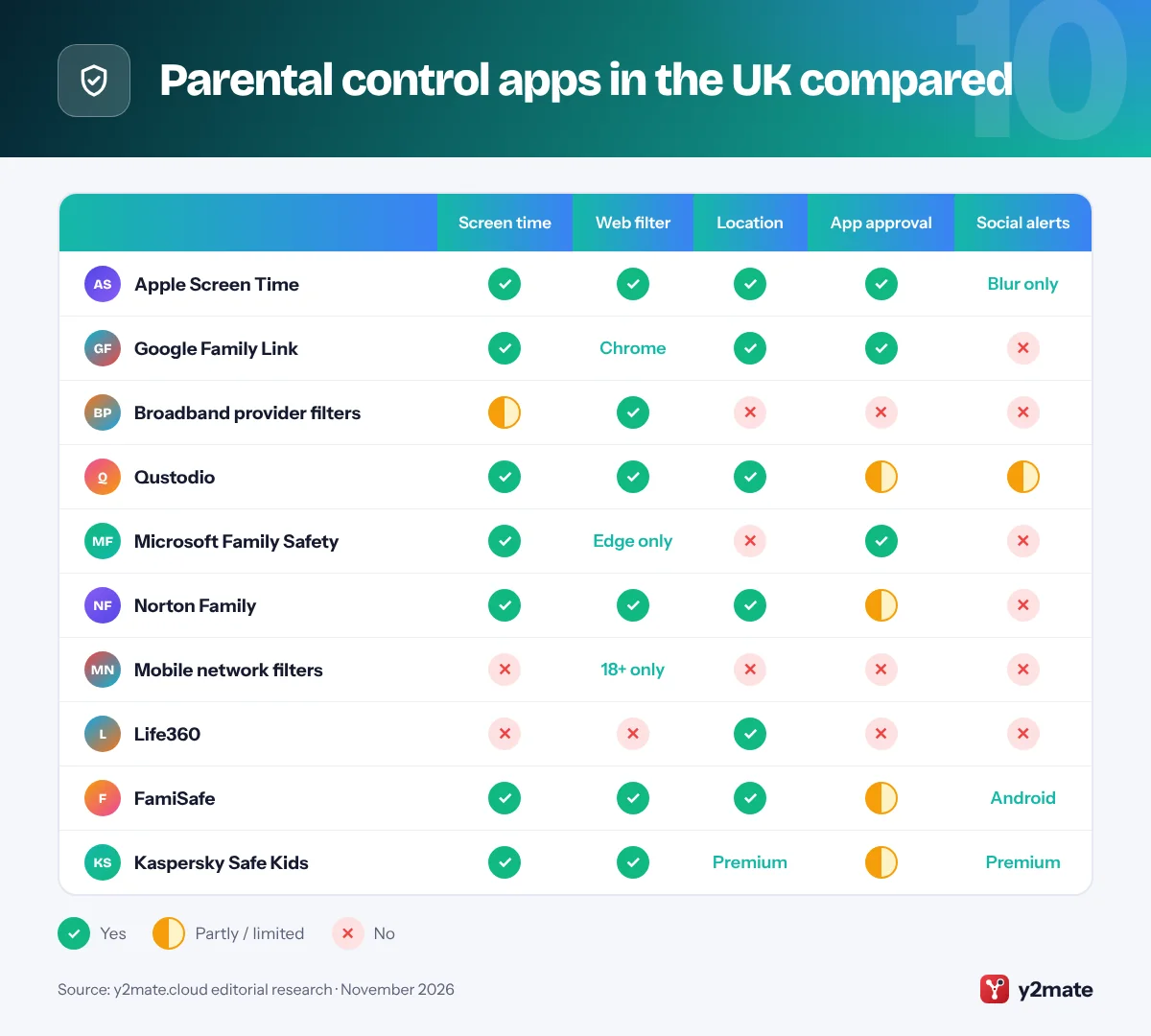
Parental control apps in the UK compared
How to choose parental control apps UK families can trust
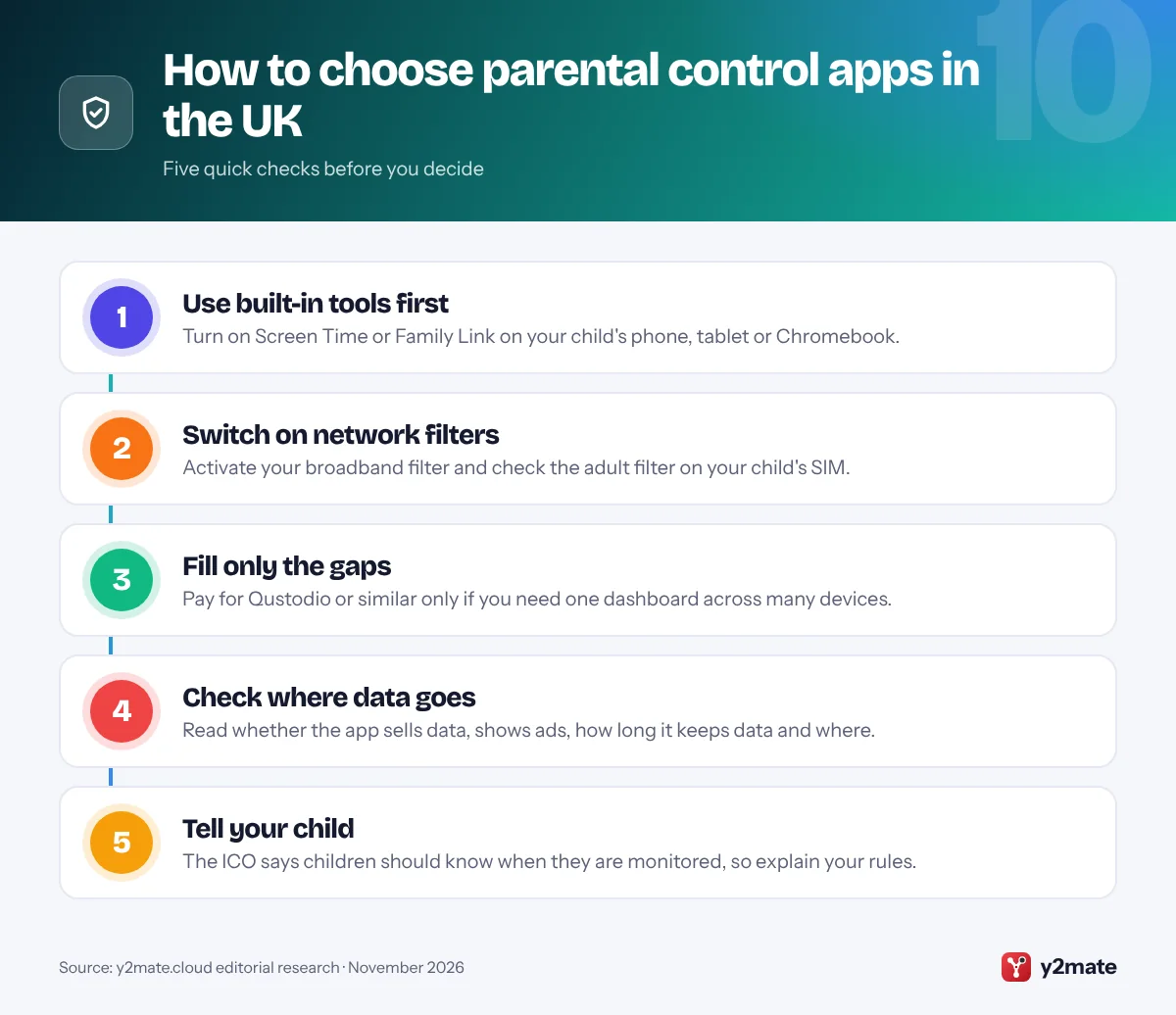
Layer your protection. Device controls such as Screen Time and Family Link follow your child everywhere, your broadband filter covers every device at home, and your mobile network’s filter covers 4G and 5G. Paid apps make sense when you need one dashboard across iPhone, Android and Windows, or message alerts on an Android phone.
What the Online Safety Act does and does not do
Since 25 July 2025, Ofcom’s Protection of Children Codes have required sites and apps likely to be used by children to use highly effective age checks to keep them away from pornography and the most harmful content, and to make their feeds safer. In June 2026 the government also announced that social media services will no longer be allowed to offer accounts to under-16s, with the restrictions expected to take effect in spring 2027. These duties fall on companies: they do not set bedtimes, approve apps or cover every messaging app and game, so your own controls still matter.
Privacy rules for apps that watch children
Parental control apps handle sensitive data about children, so UK GDPR applies. The ICO’s Children’s code expects services to switch geolocation off by default and, where they offer parental controls, to explain them to the child in an age-appropriate way and show an obvious sign when the child is being monitored or tracked. Favour apps that say they never sell children’s data or show them ads, and be cautious about apps that send data abroad without clear safeguards.
Frequently asked questions
What is the best free parental control app in the UK?
Apple Screen Time is the best free choice for iPhones and iPads, and Google Family Link for Android phones and Chromebooks. Add the free parental controls from BT, Sky, TalkTalk or Virgin Media to cover every device on your home Wi-Fi, and check that the adult content filter on your child's SIM is switched on. Microsoft Family Safety is free for Windows PCs and Xbox.
Is Bark available in the UK?
No. Bark's help centre says it currently supports users in the US, Australia and South Africa only, so UK families cannot sign up. If you want alerts about risky messages, Qustodio and FamiSafe offer some social media alerts, mostly on Android, while Apple's Communication Safety blurs nudity on iPhones without sending the images to Apple.
Will the under-16 social media ban make parental control apps unnecessary?
No. The government plans to stop social media services offering accounts to under-16s, with restrictions expected in spring 2027, but it does not intend messaging services such as WhatsApp to be covered. Games, browsing, app downloads and screen time will still need your own controls, and age checks can sometimes be dodged with a VPN or a borrowed account.
Is it safe to use Kaspersky Safe Kids in the UK?
It is legal and still sold here. The National Cyber Security Centre said in 2022 that individuals could keep using Kaspersky products safely at that time, while advising some organisations to reconsider their risk. The US banned Kaspersky sales in 2024 on national security grounds. If that worries you, free tools such as Screen Time and Family Link cover the same basics.
Can parental control apps see my child's WhatsApp messages?
Only partly, and mostly on Android. Qustodio lists WhatsApp message alerts on Android and iPhone, and FamiSafe lists WhatsApp among the apps it monitors on Android, but iPhones limit what third-party apps can see. Built-in tools such as Screen Time and Family Link do not show messages at all, and the ICO's Children's code expects children to be told when they are monitored.
Final verdict
For most families, the best parental control apps UK parents can choose cost nothing: Screen Time or Family Link on each device, the free filter from your broadband provider and the adult content filter on your child’s SIM. Together they cover the device, the home and mobile data.
Add Qustodio if you need one dashboard across phones and computers, Microsoft Family Safety for Windows and Xbox, and Life360 if location matters most. Think carefully before installing FamiSafe or Kaspersky Safe Kids, and whatever you choose, tell your child what you can see.
Sources and further reading
- Ofcom's rules for children online: Ofcom explains the Protection of Children Codes, including age checks and safer feeds, that sites and apps must follow.
- ICO Children's code standards: The ICO's standards for online services used by children, including rules on parental controls, geolocation and high privacy settings.
- Government response on under-16s: The government's July 2026 response sets out plans to restrict social media for under-16s and protect older teens online.
- NCSC on Russian technology: The National Cyber Security Centre's guidance on Russian technology products, including its advice for individuals using Kaspersky.

Leave a Reply