
- For most US families, the best parental controls are free and built in: Apple Screen Time for iPhone and iPad, and Google Family Link for Android phones and Chromebooks.
- Apple stops third-party apps from reading messages and photos on an iPhone, so Bark needs its Sync charger or a home computer to scan texts, and Qustodio needs a Windows or Mac computer for message monitoring.
- The FTC's amended COPPA Rule, with a compliance date of April 22, 2026, requires separate parental consent before a company shares a child's data with third parties, including for targeted advertising.
- Kaspersky Safe Kids is not an option in the US, because the Commerce Department banned Kaspersky software sales to US customers from July 20, 2024.
- Under Texas law, Apple has required under-18s with Apple Accounts created in Texas since June 4, 2026 to be in a Family Sharing group with Ask to Buy switched on.
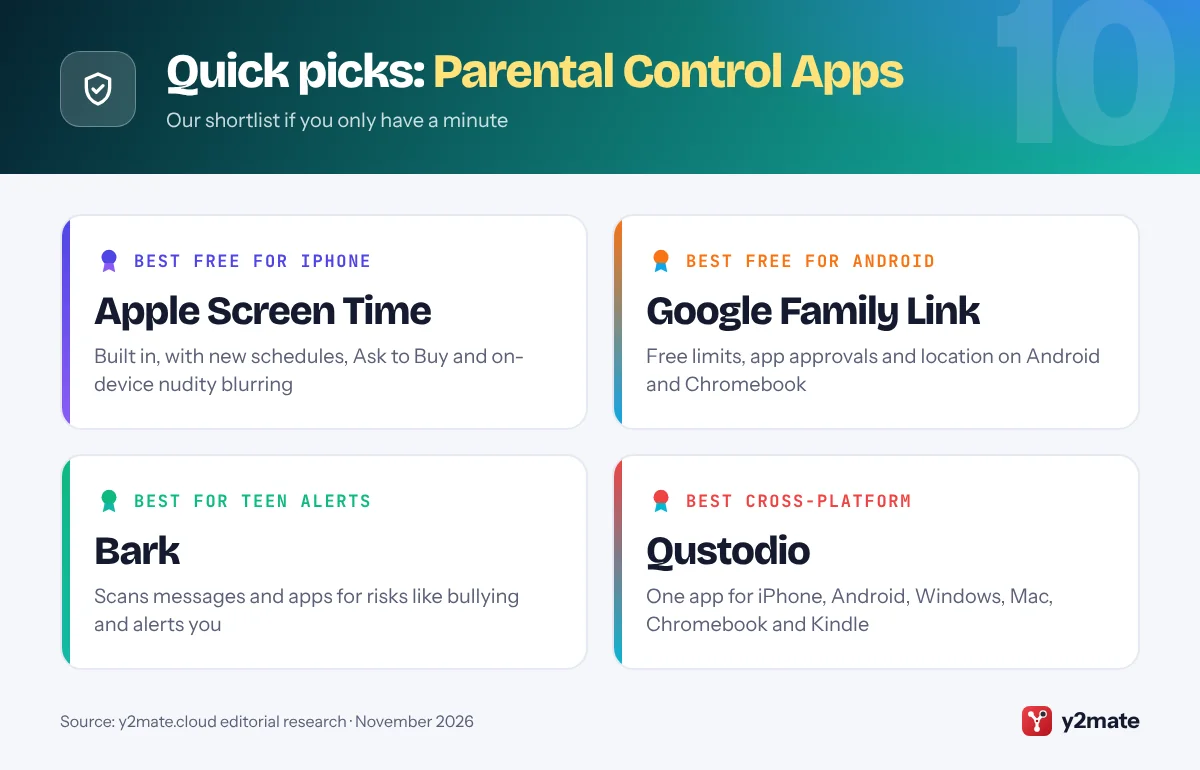
The best parental control apps for most US families in 2026 are free and already on your kids’ devices: Apple Screen Time for iPhone and iPad, and Google Family Link for Android phones and Chromebooks. Add Bark if you want alerts about bullying or self-harm in a teen’s messages, Qustodio or Mobicip if your children also use Windows, Mac or Chromebook computers, and Life360 or your carrier’s family app if location matters most. No app replaces an honest conversation with your child.
Parental control apps let a parent limit screen time, approve app downloads, filter websites and see a child’s location. Monitoring services go further: their software scans a child’s messages, posts or browsing and alerts you when something looks risky. On an iPhone, Apple restricts what any third-party app can read, so monitoring is always more limited there than on Android.
Below are ten options available to US families in November 2026, with who each suits, who should skip it and what each company says it does with children’s data.
How we ranked this list
We ranked each service on four things: the controls it documents officially, such as screen time, app approval, web filtering, location and message alerts; the platforms it covers, including iPhone, Android, Windows, Mac and Chromebook; its availability and support in the US; and how the company says it handles children’s data in its privacy policy. Free tools built into the operating system, which add no new company holding your child’s data, ranked highest.
We did not test these apps hands-on. Features change with software updates, so check each company’s help pages before you pay.
The Top 10 Parental Control Apps
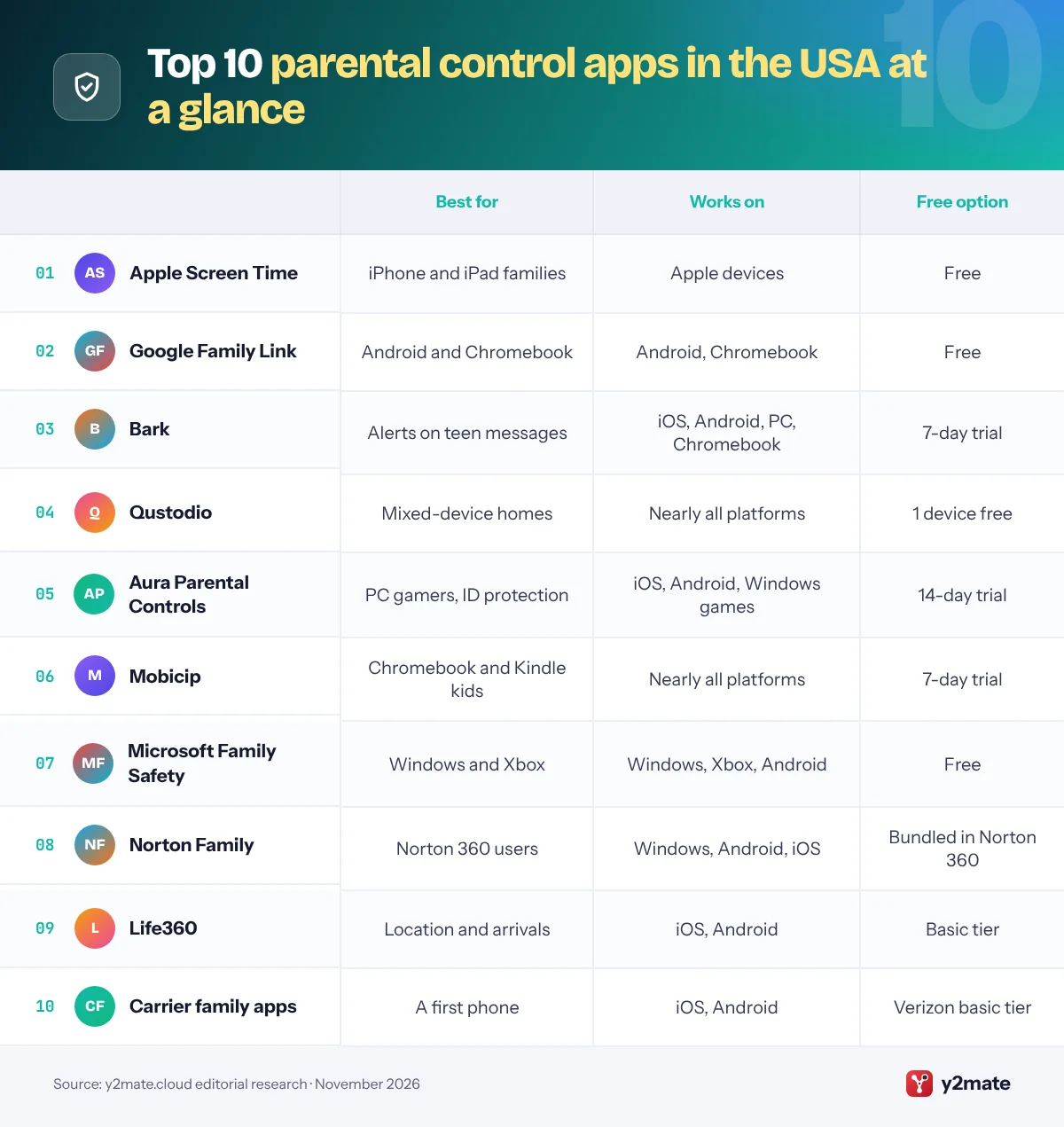
1. Apple Screen Time
Best for: families whose kids use iPhone or iPad
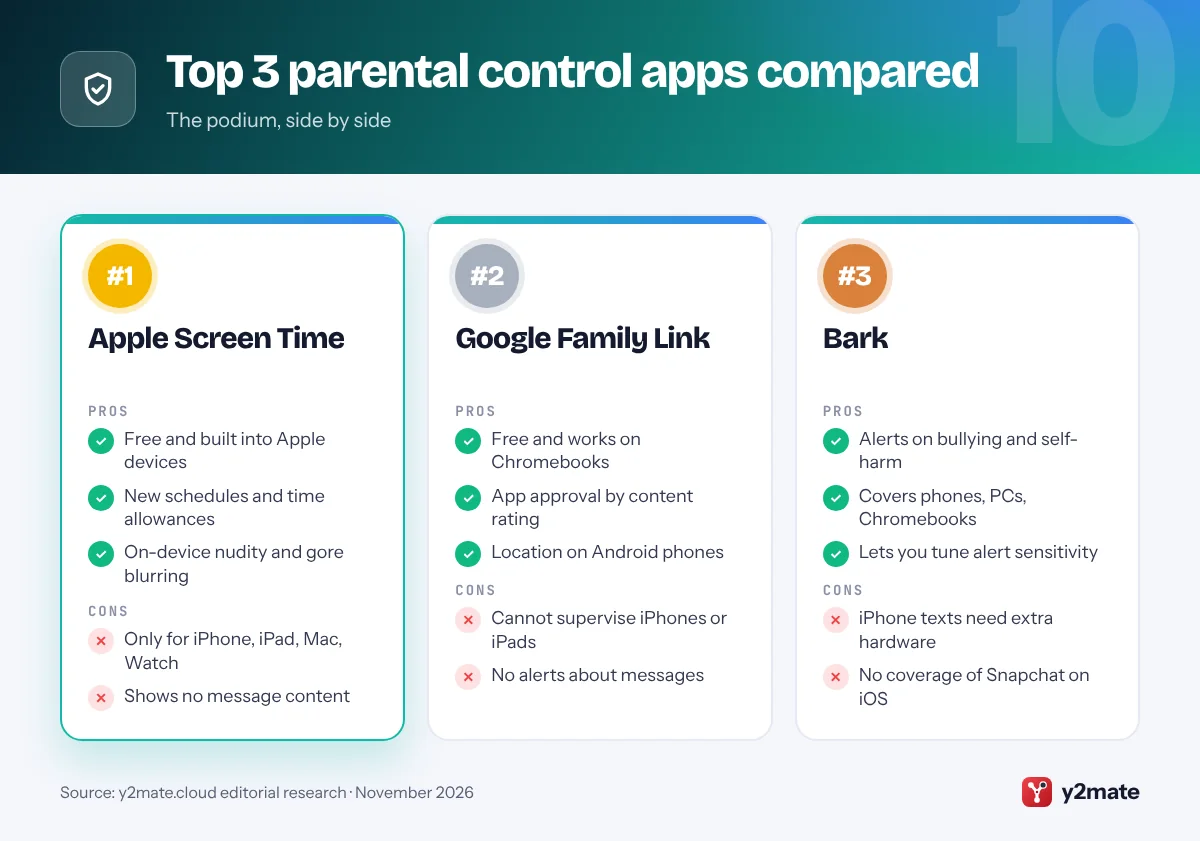
Screen Time is Apple’s free, built-in parental control, run through Family Sharing from a parent’s iPhone, iPad or Mac. Apple redesigned it in iOS 27: you can set Screen Time Schedules for before, during and after school, give Time Allowances for games, social media and entertainment apps, approve each new app with Ask to Buy, and use Ask to Browse so younger children must request new websites. Communication Safety blurs detected nudity and, now, gore and violence in shared photos and videos, and Apple says it is on by default for children under 18.
Apple says that analysis happens on the device, so Apple never sees the images, and Screen Time data is end-to-end encrypted in iCloud. Under Texas law, under-18s with Apple Accounts created in Texas since June 4, 2026 must be in Family Sharing, with Ask to Buy always on.
It suits every age. Skip it as your only tool if your child uses Android or Windows, or if you expect to read messages, which Screen Time never shows.
Official site: Apple Screen Time
- Free and built into Apple devices
- New schedules and time allowances
- On-device nudity and gore blurring
- Only for iPhone, iPad, Mac, Watch
- Shows no message content
2. Google Family Link
Best for: Android phones and Chromebooks
Family Link is Google’s free parental control app for children’s Google Accounts. On a supervised Android phone, tablet or Chromebook you can set daily limits, app time limits, downtime and school time, approve or block apps from Google Play by content rating, restrict websites in Chrome, manage YouTube settings and see your child’s location, although Google says location reporting does not work on Chromebooks.
The big limit is Apple. Google says iPhones, iPads and computers other than Chromebooks cannot be supervised, so most controls stop working if your child switches to an iPhone. Teens aged 13 to 17 need a parent’s approval to stop supervision. Google says it does not show personalized ads to children under 13, although it still collects activity such as searches, videos watched and location to run its services.
It suits children of roughly 5 to 15 on Android. Skip it if your child has an iPhone, or if you want alerts about what is in their messages.
Official site: Google Family Link
- Free and works on Chromebooks
- App approval by content rating
- Location on Android phones
- Cannot supervise iPhones or iPads
- No alerts about messages
3. Bark
Best for: alerts about risky messages for teens
Bark is a US monitoring service built for families with tweens and teens. Its AI scans texts, email, web activity and supported apps for potential dangers, such as bullying, self-harm and drugs, and alerts you when it finds something concerning. You can choose how sensitive the alerts are. Bark also offers screen time schedules, website and app blocking and GPS location, and works on iPhone, iPad, Android, computers, Chromebooks and Amazon Fire tablets.
On iPhone, Bark says Apple’s privacy protections stop third-party apps reading what is on a child’s device. To monitor texts, photos and videos, you need its Bark Sync charger or the Bark Desktop App on a home computer, and Bark lists Snapchat, Instagram and TikTok as having no coverage on iOS. Bark’s privacy policy says it never sells or rents your data and generally keeps identifiable monitored data for 30 days.
It suits ages 9 to 17 once a child has a phone. Skip it if your teen expects private conversations, or if your child is young enough for built-in controls alone.
Official site: Bark
- Alerts on bullying and self-harm
- Covers phones, PCs, Chromebooks
- Lets you tune alert sensitivity
- iPhone texts need extra hardware
- No coverage of Snapchat on iOS
4. Qustodio
Best for: mixed homes with Windows, Mac and Chromebook
Qustodio covers more kinds of device than most rivals: Android, iPhone and iPad, Windows, Mac, Chromebooks with Google Play and Kindle tablets. It combines web filtering, app blocking and time limits, YouTube monitoring, location with alerts when a child arrives at or leaves saved places, and call and message monitoring. Social alerts are strongest on Android, where Qustodio lists WhatsApp, Instagram, TikTok, Snapchat and X; on iPhone it lists WhatsApp and Instagram message alerts, and call and message monitoring needs a Windows or Mac computer.
Qustodio is based in Barcelona, and since July 2026 its parent company, Qoria, has been owned by Aura, which is fifth on this list. Its privacy policy says it never sells personal data from its parental controls and that the app is not ad-supported. A free plan covers one child on one device with basic features.
It suits ages 6 to 15 in homes with several kinds of devices. Skip it if built-in controls already do the job.
Official site: Qustodio
- Works on almost every platform
- Calls, messages and YouTube views
- Free plan for one device
- iPhone message checks need a PC
- Social alerts mainly on Android
5. Aura Parental Controls
Best for: PC gamers and families wanting ID protection
Aura, a Boston-based online safety company, has folded the Circle parental control technology into its own apps and sells parental controls alone or inside its family identity protection plan. On a child’s iPhone, iPad or Android device you can filter content and block sites, set screen time limits and focus schedules, and pause the internet with one tap. Safe Gaming, provided by Kidas, monitors in-game voice and text chat in popular Windows PC games and sends predator, scam and cyberbullying alerts, and Aura also flags risky AI chat apps.
Aura’s parental controls privacy notice, effective October 1, 2026, says it never sells personal data from the product and the app is not ad-supported. It also says Aura may use children’s data for research and to improve its AI, and that an optional Aura keyboard collects keystroke patterns.
It suits ages 8 to 16, especially PC gamers. Skip it if you need controls on a Mac or Chromebook, or want minimal data collection.
Official site: Aura Parental Controls
- In-game chat alerts on PC games
- Bundles identity theft protection
- Never sells parental control data
- No Mac or Chromebook controls
- Uses kids' data to improve its AI
6. Mobicip
Best for: younger kids on Chromebooks and Kindles
Mobicip is a California company whose parental control app covers iPhone, iPad, Android, Kindle Fire, Mac, Windows and Chromebook from one parent account. Its tools include screen time schedules, an app blocker, a website blocker for mature content, activity summaries and a family locator with geo-boundaries. A social media monitor scans Facebook and Snapchat for harmful content, and co-parents or guardians can share control of the same settings.
Mobicip’s privacy policy says it will never voluntarily sell personally identifiable data, does not share a child’s usage data with third parties and complies with COPPA. There is a 7-day free trial rather than a free plan, and some features depend on what each platform allows third-party apps to do.
It suits children of about 5 to 13, particularly in homes that use Chromebooks or Kindle tablets for schoolwork and reading. Skip it if you mainly want message alerts for an older teen, where Bark covers more apps.
Official site: Mobicip
- Covers Chromebook and Kindle Fire
- Schedules, app and site blocking
- Co-parents can share control
- Trial only, no free plan
- Social monitoring covers few apps
7. Microsoft Family Safety
Best for: Windows PCs and Xbox consoles
Microsoft Family Safety is free with a Microsoft account and is the natural choice if your children use a Windows PC or an Xbox. Microsoft says screen time limits work on Windows 10 and 11, Xbox and Android apps and games, and are managed from the Family Safety app on Android or iPhone. Web and search filters block mature sites in Microsoft Edge, and other common browsers are blocked so the filter holds. Age limits mean children need your approval for apps and games above their rating on Windows and Xbox.
Microsoft says its location and driving safety features in Family Safety are going away, so use another app for location. It also says it does not deliver personalized advertising to children whose Microsoft account birthdate shows they are under 18.
It suits ages 6 to 14 in Windows and Xbox homes. Skip it for iPhones, which it cannot control.
Official site: Microsoft Family Safety
- Free with a Microsoft account
- Xbox and Windows time limits
- Approval for higher-rated games
- Cannot control iPhones
- Web filter works in Edge only
8. Norton Family
Best for: families already paying for Norton 360
Norton Family, from Gen Digital, is included with Norton 360 Deluxe and Norton 360 Premium, or sold on its own. It installs on a child’s Windows PC, Android device or iPhone and offers web, search and YouTube video supervision, time limits and schedules, location supervision with a 30-day history on Android and iOS, School Time to keep a device on chosen educational sites, and Instant Lock to pause a device at dinner. App supervision covers Android and Windows.
Norton says Mac computers and Windows in S mode are not supported, and not every feature works on every platform. Gen’s products privacy notice lists what Norton Family collects from a child’s device, including sites visited, search terms and, where a parent enables it, location.
It suits ages 6 to 14 in homes that already use Norton security software. Skip it if your child uses a Mac, or if you want alerts about messages, which are not among its listed features.
Official site: Norton Family
- Included with Norton 360 Deluxe
- Location history on phones
- School Time and Instant Lock
- Not supported on Mac
- No message monitoring
9. Life360
Best for: knowing where teens are, not what they see
Life360 is a location-sharing app rather than a content filter. Family members join a private Circle on iPhone or Android, see each other on a map and get alerts when someone arrives at or leaves a saved place such as school. A free tier covers the basics, and paid memberships add more safety and driving features.
Privacy is the trade-off to understand. Life360’s privacy policy says it does not sell or share the personal information of members it knows are under 18 and shows no ads in child or teen accounts. The same policy says it licenses precise location data from other members, which can include parents, to business partners, and that residents of US states with privacy laws can opt out.
It suits tweens and teens from about 10 who travel on their own, including new drivers. Skip it if you want screen time or web controls, and agree it openly with your teen first.
Official site: Life360
- Free tier for location sharing
- Alerts for arrivals at places
- No ads in child or teen accounts
- No screen time or web filters
- Licenses adults' location data
10. Carrier family apps
Best for: a first phone on Verizon, AT&T or T-Mobile
Each of the big three US carriers sells its own family app. Verizon Family is free for location sharing, one place alert and reviewing your child’s Verizon call and text activity, while Verizon Family Plus adds content filters, screen time schedules, app blocking and pausing the internet. AT&T Secure Family, paid after a free 30-day trial, covers location, web and app filters, screen time limits and blocking app store purchases through a companion app on the child’s phone. T-Mobile FamilyMode, a paid add-on, filters content, sets time limits, pauses internet access and shows location.
The limits are real. Verizon says its app does not monitor iMessage, Google Messages or other third-party messaging apps, and T-Mobile warns that FamilyMode may not block all objectionable content or filter some secure HTTPS traffic.
These apps suit ages 8 to 13 on a first phone. Skip them if you change carriers often or need controls on computers.
- One bill with your phone plan
- Verizon basic tier is free
- Help from your carrier
- Full controls mostly paid
- Tied to one carrier
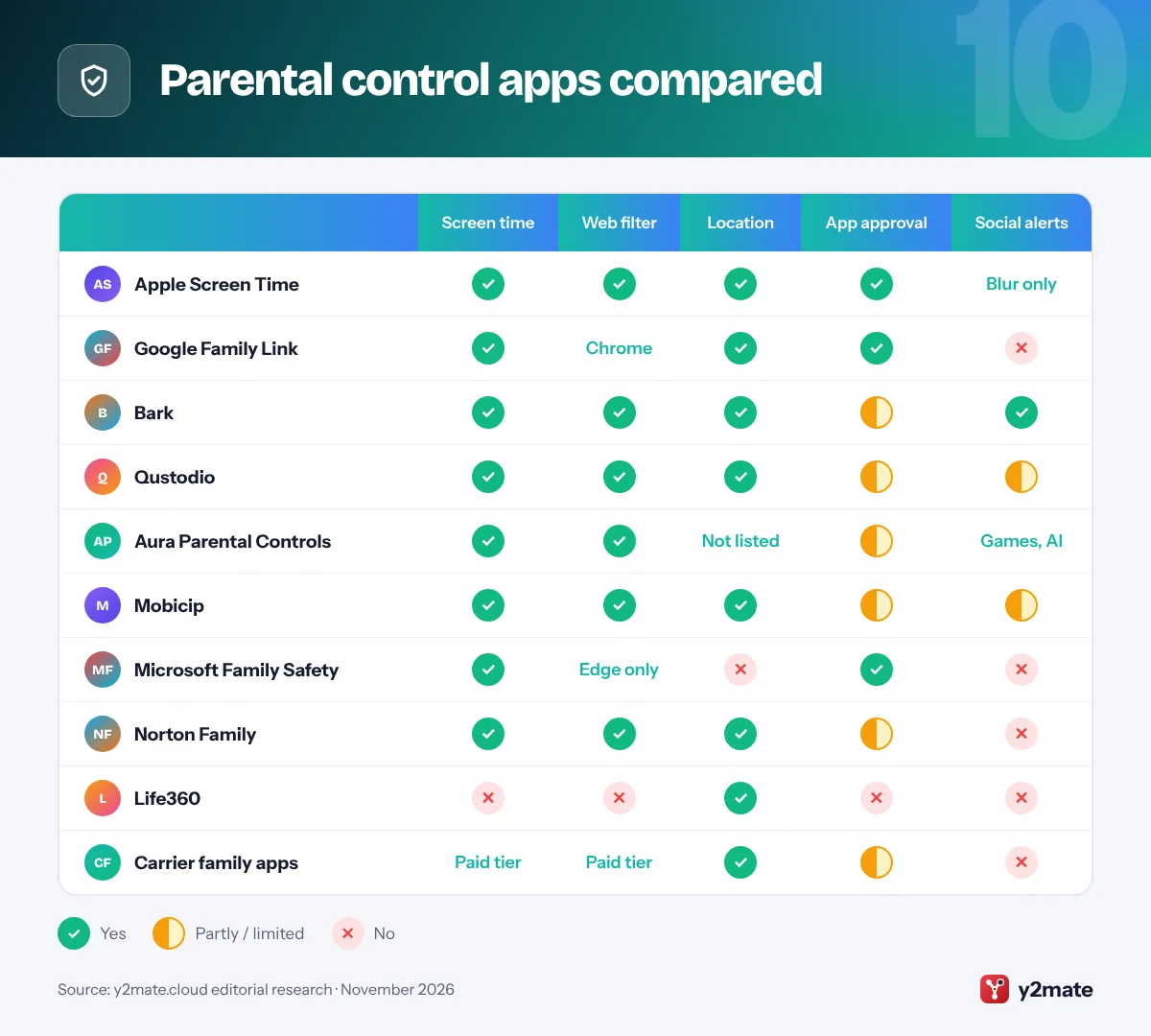
Parental control apps compared
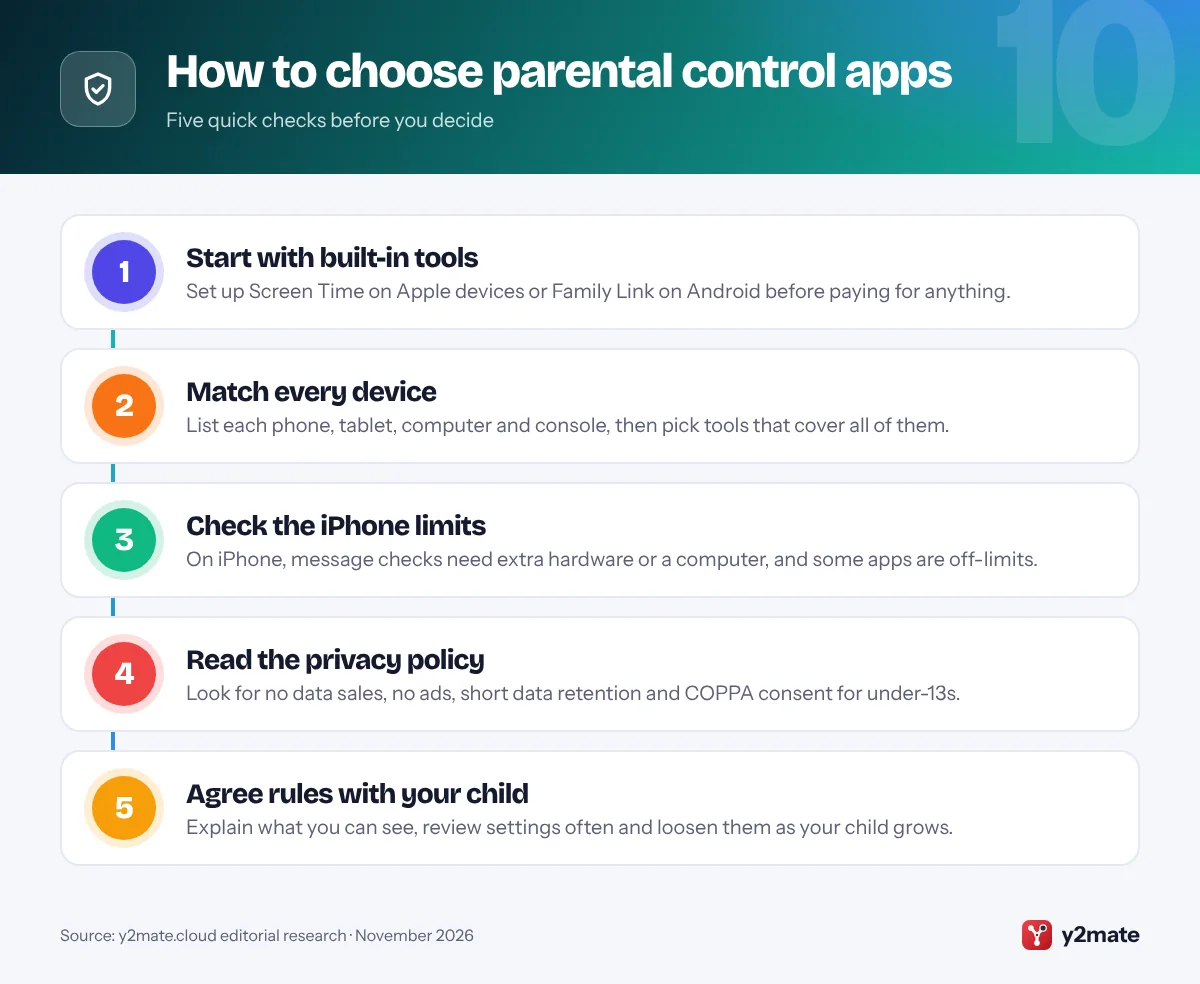
How to choose parental control apps for your family
Start with what you already own. Screen Time and Family Link are free, made by the companies that run the operating system, and add no new company to the list of firms holding your child’s data. Pay for an extra service only to fill a real gap, such as message alerts for a teen, controls on a Windows laptop or one dashboard for a mixed iPhone and Android household.
iPhone versus Android
Android lets third-party apps see more, so Bark, Qustodio and similar services offer their fullest features there. On iPhone, Apple’s privacy design blocks other apps from reading messages and photos, so Bark needs its Sync charger or a home computer, and Qustodio needs a Windows or Mac computer for call and message checks. Be wary of any app that claims to read everything on an iPhone.
What US law changes
- COPPA: apps covered by the Children’s Online Privacy Protection Act must get verifiable parental consent before collecting personal information from children under 13. The FTC’s amended rule, with a compliance date of April 22, 2026, adds separate consent before sharing kids’ data with third parties, including for targeted ads, and requires a written data retention policy and security program.
- App store laws: Texas requires app stores to verify ages and get parental consent for minors’ downloads. A federal judge blocked the law in December 2025, but after an appeals court lifted that order, Apple began applying it to new Texas accounts on June 4, 2026. Utah has delayed its similar law.
- Kaspersky: the Commerce Department banned Kaspersky software sales to US customers from July 20, 2024, so Kaspersky Safe Kids is not an option.
Frequently asked questions
What is the best free parental control app in the USA?
For most families, the best free option is the one built into your child's device: Apple Screen Time on iPhone, iPad and Mac, or Google Family Link on Android phones and Chromebooks. Microsoft Family Safety is free for Windows PCs and Xbox consoles. Qustodio and Verizon Family also have free tiers, but their fuller features are paid.
Can parental control apps read my child's texts on an iPhone?
Only partly. Apple stops third-party apps from reading messages and photos directly on an iPhone. Bark can scan texts and photos only with its Bark Sync charger or desktop app, and Qustodio needs a Windows or Mac computer for call and message monitoring. Bark lists Snapchat, Instagram and TikTok as having no coverage on iOS, and Screen Time itself shows no message content.
Is Kaspersky Safe Kids available in the US?
No. In June 2024 the US Commerce Department issued a final determination banning Kaspersky from selling its software to US customers, with new sales prohibited from July 20, 2024 and updates ending after September 29, 2024. US families should choose another app, such as Screen Time, Family Link, Qustodio or Norton Family.
What does COPPA mean for parental control apps?
COPPA, the Children's Online Privacy Protection Act, requires apps and websites aimed at children under 13, or that knowingly collect their data, to get verifiable parental consent first. The FTC's amended rule, with a compliance date of April 22, 2026, also requires separate consent before sharing children's data with third parties for targeted advertising, and limits how long companies can keep it.
Do I still need parental controls if app stores now check ages?
Yes. Laws in Texas and Utah make app stores verify ages and get parental consent for minors' downloads, but they do not set screen time, filter websites or show where your child is. Court challenges and delays also mean the rules differ from state to state. Keep using Screen Time or Family Link alongside any app store checks.
Final verdict
For most US families, the best parental control apps are the free ones already on your children’s devices: Apple Screen Time for iPhone and iPad, Google Family Link for Android and Chromebook, and Microsoft Family Safety for Windows and Xbox. Turn these on first and agree the rules with your child.
Add Bark if you want alerts about risky messages for a teen, Qustodio or Mobicip for mixed-device homes, Aura for kids who game on a PC, and Life360 or your carrier’s app for location. Whatever you choose, read the privacy policy, because every one of these services handles sensitive data about your child.
Sources and further reading
- FTC guide to parental controls: The FTC explains what parental controls can do and points to free tools from Apple, Google and Microsoft.
- FTC's updated COPPA Rule: The FTC announces COPPA Rule changes requiring separate parental consent before children's data is shared for targeted advertising.
- Commerce ban on Kaspersky: The Bureau of Industry and Security explains the 2024 determination barring Kaspersky from selling software to US customers.
- Apple's Texas age requirements: Apple sets out the Family Sharing, Ask to Buy and age range rules for new Apple Accounts created in Texas.
- Devices Family Link can supervise: Google lists which phones, tablets and computers Family Link can supervise, and notes that iPhones and iPads cannot be.

Leave a Reply