
- To set up parental controls in the UK, use the built-in tools on your child's phone or tablet, such as Apple Screen Time or Google Family Link, then add mobile network, broadband and games console controls.
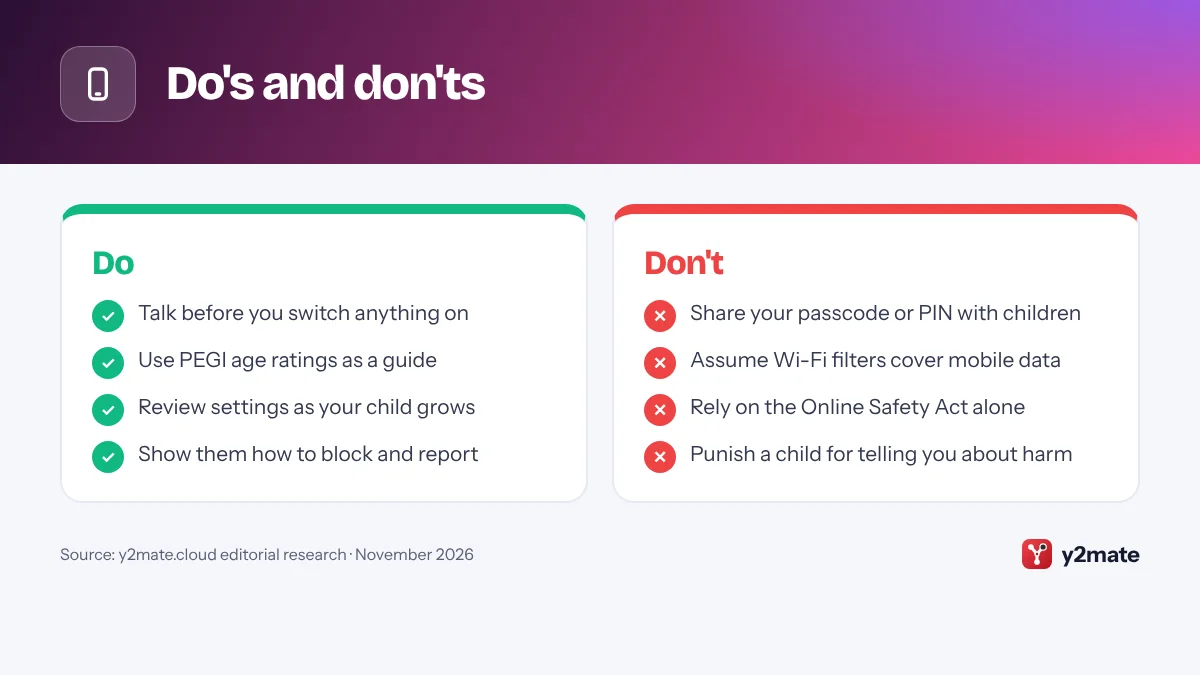
- EE, O2 and Three say they block 18-rated content on their mobile data by default, but these filters do not cover Wi-Fi.
- BT, Sky, TalkTalk and Virgin Media all offer free broadband parental controls that filter every device on your home Wi-Fi.
- Since 25 July 2025, the Online Safety Act has required sites and apps that children are likely to use to keep them away from pornography and other harmful content, including with highly effective age checks.
- Age checks and filters reduce risks but do not remove them, so regular, open conversations with your child still matter most.
To set up parental controls in the UK, agree some family rules first, then switch on the free tools you already have: Screen Time or Google Family Link on your child’s phone or tablet, your mobile network’s adult content filter, your broadband provider’s filter and the family settings on any games console. Each layer covers gaps the others miss, so your child stays protected when they leave your Wi-Fi.
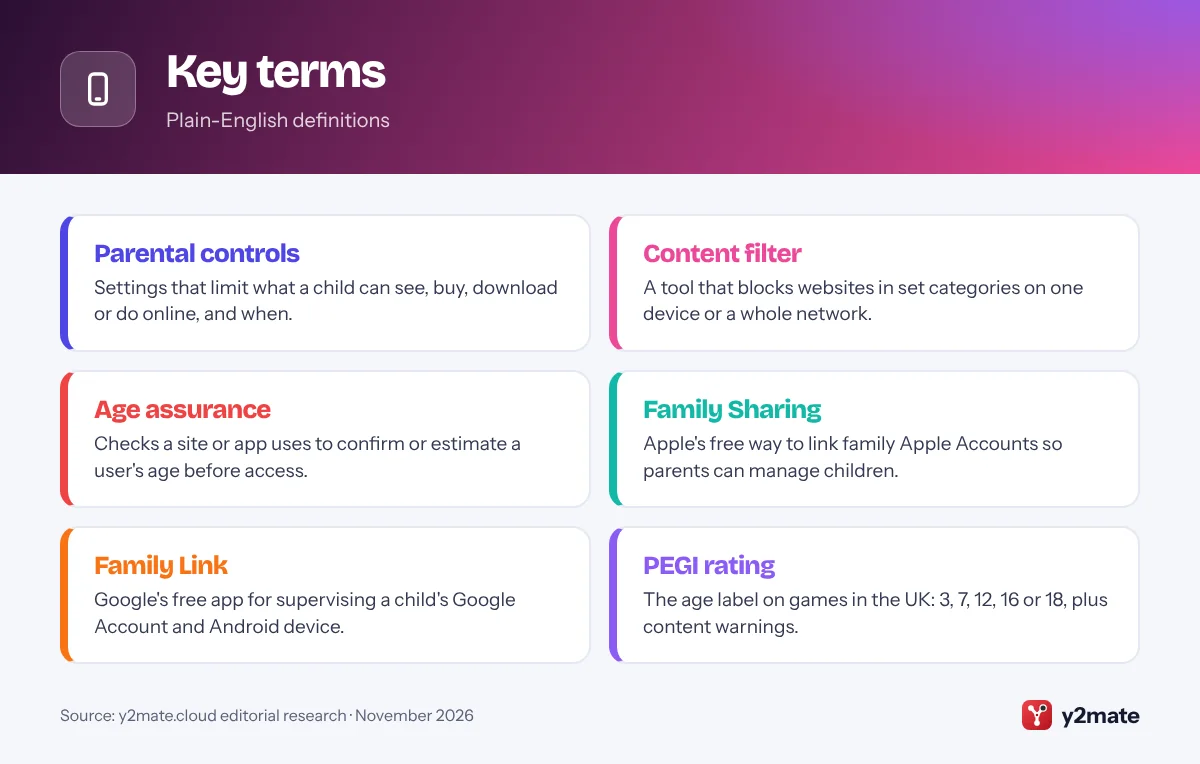
Parental controls are settings that let a parent or carer limit what a child can see, download, buy or do online, and when. A content filter is one kind of parental control: it blocks websites in categories such as pornography, gambling or self-harm, either on a single device or across a whole network.
This guide is for UK parents and carers of school-age children. It also explains what the Online Safety Act requires of apps and websites, and why it does not replace your own settings. Menus change with software updates, so where a path differs by device or version, we say so.
Level: Beginner · Time needed: 1 to 2 hours
What you need
- Your child’s phone, tablet or console, charged and updated to the latest software
- Your own smartphone, to run Screen Time, Family Link or a console family app
- Your Apple Account, Google Account, Microsoft account, PlayStation account or Nintendo Account login
- The account holder login for your broadband and mobile provider
- A passcode or PIN your child does not know, different from your phone’s unlock code
- Time to talk with your child before you change anything
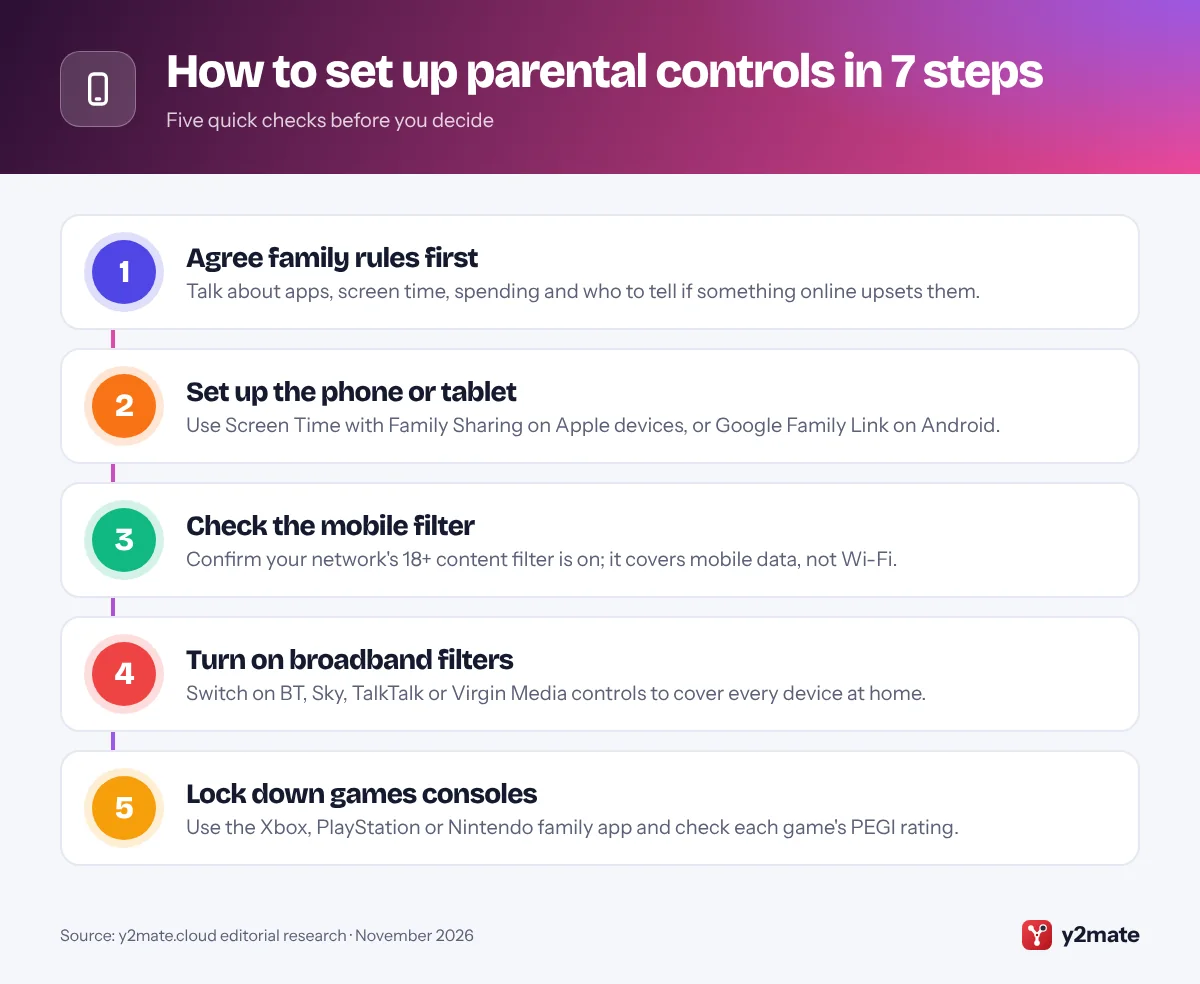
Step 1: Talk to Your Child and Agree Family Rules First
Controls work best when your child understands why they are there. The UK Safer Internet Centre warns that children can learn to bypass settings, so explaining your reasons matters as much as the settings themselves.
Sit down together and agree:
- What they use: the apps, games and websites they enjoy, which tells you which controls you need.
- When and where: screen-free times, such as meals and bedtime, and where devices charge overnight.
- Spending: whether they can buy apps or in-game items, and who approves it.
- Who they talk to: whether they can chat with people they have not met in real life.
- What to do if something goes wrong: they can turn the screen over and come to you, and will not lose their device for telling you.
Write the rules down as a simple family agreement with a review date, because the right level of control changes as your child grows.
Step 2: Set Up Parental Controls on an iPhone, iPad or Android Phone
Device controls work on any connection, so start here.
iPhone or iPad: Apple’s controls run through Family Sharing, its free way of linking family members’ Apple Accounts. Following Apple’s Screen Time guide:
- Set up Family Sharing and create a Child Account with your child’s real date of birth, which Apple uses to suggest age-appropriate restrictions.
- On your own iPhone, open Settings, tap Family, tap your child’s name and follow the prompts to set up Screen Time.
- Set the Screen Time passcode on your own device, not your child’s.
On iOS 27, Apple lists Time Allowances, Screen Time Schedule and Apps & Websites under your child’s name; older versions use Downtime, App Limits and Content & Privacy Restrictions inside Screen Time. In the UK, Apple says Web Content Filter and Communication Safety switch on automatically for children and teens.
Android: install Google’s Family Link app on your phone, then create a Google Account for your child or add supervision to their existing one. On your child’s phone, Google’s path is Settings > Google > All services > Parental controls, though wording varies by phone maker and Android version.
Step 3: Check Your Mobile Network's Adult Content Filter
Under an industry code of practice, each of the UK’s main mobile networks offers a filter that stops under-18s reaching adult content over mobile data, set using a framework from the British Board of Film Classification (BBFC).
The big networks switch it on by default. EE says new customers automatically get its Moderate setting, which blocks 18-rated sites, with a Strict option for younger children. O2 and Three say 18+ content is blocked by default. Removing a filter requires the account holder to prove they are over 18, for example with a credit card check.
If the SIM was once yours and you unblocked it, it may still be unfiltered. To check:
- Sign in to your network’s app or account as the account holder.
- Find the setting, such as parental controls or Content Lock (EE), age-restricted content (O2), adult content (Three) or Adult Content Controls (Vodafone).
- Make sure it is on, or call the network.
These filters only work on that network’s mobile data, not on Wi-Fi. Vodafone says its bar may not block adult content in a private browser, and O2 says its protections do not work through a VPN.
Step 4: Switch On Your Broadband Provider's Parental Controls
A broadband filter works at network level, so it covers every device on your home Wi-Fi, including smart TVs and consoles. The UK Safer Internet Centre says BT, Sky, TalkTalk and Virgin Media all give customers free parental controls that can be switched on at any time. Sign in as the account holder and look for:
- BT Parental Controls: in the My BT app, with strict, moderate and light filter levels, filter times and a homework time option.
- Sky Broadband Shield: PG, 13 or 18 age ratings. Sky says the default is 13, switching to 18 from 9pm to 5.30am, and you can change both.
- TalkTalk HomeSafe: turn on Kids Safe in My Account and choose which categories to block.
- Virgin Media Essential Security: the new name for Web Safe, with category, site and timer controls in My Virgin Media.
Set the level for your youngest child. With another provider, check its app or help pages for similar settings.
A home filter stops at your front door: it does not cover mobile data or a friend’s Wi-Fi. In public, the Friendly WiFi symbol shows that a hotspot filters pornography.
Step 5: Set Up Games Console Controls and Check PEGI Ratings
Each console maker has a free family app you run on your own phone. Create a child account first, then:
- Xbox: the Xbox Family Settings app covers screen time, content, communication, multiplayer and Ask to Buy on Xbox Series X|S and Xbox One.
- PlayStation: use the PlayStation Family app, or on a PS5 go to Settings > Family and Parental Controls > Family Management to set playtime, age levels, communication and a monthly spending limit. PS4 menus differ slightly.
- Nintendo Switch 2 and Switch: link the Nintendo Switch Parental Controls app. Controls apply to the whole console, not each player, and under-16s cannot use GameChat on Switch 2 until a parent sets it up in the app.
PEGI ratings are the age labels on games sold in the UK: 3, 7, 12, 16 and 18, plus descriptors such as violence, bad language and in-game purchases. UK retailers cannot legally sell a PEGI 12, 16 or 18 game to anyone younger. PEGI also says games submitted since June 2026 that sell paid random items, such as loot boxes, are rated 16 or 18.
Step 6: Set App Store Limits, SafeSearch and YouTube Controls
Next, control what your child can download and find:
- Apple App Store: turn on Ask to Buy under your child’s name in Settings > Family, so purchases and downloads need your approval. Set app age ratings in Apps & Websites > Restrictions on iOS 27, or in Content & Privacy Restrictions on older versions.
- Google Play: in Family Link, select your child, tap Controls > Google Play and choose the highest rating allowed. Apps installed before you set limits stay available, so block any you are unhappy with.
- Google Search: Google says SafeSearch, which filters explicit results, is always on for users under 18, so make sure your child signs in with their own account and correct date of birth.
- YouTube: Google recommends YouTube Kids for younger children and a supervised experience for tweens and teens, set up through Family Link or YouTube’s family settings. Parents can also limit time spent scrolling Shorts.
Streaming services such as BBC iPlayer have their own parental settings too, so check any your child uses.
Step 7: Review Privacy and Contact Settings on Social and Messaging Apps
Most social media apps, including Instagram, TikTok and Snapchat, set a minimum age of 13 in their terms. If your child already uses them, go through the settings together rather than behind their back:
- Make accounts private so only approved followers see posts.
- Limit who can message, comment or add them, ideally to friends they know offline.
- Turn off location sharing, such as Snap Map on Snapchat, and avoid location tags on posts.
- Use built-in supervision tools, such as Instagram’s Teen Accounts, TikTok’s Family Pairing and Snapchat’s Family Centre. These show some settings or contacts but generally not private messages.
- Check group settings in WhatsApp and similar apps, so only contacts can add your child to groups.
- Practise blocking and reporting, so your child knows how before they need it.
Game chat matters too. PlayStation notes that chat in Roblox follows Roblox’s own parental controls, not your console settings, so check popular games individually.
The Online Safety Act Explained: What It Means for Parents
The Online Safety Act 2023 puts legal duties on social media, search, gaming and other online services, enforced by Ofcom. Since 25 July 2025, sites and apps that children are likely to use have had to follow Ofcom’s Protection of Children Codes or equivalent measures. In plain words, they must:
- stop children seeing pornography and content promoting suicide, self-harm or eating disorders, using highly effective age assurance;
- protect children from other harmful content, such as bullying and dangerous stunts, in an age-appropriate way;
- filter harmful content out of children’s feeds, let them accept or decline group chat invitations and make reporting easy.
Age assurance means checking or estimating a user’s age, for example with facial age estimation, photo ID matching or a credit card check. Ticking a box to say you are 18 does not count.
What it does not mean: the duties fall on companies, not parents, and no app becomes risk-free. Children can still meet strangers, scams and upsetting content, and Ofcom does not handle individual complaints, so report problems to the platform. A VPN (virtual private network) can make a device appear to be outside the UK and so dodge age checks. In July 2026 the government said it will not ban VPNs but will publish guidance for parents.
What Changes in 2027: The Planned Under-16 Social Media Ban
In June 2026 the government announced that social media companies will no longer be able to offer their services to under-16s in the UK. Its July 2026 response says it intends to lay the first regulations before Parliament by the end of 2026, with the restrictions expected to take effect in spring 2027. Under the government’s plans:
- It plans to follow Australia’s model, and does not intend messaging services such as WhatsApp to be included.
- Livestreaming and contact from strangers will also be restricted for under-16s on other services, including games.
- For 16 and 17-year-olds, social media services will have to switch off autoplay and personalised feeds by default and restrict access between midnight and 6am, though teens can change these settings.
The full list of platforms is still to be confirmed, and the government says families do not need to do anything right now. Messaging apps, games and web browsing will still need the controls in this guide, so set them up now.
Do's and don'ts
Key terms
Troubleshooting
A useful website is blocked
Add it to your broadband filter’s allow list in your provider’s account settings. If a mobile network filter blocks it, ask the network to review it through its help pages.
Your child cannot play online on Xbox or PlayStation
Sky says its PG rating restricts the online games category, which stops sign-in to PlayStation Network and Xbox Live. Switch to 13 or a custom setting that allows online games, and use the console’s own controls instead.
Filters seem to do nothing on your child’s phone
Check whether the phone is on Wi-Fi or mobile data, because each filter covers only its own network. Look for unfamiliar VPN apps, and allow a little time, as some changes are not instant. Screen Time and Family Link work on any connection.
You forgot your Screen Time passcode or parental controls PIN
With Family Sharing, Apple lets you reset your child’s Screen Time passcode from your own device using your passcode, Face ID or Touch ID. If you use the parental controls PIN built into newer Android phones, Google says it can only be reset with the recovery account you added; without one, the phone must be factory reset.
Frequently asked questions
How do I set up parental controls on my child's phone in the UK?
On an iPhone or iPad, use Family Sharing and Screen Time: open Settings, tap Family, choose your child and follow the prompts. On Android, install Google Family Link on your own phone and supervise your child's Google Account. Then check that your mobile network's adult content filter is on, and turn on your broadband provider's filter for when they use home Wi-Fi.
Do parental controls cost anything in the UK?
The main tools are free. Apple's Screen Time and Google's Family Link come with the devices, and the console makers' family apps are free to download. The UK Safer Internet Centre says BT, Sky, TalkTalk and Virgin Media give customers free broadband parental controls, and UK mobile networks include an adult content filter. Optional paid security add-ons are not needed.
Does the Online Safety Act mean I don't need parental controls?
No. Since 25 July 2025, the Act has required sites and apps that children are likely to use to keep them away from pornography and other harmful content, including with highly effective age checks. But the duties fall on companies, not parents, and no service is risk-free. Your own controls also cover screen time, spending and which apps your child installs.
Can children get around parental controls with a VPN?
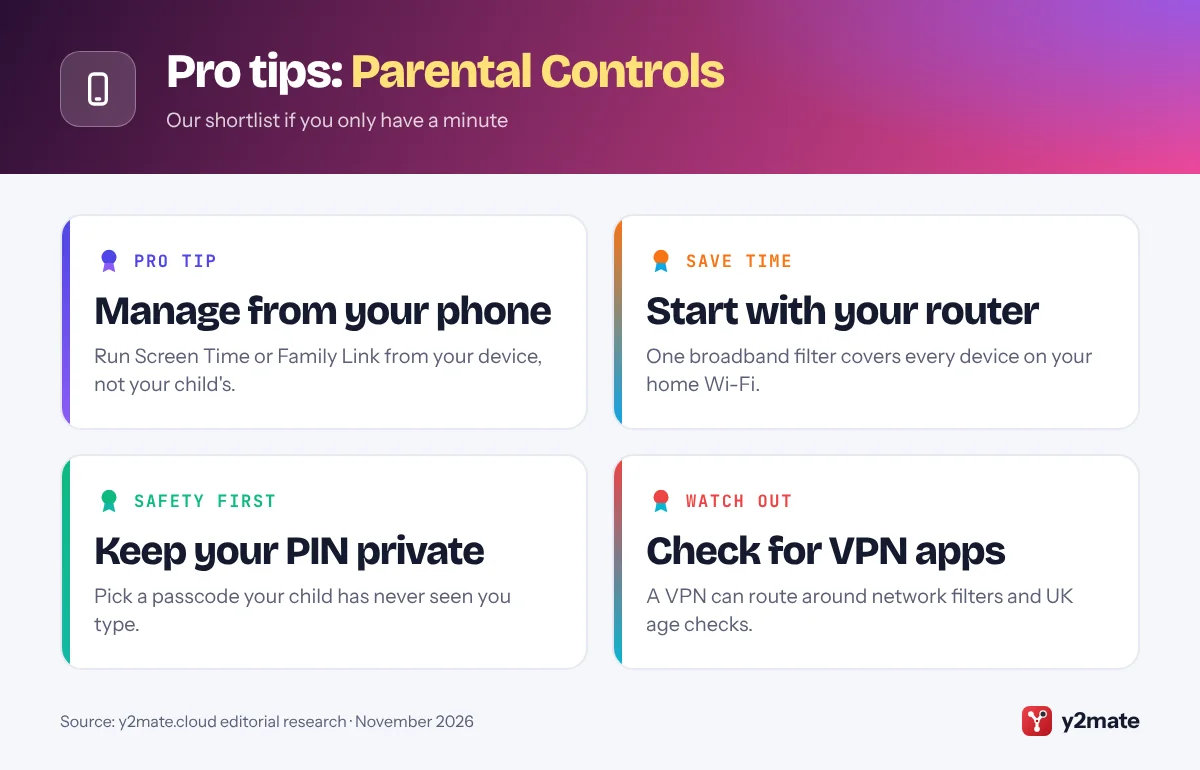
Sometimes. A VPN can hide a device's real location and route traffic around network filters and UK age checks. Device controls such as Screen Time and Family Link make this harder, especially if new apps need your approval. Check for unfamiliar VPN apps, and talk openly about why the rules exist, because no filter is completely reliable on its own.
What age can my child use social media in the UK?
Today, most major platforms, including Instagram, TikTok and Snapchat, require users to be at least 13, and the Online Safety Act requires platforms to enforce their own age limits consistently. The government has also announced a ban on social media for under-16s, expected to take effect in spring 2027 once regulations are approved. Until then, it says families do not need to do anything new.
Wrapping up
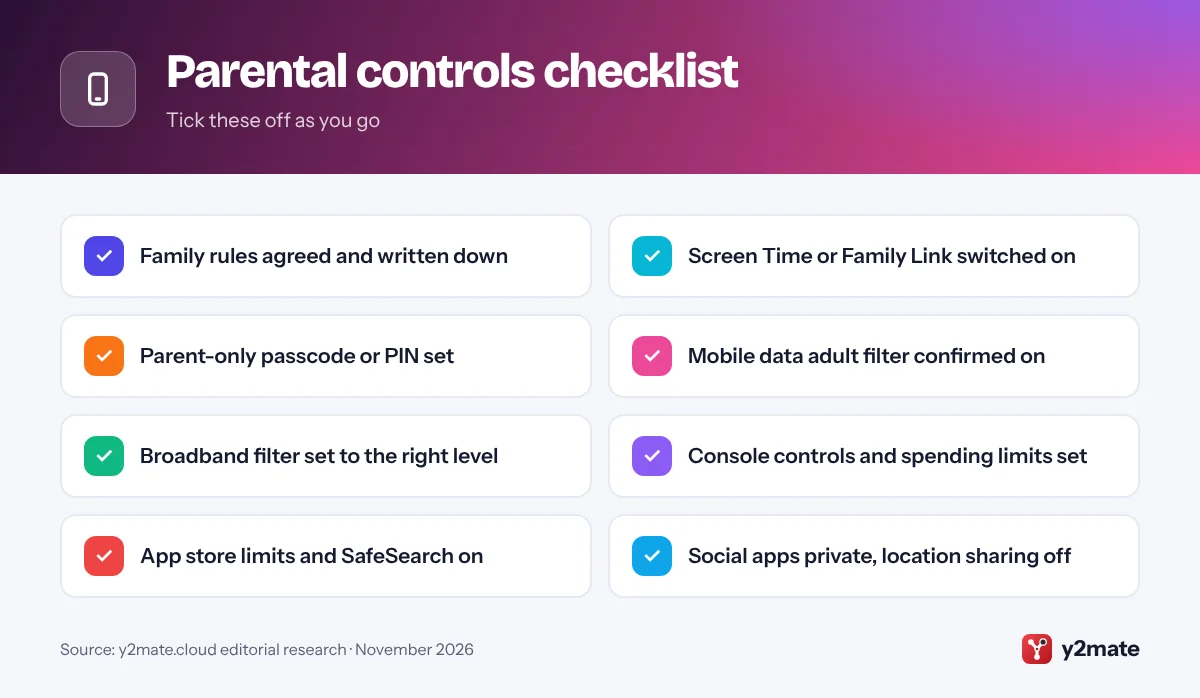
To set up parental controls that work, layer them: agree rules with your child, switch on Screen Time or Family Link, confirm the mobile data filter is on, turn on your broadband filter, then add console, app store and social app settings. Review them whenever your child gets a new device, game or app.
The Online Safety Act and the planned under-16 rules add protection on the platforms’ side, but they do not replace your settings or your conversations. For more help, see the UK Safer Internet Centre and Internet Matters, and our guide to UK scams to help older children spot fraud.
Sources and further reading
- Ofcom guide for parents: Ofcom explains how the Online Safety Act's children's codes, age checks and safer feeds are designed to protect children online.
- GOV.UK Online Safety Act explainer: The government's plain-English summary of the Online Safety Act, including the types of harmful content platforms must keep from children.
- GOV.UK new rules for children online: The government's fact sheet on the planned social media ban for under-16s and extra default protections for 16 and 17-year-olds.
- UK Safer Internet Centre advice: The UK Safer Internet Centre explains how to use parental controls from your internet provider, mobile network, devices and online services.
- Internet Matters parental controls guides: Step-by-step guides from the UK non-profit Internet Matters for broadband, mobile, device, games console and app parental controls.

Leave a Reply