
- To set up smart home devices securely in the UK, secure your router first, then give every device account a unique strong password with two-step verification, review privacy settings and keep everything updated.
- Since 29 April 2024, the UK's PSTI regime has banned universal default passwords on new consumer smart products and required makers to publish how to report security issues and a minimum security update period.
- The NCSC suggests treating a device's support end date as a 'use by' date, because devices that no longer get security updates are easier to hack.
- If a camera or smart doorbell captures images or audio beyond your property boundary, UK data protection law applies and the ICO expects you to have a clear reason, use a sign, keep footage secure and delete it regularly.
- Factory reset any second-hand smart device and make sure it has been removed from the previous owner's account before you connect it to your home network.
To set up smart home devices securely in the UK, start with your router: change its admin password, use WPA3 or WPA2 encryption and consider a guest network for smart gadgets. Then give each device and app account a unique strong password with two-step verification, review microphone, camera and data sharing settings, switch on automatic updates and aim cameras so they record as little beyond your property as possible.
A smart device is any household item that connects to the internet or your home network, such as a smart speaker, video doorbell, security camera, smart plug, smart TV or hub. Since 29 April 2024, the UK’s Product Security and Telecommunications Infrastructure (PSTI) regime has set minimum security rules for new consumer smart products, but it does not set up your home for you.
This guide is for UK households, including renters and second-hand buyers. If you are starting a new system around the Matter standard, read it alongside our guide to building a Matter smart home. Menus differ by brand and change with updates, so we describe settings in general terms.
Level: Beginner · Time needed: 1 to 2 hours
What you need
- Your router’s admin login, often on a card or sticker supplied with it, or in your provider’s app
- A smartphone with the latest system update, to run each device’s app
- A password manager, or another safe way to keep a different password for every account
- Access to the email account you use for smart home logins
- The make and model of each device, so you can find its support and update information
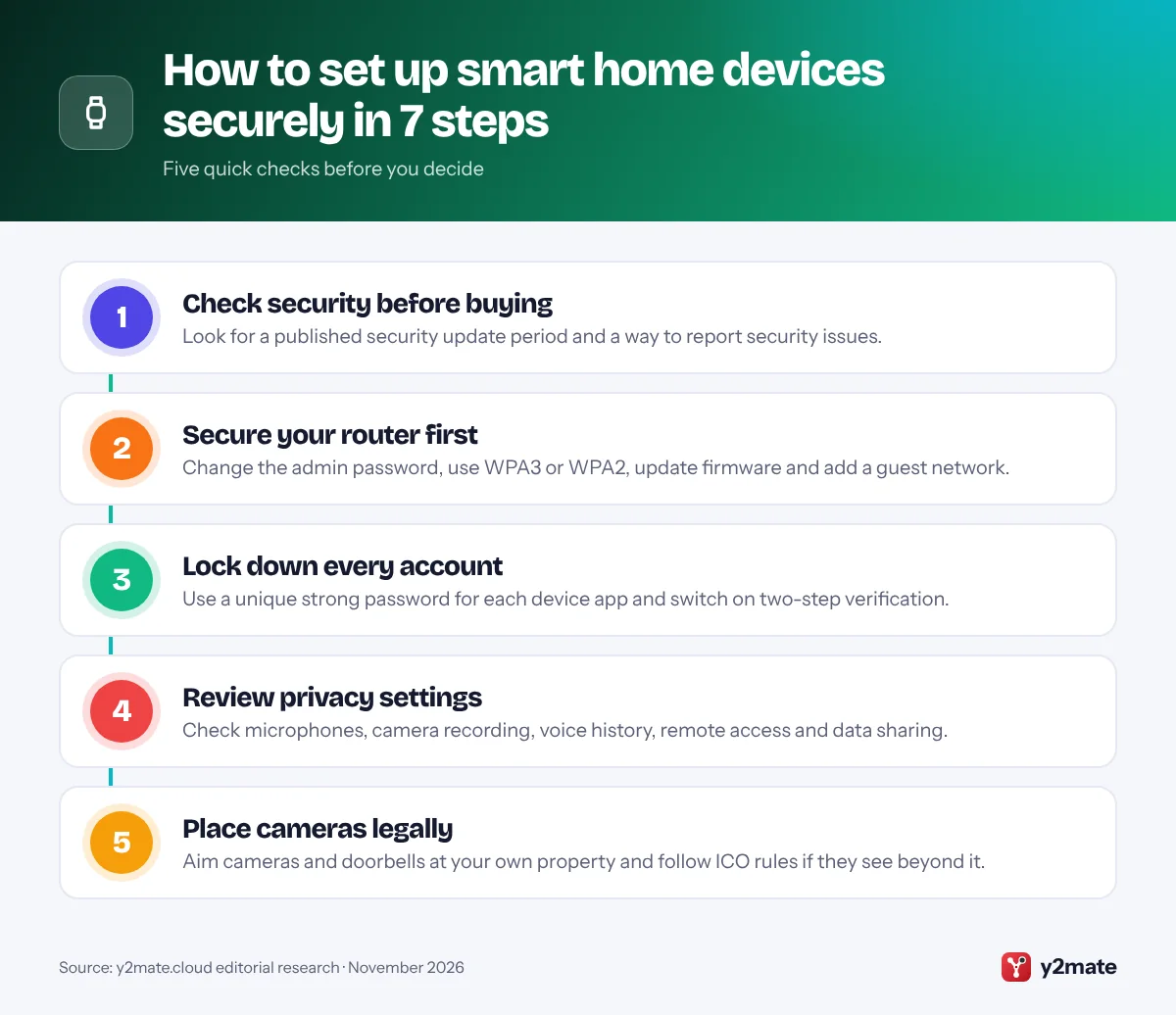
Step 1: Check a Smart Device's Security Before You Buy
Security starts before you open the box. Since 29 April 2024, the PSTI regime has required makers of new consumer smart products, from speakers and TVs to doorbells, cameras and plugs, to meet three baseline rules:
- No universal default passwords. A default password is a factory-set password, such as “admin”, shared by many products and easy to find online. Passwords must now be unique to each product or set by you.
- A published way to report security issues, saying when you will get an acknowledgement and progress updates.
- A stated security update period: the minimum time the maker will provide security updates, with an end date.
To find the update period, check the maker’s own product page, where it must appear alongside the main product details, or the statement of compliance, a paper or digital document that must accompany the product. If you cannot find it, ask the retailer or choose another product.
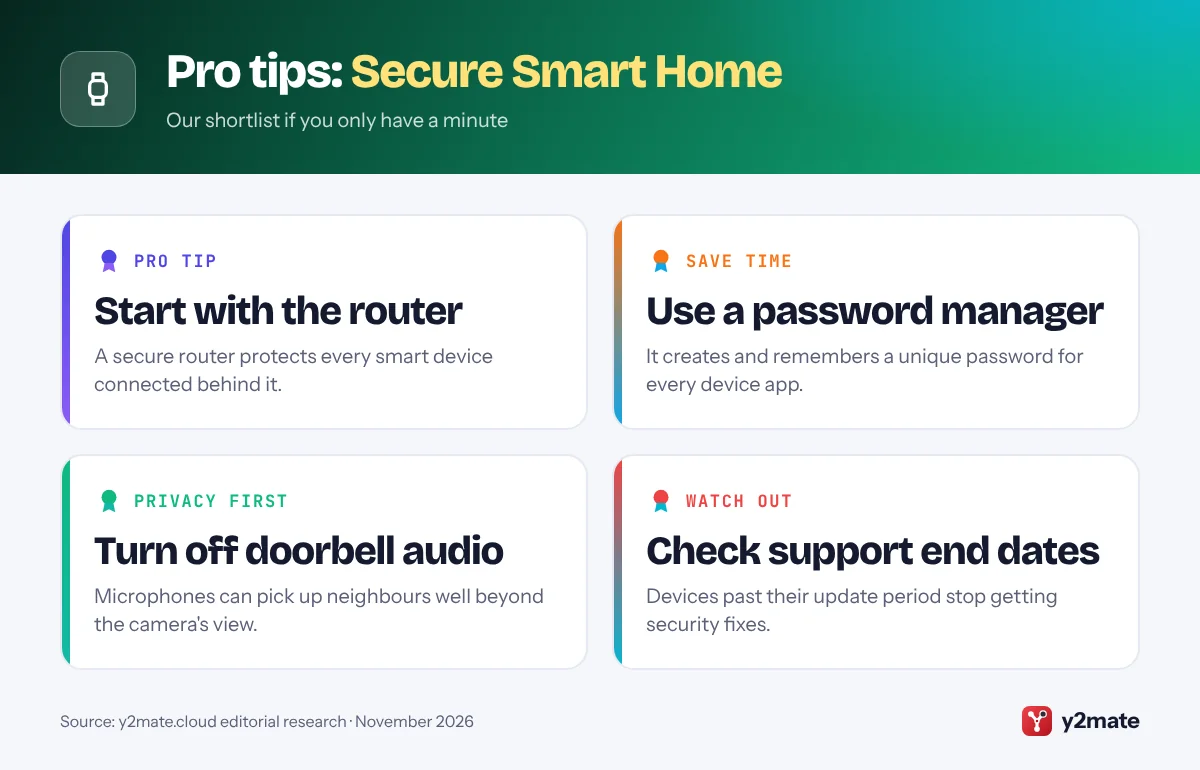
The NCSC’s smart devices guidance suggests treating the support end date as a ‘use by’ date. PSTI is a minimum standard, not a promise that a product is secure.
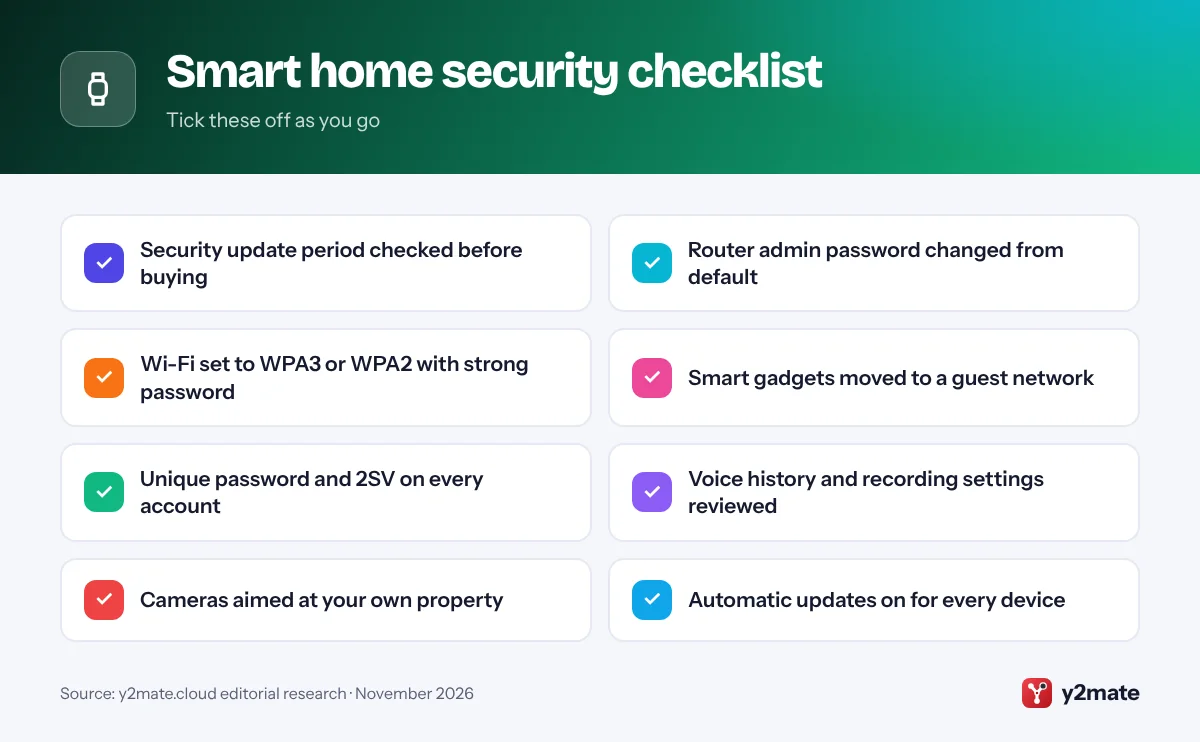
Step 2: Secure Your Wi-Fi Router and Home Network First
Every smart device reaches the internet through your router, so a weak router weakens your whole network. Sign in to its settings page or your provider’s app (the method varies by provider), then follow the Northern Ireland Cyber Security Centre’s advice:
- Change the admin password. This login controls the router’s settings and is not your Wi-Fi password. Attackers know the defaults for common models.
- Set a strong Wi-Fi password and rename a network that reveals your provider or router model.
- Choose WPA3 or WPA2 encryption. WPA3 is the newest standard. Never use the older WEP or WPA, or an open network.
- Turn on automatic firmware updates if your router offers them, and check its built-in firewall is on.
- Use a guest network for smart gadgets. A guest network is a separate Wi-Fi network on the same router. It keeps speakers, plugs and bulbs apart from the laptops and phones that hold your private data.
Remove any device you do not recognise from the router’s list of connected devices. Some gadgets need your phone on the same network during setup, which a guest network can prevent, so check each maker’s instructions.
Step 3: Use a Unique Password and Two-Step Verification on Every Account
Most smart devices are run through an app and an online account, such as an Amazon, Google, Apple or Samsung account or the maker’s own. That account is the real front door: anyone who gets in may be able to watch camera feeds, hear voice recordings or unlock a smart lock.
- Use a different password for every account. The NCSC suggests combining three random words, and a password manager can create and store them.
- Change any default password straight away. They are still common on older kit.
- Turn on two-step verification (2SV) wherever it is offered. 2SV, also called two-factor or multi-factor authentication, asks for a second check, such as a code from an authenticator app, as well as your password, so a stolen password alone is not enough.
- Consider passkeys on accounts that support them. Our passkeys guide explains how.
- Secure the linked email account, because it can reset every other password.
- Invite household members as shared users rather than sharing your login, so you can remove them later.
Step 4: Review Privacy Settings on Speakers, Cameras and Smart TVs
Default settings often favour convenience over privacy, so go through each app’s privacy and security settings after setup. Names vary by brand, but look for:
- Smart speakers and displays: use the microphone off button or setting when you want privacy. Amazon, Google and Apple all let you review or delete voice history in their apps or account settings.
- Cameras and doorbells: decide whether you need continuous recording, audio and every motion alert, keep clips only as long as you need them, and turn on end-to-end encryption if your brand offers it.
- Smart TVs: many can recognise what is on screen to personalise adverts and recommendations, a feature often called viewing information or automatic content recognition. You can usually switch it off in the privacy menu.
- Remote access: the NCSC advises switching it off if you do not need to control a device when you are away from home.
- Linked services: remove skills, integrations and third-party apps you no longer use, and turn off optional data sharing.
Also check what each app can access on your phone, such as location and contacts, and remove any permission it does not need.
Step 5: Place Cameras and Smart Doorbells Within UK Data Protection Rules
The Information Commissioner’s Office (ICO) says that, where possible, you should position cameras to capture only your own property. If a camera or doorbell captures someone else’s property, a public street or a communal space, data protection law applies, because other people’s images and voices are their personal information. The ICO’s home CCTV guidance then expects you to:
- have a clear reason and capture no more than you need, using privacy filters or blockers where possible;
- let people know, for example with a sign;
- keep footage secure and delete it regularly or automatically;
- respond to people who ask for footage of themselves or object to being recorded.
Government guidance on domestic CCTV adds that sharing recordings on social media is not appropriate.
Audio needs extra care. In Fairhurst v Woodard (2021), the County Court at Oxford found a homeowner had breached data protection law partly because his cameras and Ring doorbell picked up sound far beyond the range of their video. The ruling turned on its own facts, but switch off audio unless you need it. The ICO says its home CCTV guidance is under review after the Data (Use and Access) Act 2025. To compare equipment, see our list of home security systems in the UK.
Step 6: Keep Devices Updated and Replace Unsupported Ones
Updates fix flaws that criminals could use to take over a device or reach the rest of your network. The NCSC advises switching on automatic updates where available and installing manual updates when prompted, rather than dismissing them. Update the phone app as well as the device, and do not forget your router and any hub, because they protect everything behind them.
Keep a simple list of your devices and the date each one’s security support ends, taken from the maker’s published support period. Under the PSTI rules, a maker can extend that period but must not shorten it. After the end date, a device stops getting fixes, becomes easier to hack and may stop working as designed.
Plan to replace unsupported devices, starting with cameras, doorbells, smart locks and anything with a microphone. Until then, keep the device on your guest network and turn off remote access and features you do not use. When it goes, remove it from your account and factory reset it before you sell, donate or recycle it.
Step 7: Know What to Do If a Smart Device Is Hacked or Faulty
Warning signs include settings you did not change, unknown users in an app or unexpected login alerts. If you notice any:
- Secure the account. From a trusted device, change the password, sign out other sessions if the app allows, turn on 2SV and remove unknown users. The NCSC’s guide to recovering a hacked account explains each step.
- Reset the device. If you think someone has taken control, the NCSC advises resetting it with the maker’s instructions, then setting it up again with new passwords.
- Report security flaws to the maker using the contact it must publish under PSTI. If a new product seems to break the rules, for example by arriving with a shared default password, tell the Office for Product Safety and Standards (OPSS), which enforces them.
- Report fraud. If you have lost money or been hacked through a scam, report it to Report Fraud, which replaced Action Fraud in December 2025, and tell your bank. In Scotland, call Police Scotland on 101.
- Forward scam messages. Send suspicious emails, such as fake account warnings from a device maker, to the NCSC’s Suspicious Email Reporting Service at
report@phishing.gov.uk, and forward scam texts to 7726.
If anyone is in immediate danger, call 999.
How to Set Up Smart Home Devices Securely in a Rented or Shared Home
Renting or sharing a home adds a few extra checks:
- Read your tenancy agreement before drilling or wiring in a doorbell or camera, and get your landlord’s permission in writing. Battery-powered doorbells, plug-in cameras and smart plugs are easier to take with you.
- Ask who controls the router. If your landlord supplies the broadband, you may not be able to change its settings. Ask them to change the default admin password and keep it updated, and rely on 2SV for your own accounts.
- Ask about devices you did not install, such as smart thermostats, locks or cameras: who can access them, and whether previous tenants have been removed. The ICO says data protection rules apply to cameras covering communal areas.
- Agree rules with housemates. Indoor cameras and speakers record people in their own home, so agree where devices go and when they record, and tell guests.
- When you move out, take your devices, remove yourself from any you leave behind and change shared smart lock codes.
If you are worried that someone is using smart devices to watch or control you, domestic abuse charities such as Refuge offer tech safety advice.
Second-Hand Smart Devices: Reset, Remove and Re-Register
Used smart devices can be good value but need extra care. The PSTI rules generally apply to products sold new, so a second-hand device may predate them, still use a default password or be past the end of its security support.
Before you buy, check the model’s support end date on the maker’s website and avoid devices that are out of support or close to it. Ask the seller to remove the device from their account. Many cameras, doorbells, speakers and hubs are tied to one account, so if it is still linked you may be unable to set it up, and the previous owner may keep access.
When it arrives, the NCSC advises a factory reset, which returns the device to its original settings and wipes the previous owner’s data. Then set it up under your own account with a new password and 2SV, install updates and check for leftover shared users. If it is still registered to someone else, contact the maker’s support, as each brand handles this differently.
When you sell or give one away, remove it from every app it is linked to, including any Matter controllers, then factory reset it. The NCSC’s guide to buying and selling second-hand devices has more detail.
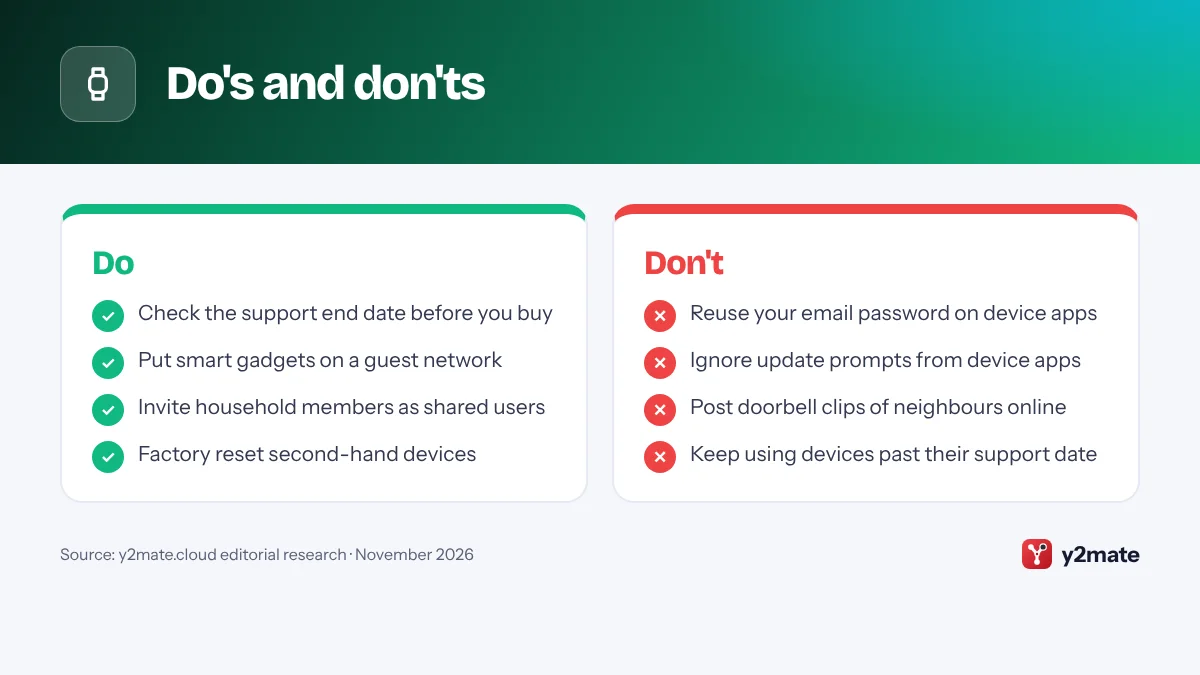
Do's and don'ts
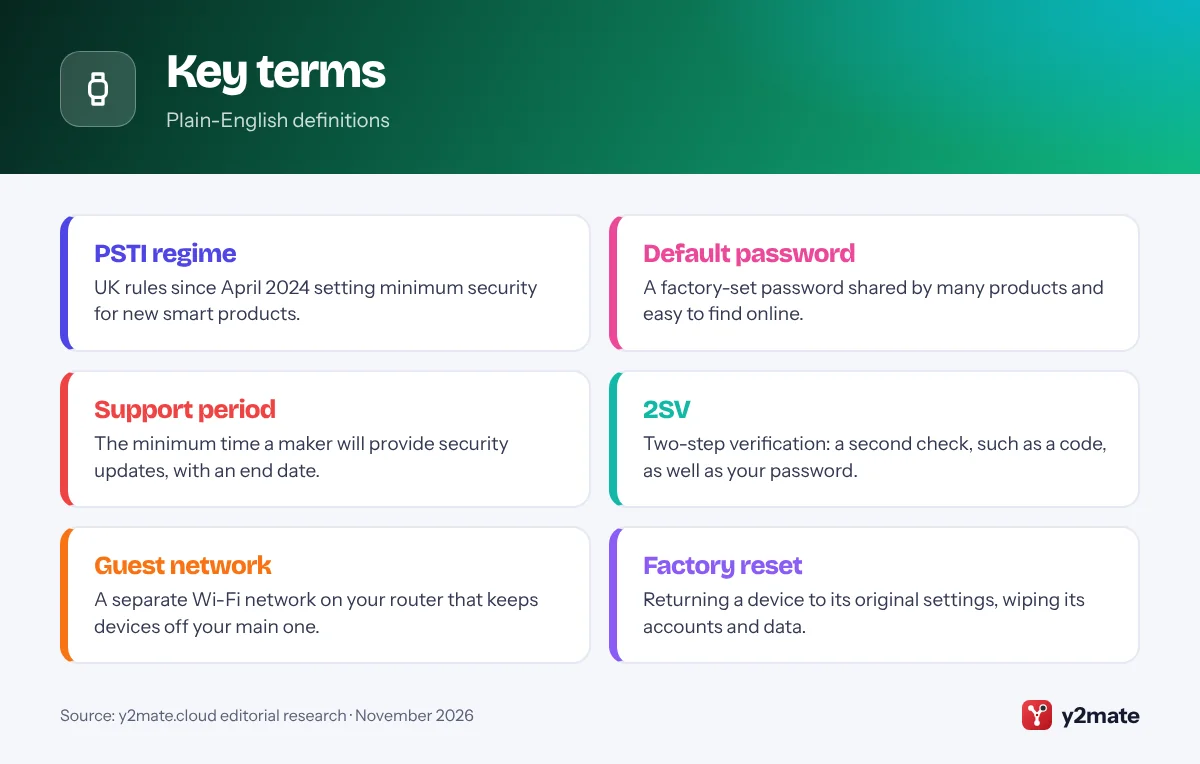
Key terms
Troubleshooting
A device will not set up on your guest network
Some devices need your phone on the same network during setup, which a guest network can block. Connect your phone to the guest network first and check whether the device needs a particular Wi-Fi band. If it still fails, use your main network with strong passwords and automatic updates on.
You cannot find a device’s security update period
Check the maker’s product and support pages and the statement of compliance. If a new product sold in the UK shows no support period, ask the retailer, choose another product or tell the Office for Product Safety and Standards.
A second-hand device is still linked to the previous owner
Ask the seller to remove it from their account, or contact the maker’s support with proof of purchase. Do not use it until it is removed, because the previous owner may still have access.
A neighbour complains about your camera or doorbell
Talk to them, show them what the camera records and adjust the angle, privacy zones or audio if you can. The ICO says owners should usually answer requests for footage within one calendar month.
Frequently asked questions
How do I set up smart home devices securely in the UK?
Start with your router: change its admin password, use WPA3 or WPA2 and consider a guest network for smart gadgets. Then give each device app a unique strong password, turn on two-step verification, review microphone, camera and data sharing settings, and switch on automatic updates. Before buying, check the maker's published security update period.
What does the PSTI law mean for smart devices I buy?
Since 29 April 2024, makers of new consumer smart products sold in the UK must not use universal default passwords, must publish how to report security issues and must state the minimum period they will provide security updates. The Office for Product Safety and Standards enforces the rules. They set a baseline, not a guarantee, so you still need to secure your accounts.
Is it legal to have a smart doorbell that records the street?
Yes, but if a doorbell or camera captures images or audio beyond your property boundary, UK data protection law applies. The ICO says you should have a clear reason, capture no more than you need, put up a sign, keep footage secure, delete it regularly and respond to requests from people you record. Switching off audio recording reduces the risk.
Should I put smart home devices on a guest Wi-Fi network?
It is a good idea if your router supports it. A guest network keeps smart speakers, plugs and bulbs separate from the laptops and phones that hold your private data, so a compromised gadget has less to reach. Some devices need your phone on the same network during setup, so check the maker's instructions first.
What should I do with a smart device that no longer gets security updates?
Plan to replace it, starting with cameras, doorbells, smart locks and anything with a microphone, because unsupported devices are easier to hack. Until then, keep it on a guest network and turn off remote access and features you do not use. Before selling, donating or recycling it, remove it from your account and factory reset it.
Wrapping up
To set up smart home devices securely, work from the outside in: choose products with a published security update period, lock down your router, give every account a unique password and two-step verification, then tune privacy settings, camera angles and updates. Note each device’s support end date so you know when to replace it.
The PSTI rules mean new products should no longer arrive with shared default passwords, but they cannot configure your home for you. Revisit your settings whenever you add a device, move house or someone leaves your household.
Sources and further reading
- GOV.UK product security regime: The government's guide to the PSTI rules on default passwords, reporting security issues and publishing minimum security update periods.
- NCSC smart devices guidance: The National Cyber Security Centre explains how to choose, set up, update and safely dispose of smart devices at home.
- Securing your home Wi-Fi: The Northern Ireland Cyber Security Centre's steps for securing your router, Wi-Fi encryption and a separate network for smart devices.
- ICO guidance on home CCTV: The Information Commissioner's Office sets out the data protection rules for home cameras and smart doorbells that record beyond your property.
- Report Fraud: The national police service for reporting fraud and cyber crime, which replaced Action Fraud in December 2025.

Leave a Reply